System Settings? A Tour
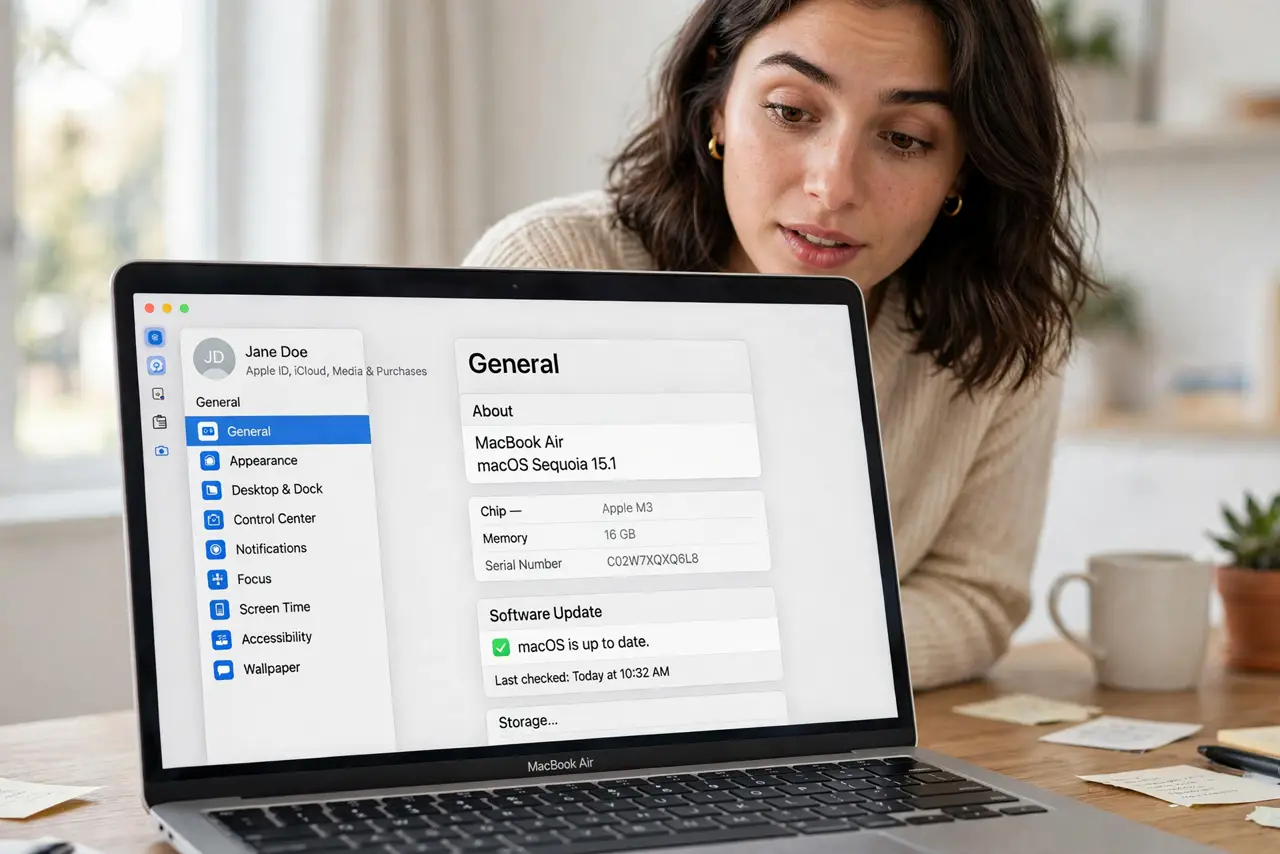
Apple replaced the old System Preferences with System Settings — a sidebar layout that looks like the iPhone's Settings app. If you knew exactly where everything was before, you now feel lost in your own Mac. The good news: everything is still there, just reorganized. This tour maps the new layout so you can find things fast.
TL;DR / Quick Fix
Quick fix: open System Settings from the Apple menu and use the search field at the top — it finds any setting instantly, no memorization needed. The sidebar groups settings by theme: network under Wi-Fi, displays under Displays. Search first, browse second, and you'll rarely get lost.
Follow these steps
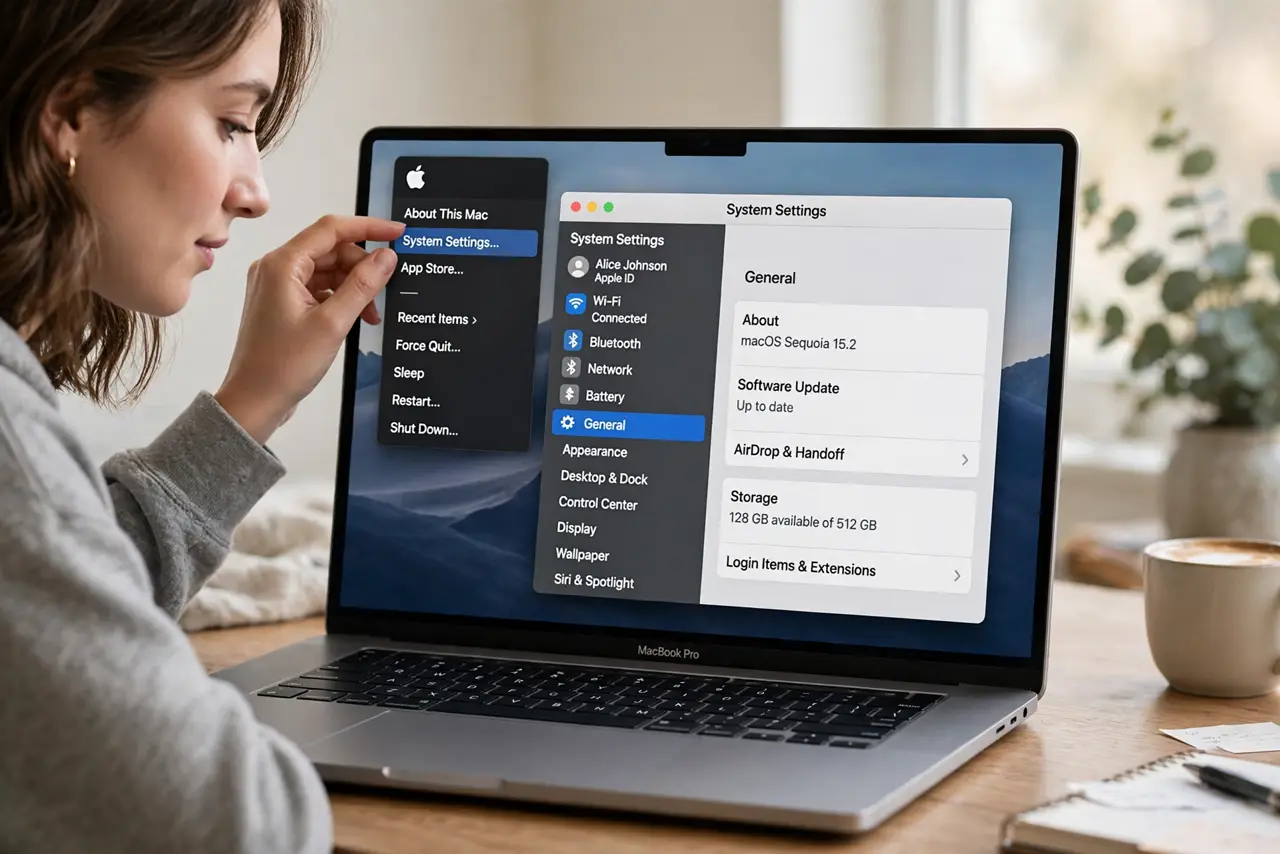
- Open it three ways. Apple menu, System Settings is the classic route. Or press Command+Space and type it, or right-click the Wi-Fi or Bluetooth menu bar icon for a shortcut to that pane. Spotlight is the fastest once you build the habit.
- Use the search field. The search box at the top of the sidebar finds settings by keyword — type printer, mouse, or battery and jump straight there. This single habit replaces memorizing the whole layout.
- Learn the sidebar groups. Settings are grouped by theme now: Apple ID at top, then connectivity (Wi-Fi, Bluetooth), then hardware (Displays, Sound), then system (General, Privacy). Related things live together — think in themes, not in old Preference-pane names.
- Know where the classics moved. Displays, Sound, and Network kept their names but moved into the sidebar list. Startup Disk and Time Machine now live under General. If something vanished, search for it — it moved, it wasn't removed.
- Use the back button. Drilled three levels deep and lost? The back arrow at the top of each pane walks you back up. The sidebar always shows where you are, so orientation is one glance away.
- Don't fear changing things. Almost every setting here is reversible with one toggle. Explore freely — and if a change confuses you, the search field will find the same pane again in seconds.
What NOT to do
- Do not hunt through every pane manually. The search field exists precisely because the layout changed — use it instead of memorizing locations.
- Do not change settings you don't understand in Privacy & Security. Toggling system protections off because a dialog told you to is how Macs get compromised.
- Do not assume a missing pane means a missing feature. Some panes appear only when the hardware exists — no printer connected, no Printers pane.
- Do not ignore the Apple ID section at top. Sign-in issues, iCloud storage, and device lists live there — it's the first place to check for sync problems.
Frequently asked questions
Where did Network preferences go?
It's now Wi-Fi (or Network) in the sidebar, grouped with Bluetooth. VPN and advanced options moved under the details buttons within those panes.
How do I get the old grid view back?
You can't — the sidebar layout is permanent. But search plus the sidebar is genuinely faster than the old grid once you adjust.
Why do some panes ask for my password?
Lock icons mark protected settings. macOS asks for authentication before changing security-sensitive options — that's protection working as intended.