Display Scaling? Basics
Your new 4K monitor makes everything microscopic — or your MacBook's text feels cramped next to your old display. Display scaling fixes it: macOS renders at high resolution for sharpness, then scales the interface so text and buttons are a comfortable size. Picking the right scaling is the difference between a gorgeous screen and a headache.
TL;DR / Quick Fix
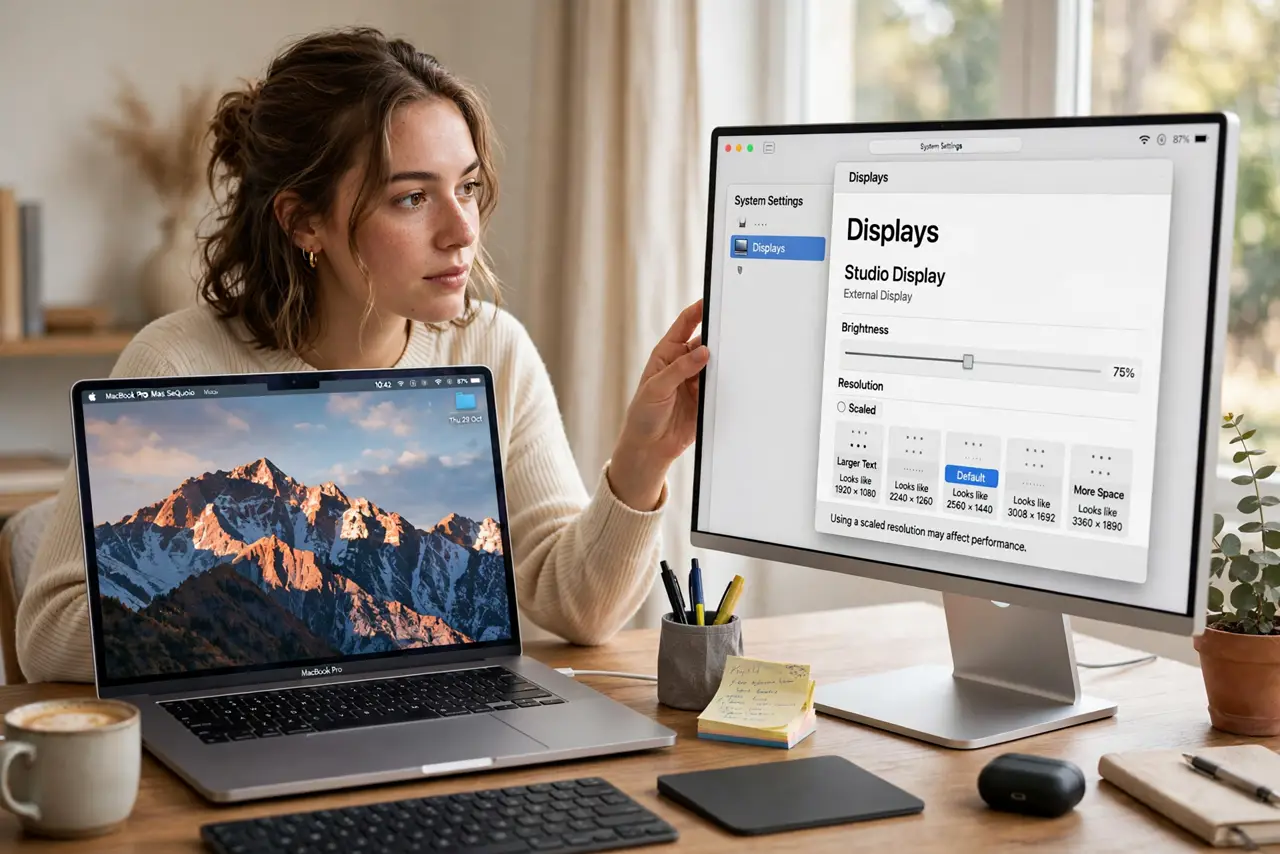
Quick fix: open System Settings, Displays, and pick a scaled resolution — Larger Text for comfort, More Space for room. macOS keeps everything sharp regardless; you're choosing interface size, not quality. Try each option for a few minutes before settling.
Follow these steps
- Open Displays settings. System Settings, Displays — select the screen you want to adjust if you have more than one. Each display gets its own scaling, which is exactly what multi-monitor setups need.
- Understand the tradeoff. Larger Text: bigger interface, less room, easiest on eyes. More Space: more room, smaller text, best for multitasking. Default sits in the middle — there's no wrong answer, only preference.
- Know it's still sharp. Scaling doesn't blur like old low-res modes — macOS renders everything at full resolution then scales. Text stays crisp at every setting; you're changing size, not quality.
- Fix external monitor weirdness. Non-Apple 4K monitors sometimes pick odd defaults. If text looks wrong on an external display, cycle through the scaled options — and see blurry external monitor fixes for the Windows-side equivalent concepts.
- Consider your viewing distance. A monitor two feet away can use More Space comfortably; a TV across the room needs Larger Text. Distance and scaling work together — adjust both, not just one.
- Don't chase the max. Maximum More Space gives the most room but the tiniest text — eye strain follows. Pick the smallest text you can read comfortably for hours, not the most impressive screenshot.
What NOT to do
- Do not use non-scaled low resolutions. Picking an actual 1080p mode on a 4K screen throws away the sharpness you paid for — always use scaled modes instead.
- Do not set different scalings and expect identical text sizes. Two monitors with different scaling show different text sizes — that's normal, match by comfort per screen.
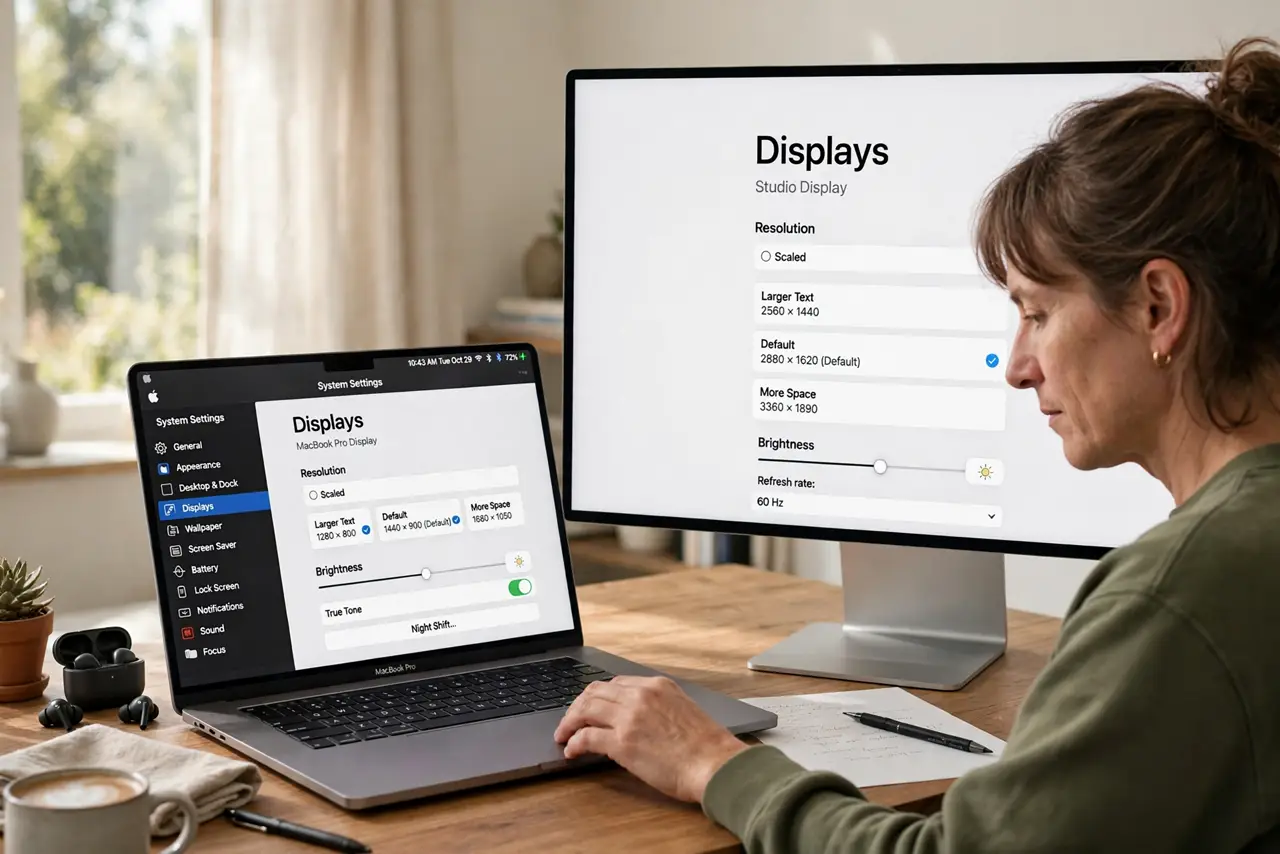
- Do not ignore refresh rate while you're there. Some monitors default to 30 Hz, which feels laggy — check the refresh rate dropdown in the same Displays pane.
- Do not assume More Space is always better. Tiny text causes squinting and headaches — comfort beats screen real estate for long sessions.
Frequently asked questions
Why does my external monitor look blurry?
Usually it's running a non-native resolution instead of a scaled mode, or the cable limits bandwidth. Set a scaled resolution and check the cable supports the monitor's full spec.
Does scaling hurt performance?
Slightly — the GPU works harder rendering at high resolution. On Apple Silicon Macs the impact is negligible; on old Intel Macs with 4K+ displays you might notice it.
What's the best scaling for a 27-inch 4K?
Most people land on the middle 'looks like 1440p' option — sharp text at a comfortable size. Try it first, then adjust to taste.