Tag Files in Finder? How To
Your files live in ten different folders but belong to three projects, and hunting them down eats your afternoons. Finder tags let you label files across locations and pull them together instantly — a second organization system that doesn't disturb the first.
TL;DR / Quick Fix
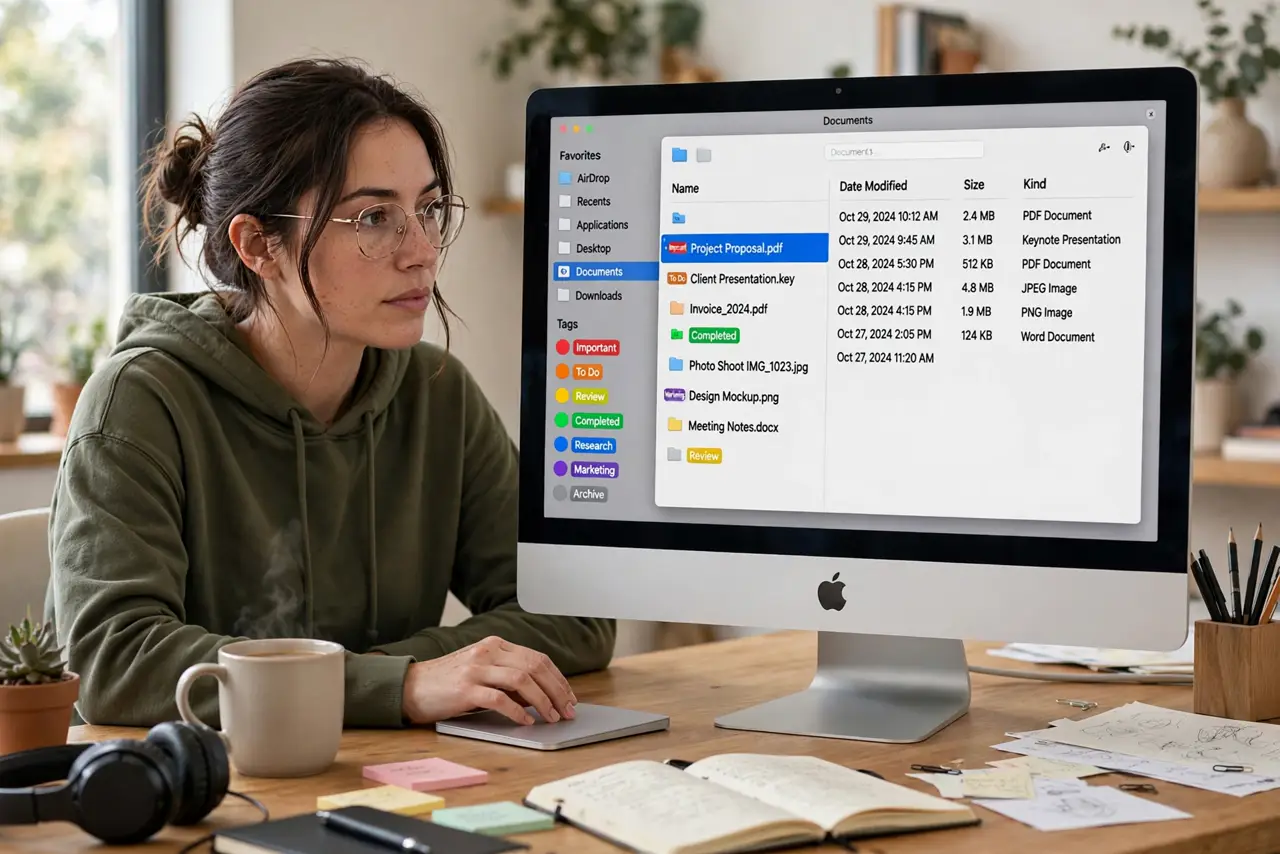
Quick fix: select files in Finder, right-click, and assign a colored tag. Click any tag in the Finder sidebar to see every file with that tag, wherever it lives. Tags are perfect for projects that span multiple folders without moving anything.
Follow these steps
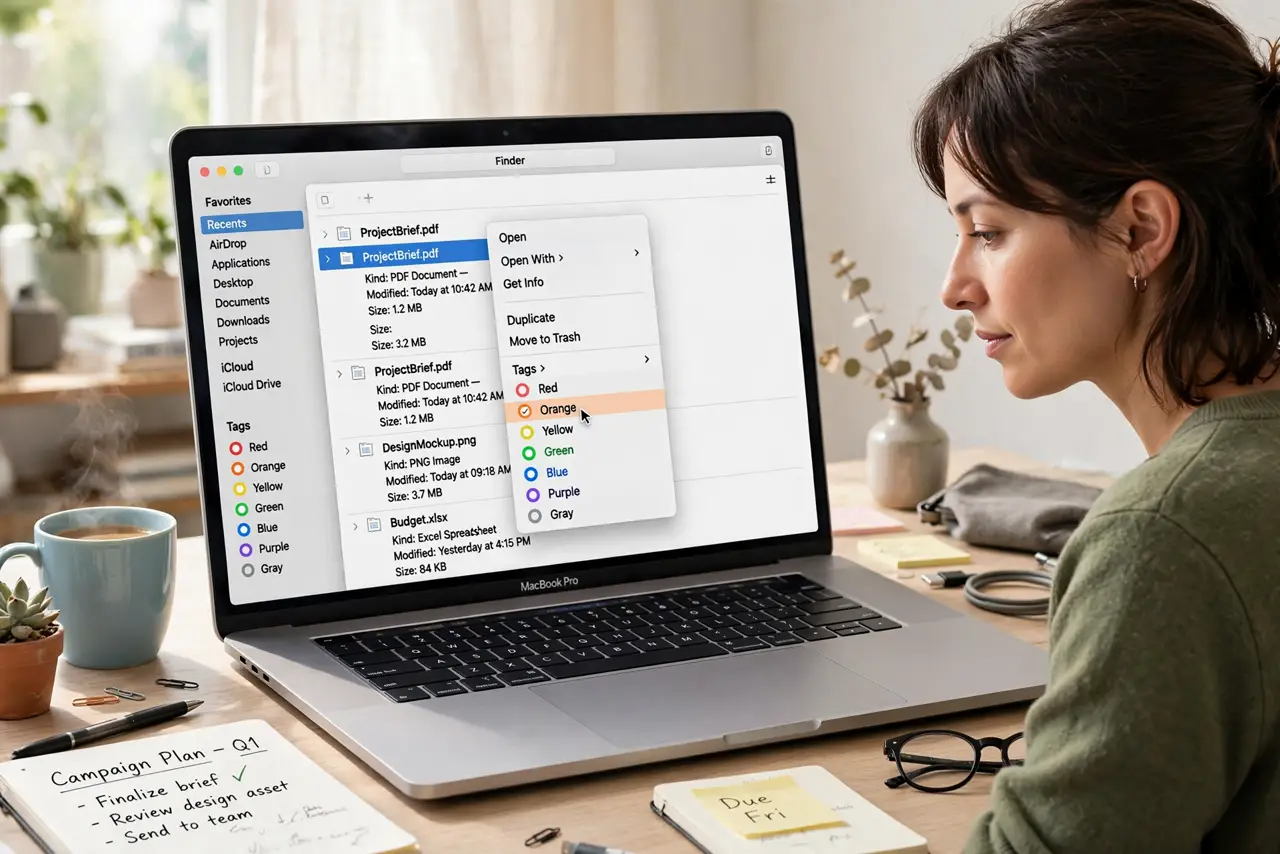
- Tag a file. Select files in Finder, right-click > Tags, and pick a color or type a new tag name. Multiple tags per file are fine — a file can be both 'Project X' and 'Urgent.'
- Browse by tag. Click a tag in the Finder sidebar to see every tagged file in one view, regardless of folder. This is the payoff — cross-folder projects in one click.
- Create tag names that mean something. Finder Settings > Tags lets you rename colors to project names. 'Red' is forgettable; 'Website Redesign' is a system.
- Search by tag. Type tag:ProjectName in Spotlight or Finder search to filter instantly. Tags are first-class search citizens.
- Remove tags without touching files. Right-click > Tags and uncheck to untag. The file stays exactly where it was — tags are labels, not locations.
- Watch for sync quirks. Tags sync via iCloud Drive, but they can disappear after sync or fail to sync — know the fixes before relying on tags across devices.
What NOT to do
- Do not tag everything. A tag on every file is the same as a tag on no file — reserve tags for the slices you actually browse by.
- Do not use tags as your only organization. Folders are the structure; tags are the cross-cutting view. You need both.
- Do not create near-duplicate tags. 'ProjectX,' 'project-x,' and 'Project X' are three different tags — pick one spelling and stick to it.
- Do not expect tags on non-Apple file systems to travel. Tags live in macOS metadata; copy a file to a FAT32 drive and the tags stay behind.
Frequently asked questions
Do tags work on files in iCloud Drive?
Yes — and they sync to your other Macs. That's also where the sync quirks above come from, so test with a few files first.
Can I tag folders too?
Yes. Tagging a folder tags the folder itself, not its contents — browse the tag to see the folder, then open it normally.
How are tags different from Smart Folders?
Tags are labels you stick on files; a Smart Folder is a saved search. They complement each other — tag the files, then build Smart Folders on the tags.