Text Replacements? Set Them Up
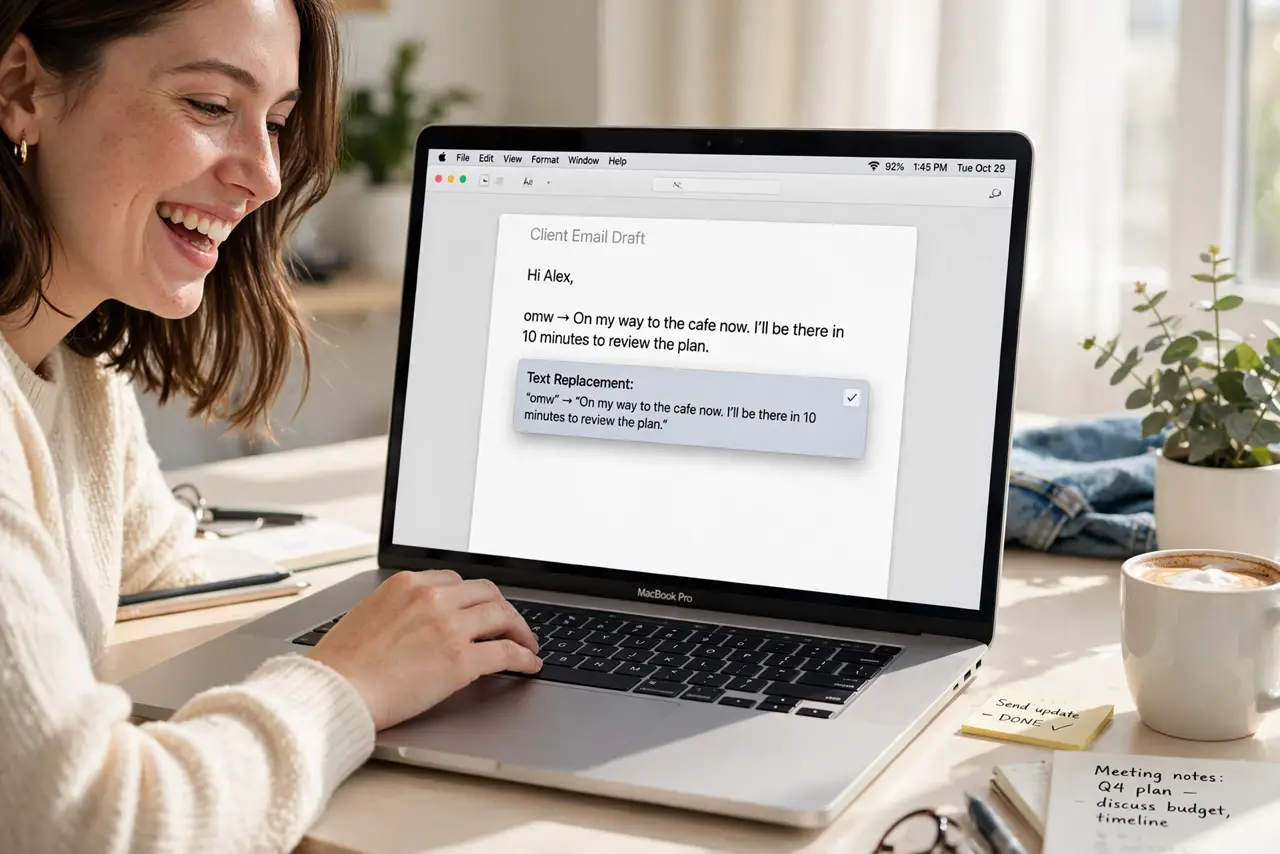
You type your email address, your address, or the same phrases dozens of times a day. Text replacements turn a few typed letters — like 'eml' — into the full text, everywhere on the Mac. Set them once, save thousands of keystrokes.
TL;DR / Quick Fix
Quick fix: open System Settings, go to Keyboard, then Text Input, and add replacements under Text Replacements. Type a short trigger like 'addr' and the full text it should expand to. They work in most Apple apps and many third-party ones.
Follow these steps
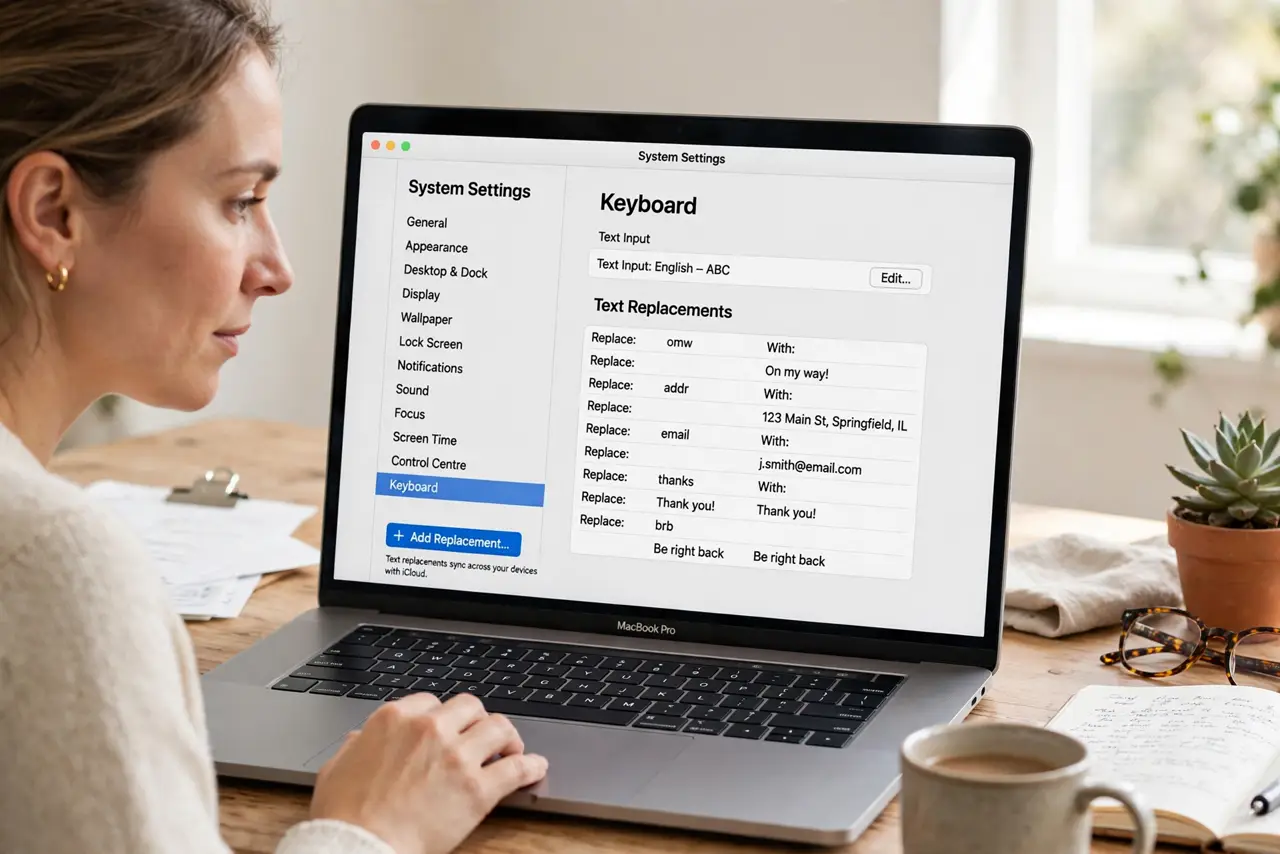
- Open Text Replacements. System Settings > Keyboard > Text Input > Text Replacements. The list starts with a couple of Apple defaults you can delete.
- Add a replacement. Click +, type the short trigger on the left ('eml') and the full expansion on the right ('[email protected]'). Short, untypeable triggers work best.
- Pick triggers you'll never type accidentally. 'addr' is safe; 'a' is a disaster. Use prefixes like ';' or double letters (e.g., 'eeml') for triggers that can't collide with real words.
- Test in TextEdit. Type the trigger followed by a space in TextEdit. The expansion should pop in — if not, check that 'Correct spelling automatically' hasn't interfered, or turn autocorrect off while testing.
- Sync across devices. Replacements sync via iCloud to your iPhone and iPad — set them once, type less everywhere. They arrive within minutes on a good connection.
- Prune yearly. Triggers for old addresses and dead projects become landmines. A yearly review keeps the list trustworthy — and check the emoji shortcut for the symbols you type often.
What NOT to do
- Do not use real words as triggers. A trigger of 'the' expanding to your address will ruin every sentence you type.
- Do not store passwords as replacements. Convenient, yes — and readable by anyone who opens the list or shoulder-surfs an expansion.
- Do not expect them in every app. Most Apple apps and many others support them; some cross-platform apps and games ignore macOS text services.
- Do not confuse replacements with autocorrect. Replacements are your deliberate shortcuts; autocorrect is the system's guesses — different lists, different behavior.
Frequently asked questions
Why isn't my replacement expanding?
The app may not support macOS text replacement, or the trigger needs a trailing space or punctuation. Test in TextEdit to isolate the app vs. the setting.
Can I use replacements for code snippets?
You can, but a proper snippet manager handles multi-line code better. Replacements shine for addresses, emails, and short phrases.
Do they work on iPhone too?
Yes — they sync via iCloud and work in iOS apps that support text replacement. One list, all your Apple devices.