Turn Off Autocorrect on Mac
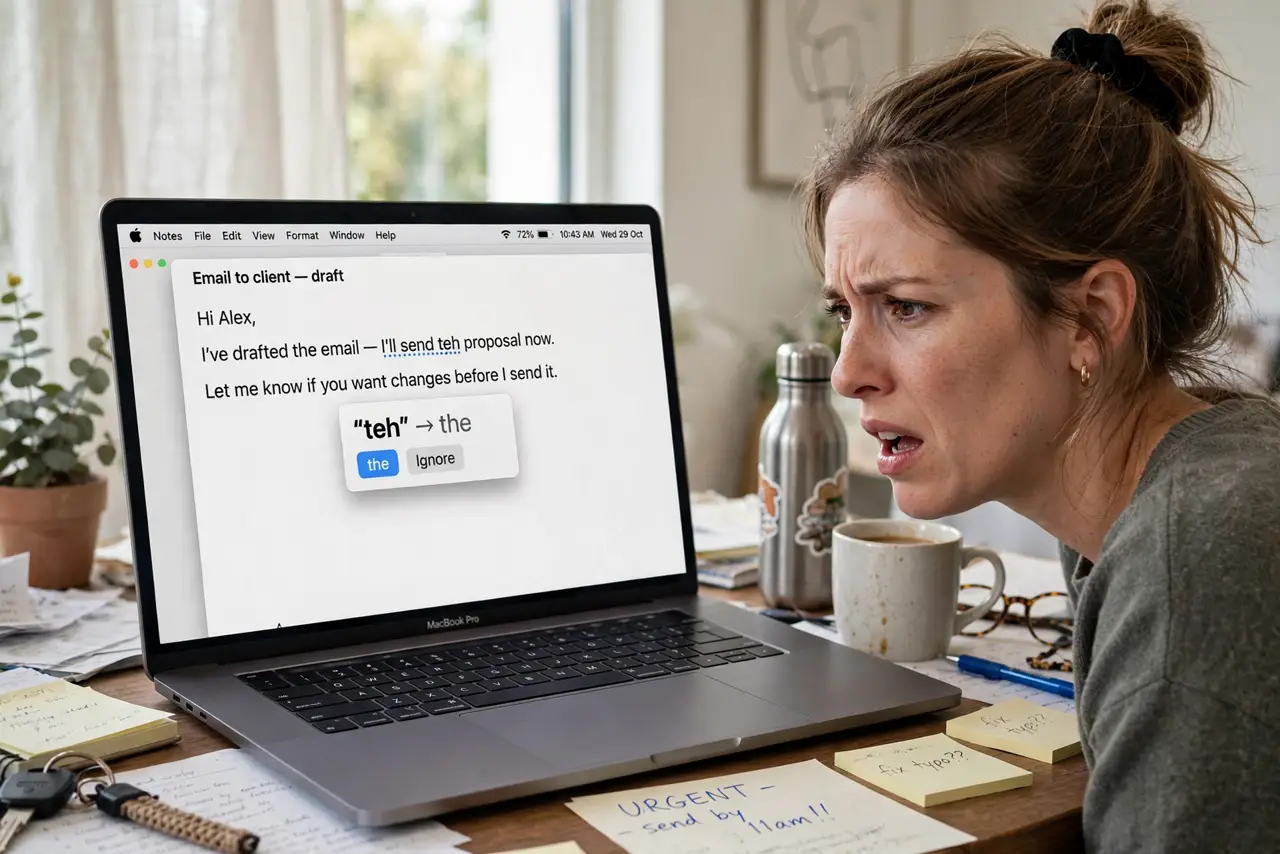
Autocorrect keeps 'fixing' names, technical terms, and slang into wrong words — sometimes in front of clients. macOS lets you turn it off entirely or per app. If the red squiggles and surprise substitutions drive you mad, here's the off switch.
TL;DR / Quick Fix
Quick fix: open System Settings, go to Keyboard, then Text Input, and turn off 'Correct spelling automatically.' For a single app, use Edit > Spelling and Grammar in its menu bar instead. Your typing stays exactly as you typed it.
Follow these steps
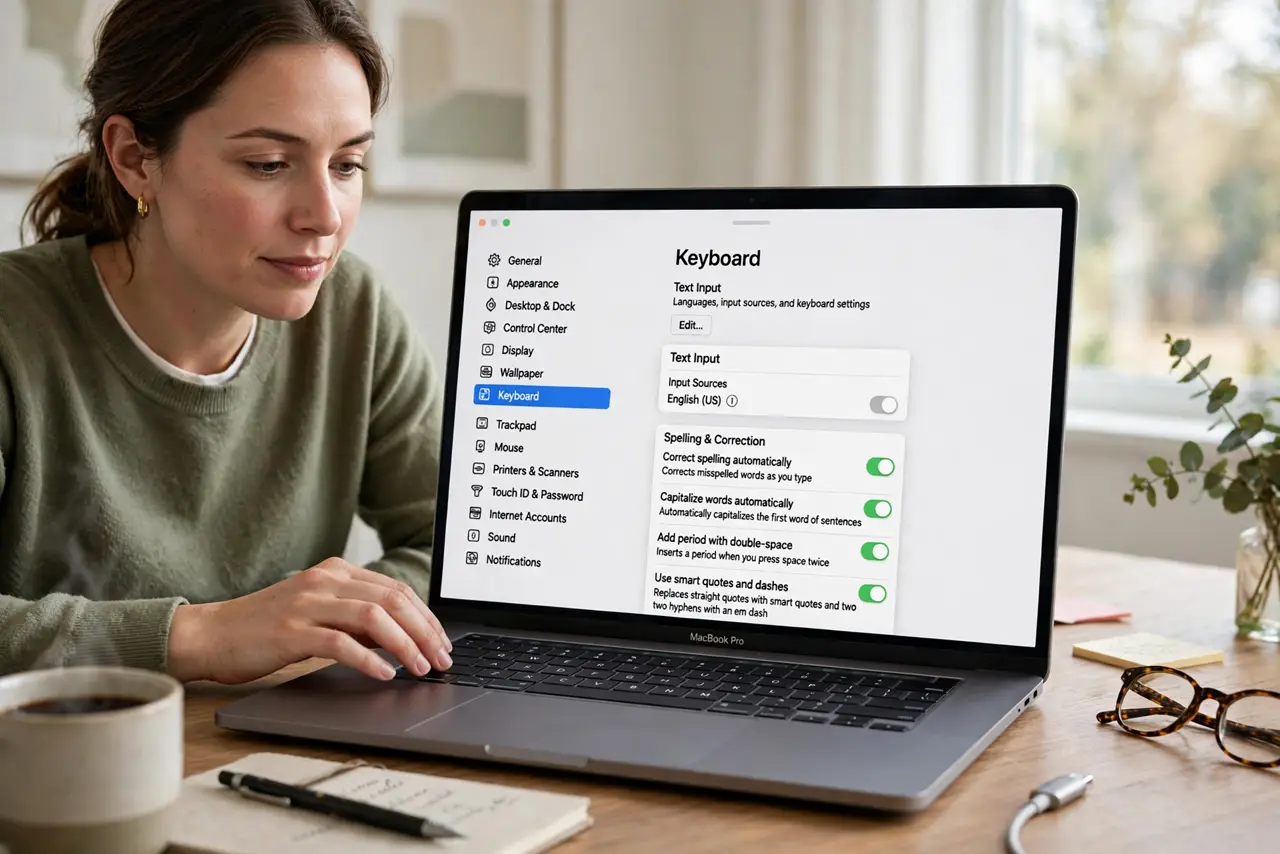
- Open Text Input settings. System Settings > Keyboard > Text Input. The spelling and correction toggles live here, not under Language.
- Turn off automatic correction. Disable 'Correct spelling automatically.' Substitutions stop immediately — no restart, no logout.
- Decide about the red underlines. You can keep 'Show spelling errors' on while correction is off — see the typos without the surprises. Many writers prefer exactly this combo.
- Turn it off per app instead. In any app: Edit > Spelling and Grammar > uncheck 'Correct Spelling Automatically.' Useful when you want correction in Mail but not in your code editor.
- Check the language. Autocorrect uses the active input language's dictionary — wrong-language 'corrections' mean the wrong dictionary, a cousin of the wrong-language autocorrect problem.
- Keep your deliberate shortcuts. Turning off autocorrect doesn't touch your text replacements — those are yours and they stay.
What NOT to do
- Do not turn off spellcheck entirely in frustration. The red underlines are harmless information; it's the auto-changing that's the enemy.
- Do not blame the keyboard for autocorrect. It's a software layer — no key remapping or layout change affects it.
- Do not expect per-app settings to sync. Each app remembers its own spelling settings independently.
- Do not forget iPhone has its own toggle. Mac and iOS correction settings are separate — fix both if both annoy you.
Frequently asked questions
Will turning it off affect my text replacements?
No. Replacements are your explicit shortcuts and keep working. Only the system's automatic 'corrections' stop.
Why does it still correct in one app?
That app has its own override enabled. Use its Edit > Spelling and Grammar menu to turn correction off there specifically.
Is there a middle ground?
Yes — keep correction on but add problem words to the dictionary (right-click the flagged word > Learn Spelling). The system stops 'fixing' words it now knows.