Time Machine Excludes a Folder Silently
Time Machine backs up the Mac, but one folder is missing from the backup and nobody told you. The exclusions list is the first place to look — a folder can be added there by an app, a setup step, or a past choice.
TL;DR / Quick Fix
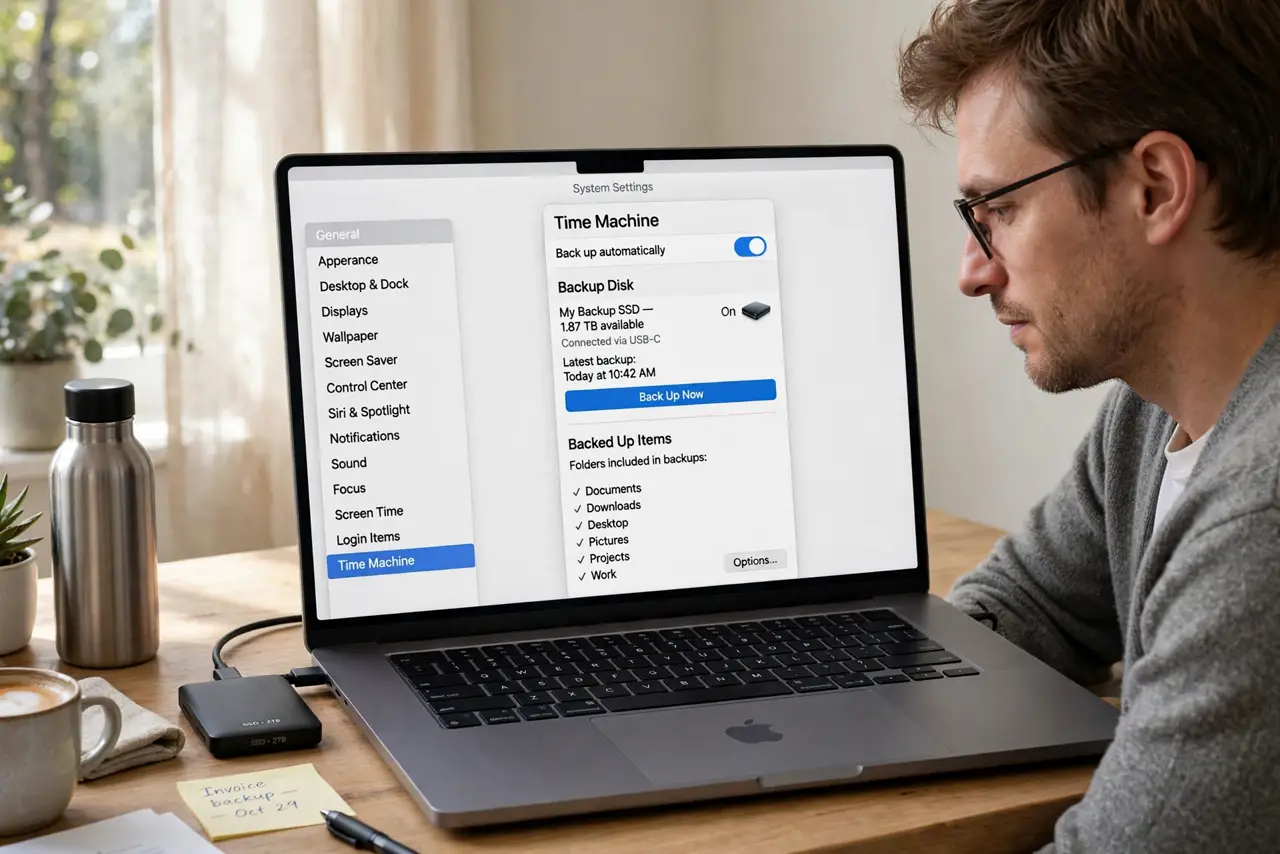
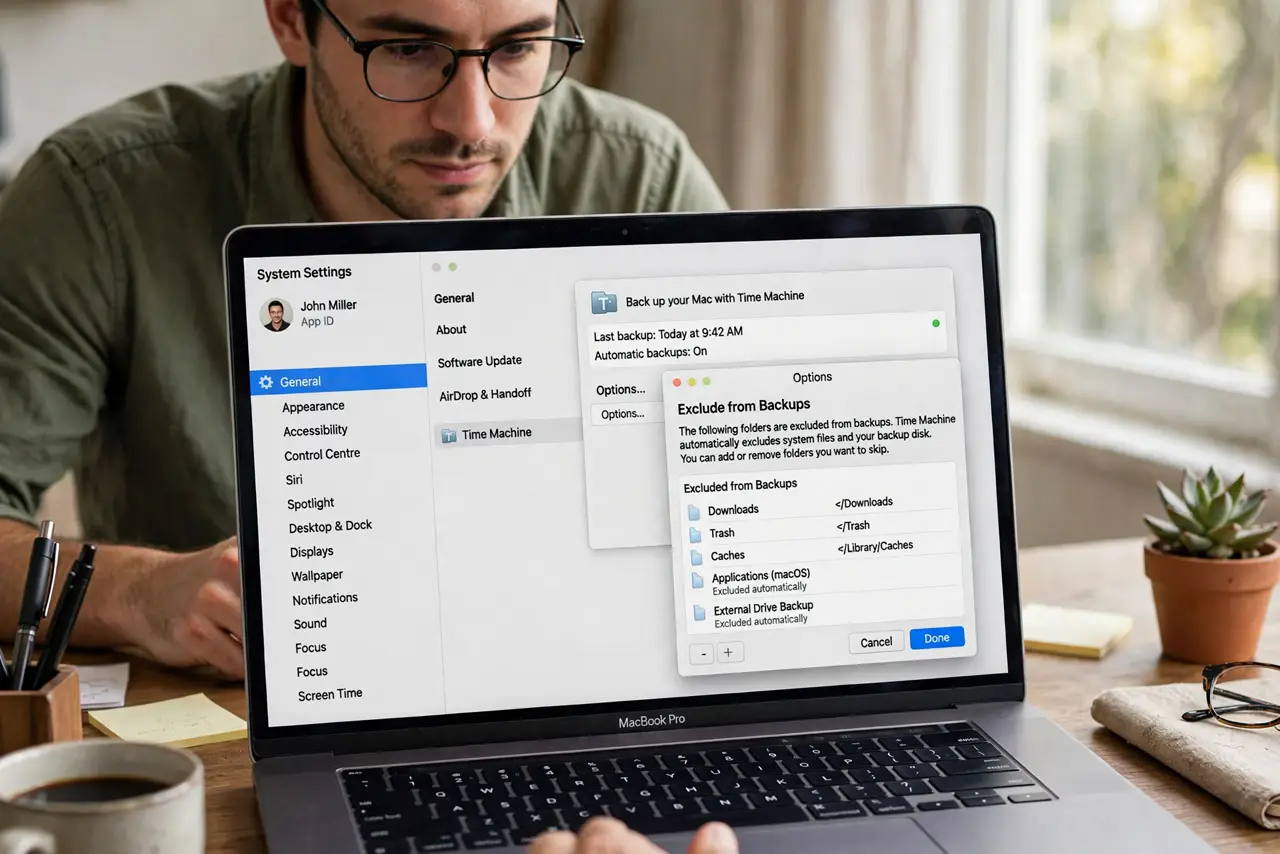
Quick fix: open System Settings, then General, then Time Machine, then Options, and review the Exclude list. Remove the folder you want backed up, then run a backup and confirm the folder is included and confirm the folder appears in the newest backup.
Follow these steps
- Open the Time Machine exclusions list. Open System Settings, then General, then Time Machine, and choose Options. The Exclude from Backups list shows every folder Time Machine skips, including ones you did not add yourself.
- Remove the folder you want backed up. Select the missing folder in the exclusions list and remove it with the minus button. From the next backup on, Time Machine will include it again.
- Check for app-added exclusions. Some apps add their own cache or data folders to the exclusion list during setup. Review the whole list, not just the folder you noticed, so no other important folder is silently skipped.
- Run a backup right after the change. Start a backup manually once you remove the exclusion. A new backup is the only way to confirm the folder is now included, since older backups will still lack it.
- Verify the folder inside the backup. Open Time Machine, go back in time, and look for the folder in the newest backup. If it appears there, the fix worked and future backups will keep it.
- Keep a note of folders you exclude on purpose. If you exclude a huge folder on purpose to save space, write it down. That note stops a future surprise when you expect that folder in a backup and it is not there.
What NOT to do
- Do not assume every file is backed up just because Time Machine is on. Exclusions skip folders silently, so the list deserves a check before you rely on a backup.
- Do not remove every exclusion to be safe. Some caches are excluded for good reason, and backing them up wastes drive space without protecting anything useful.
- Do not delete the folder and restore it from elsewhere as a test. That risks real data loss, while checking the newest backup confirms inclusion safely.
- Do not wait for a drive failure to discover a missing folder. A quick check of the newest backup now is far cheaper than learning about the gap later.
Frequently asked questions
Why would Time Machine skip a folder without telling me?
Because the folder sits in the exclusions list, added during setup, by an app, or by an earlier choice you forgot.
Will removing the exclusion restore old backups?
No. Older backups still lack the folder, but the next backup after the change will include it.
Should I exclude anything at all?
Yes, large caches and files you can re-download are fair exclusions, as long as you know what you chose to skip.