Time Machine Snapshots Fill Your Mac Disk
Local snapshots are hourly safety copies Time Machine keeps on your Mac when the backup drive is away. They are supposed to clear themselves when space gets tight, but a full disk can make the Mac feel stuck before that cleanup kicks in.
TL;DR / Quick Fix
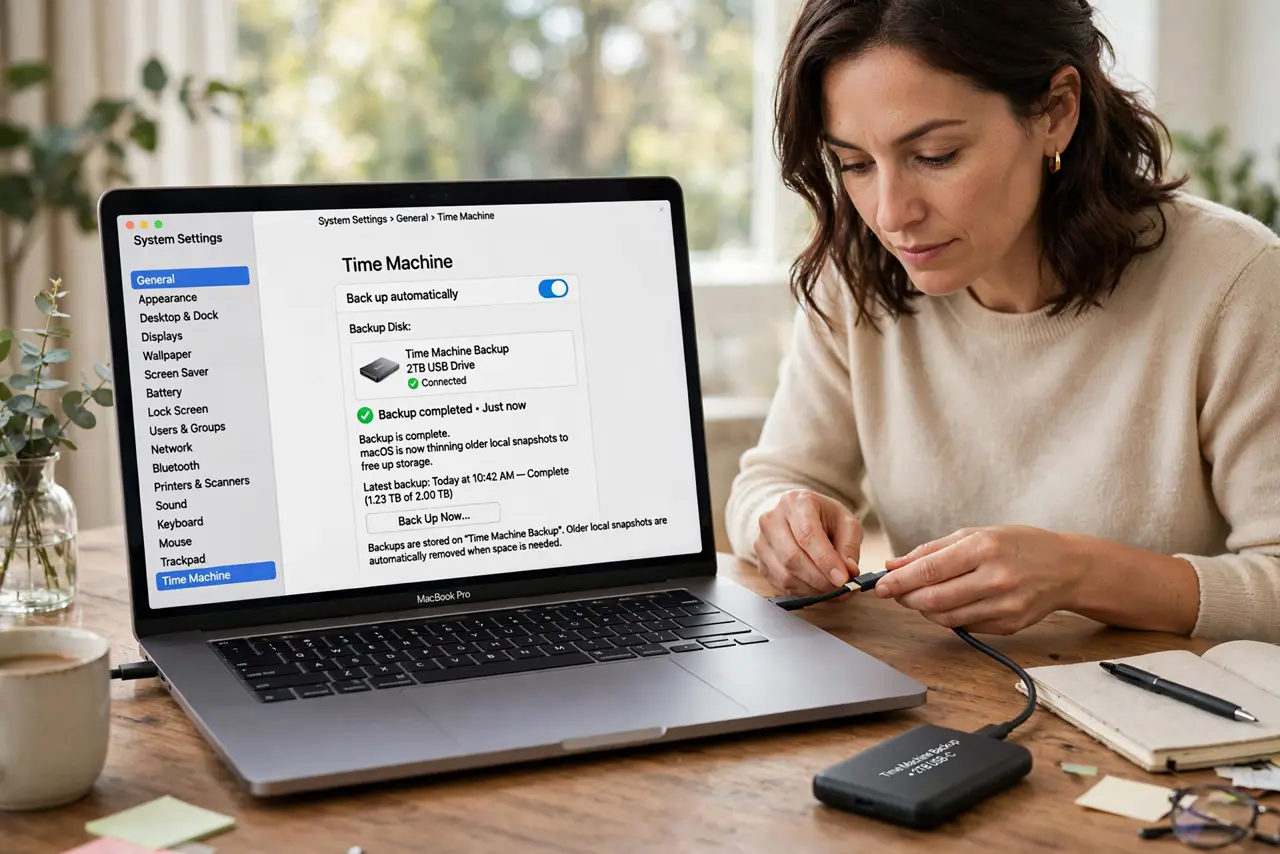
Quick fix: connect your Time Machine drive and let a full backup complete, which lets macOS thin old snapshots. Then check storage again after an hour, and only delete snapshots deliberately if space is still critically low. Test the fix, then keep the setting that works.
Follow these steps
- Connect the backup drive. Plug in your Time Machine drive and let a backup run to completion. A completed backup is the normal signal for macOS to thin out older local snapshots.
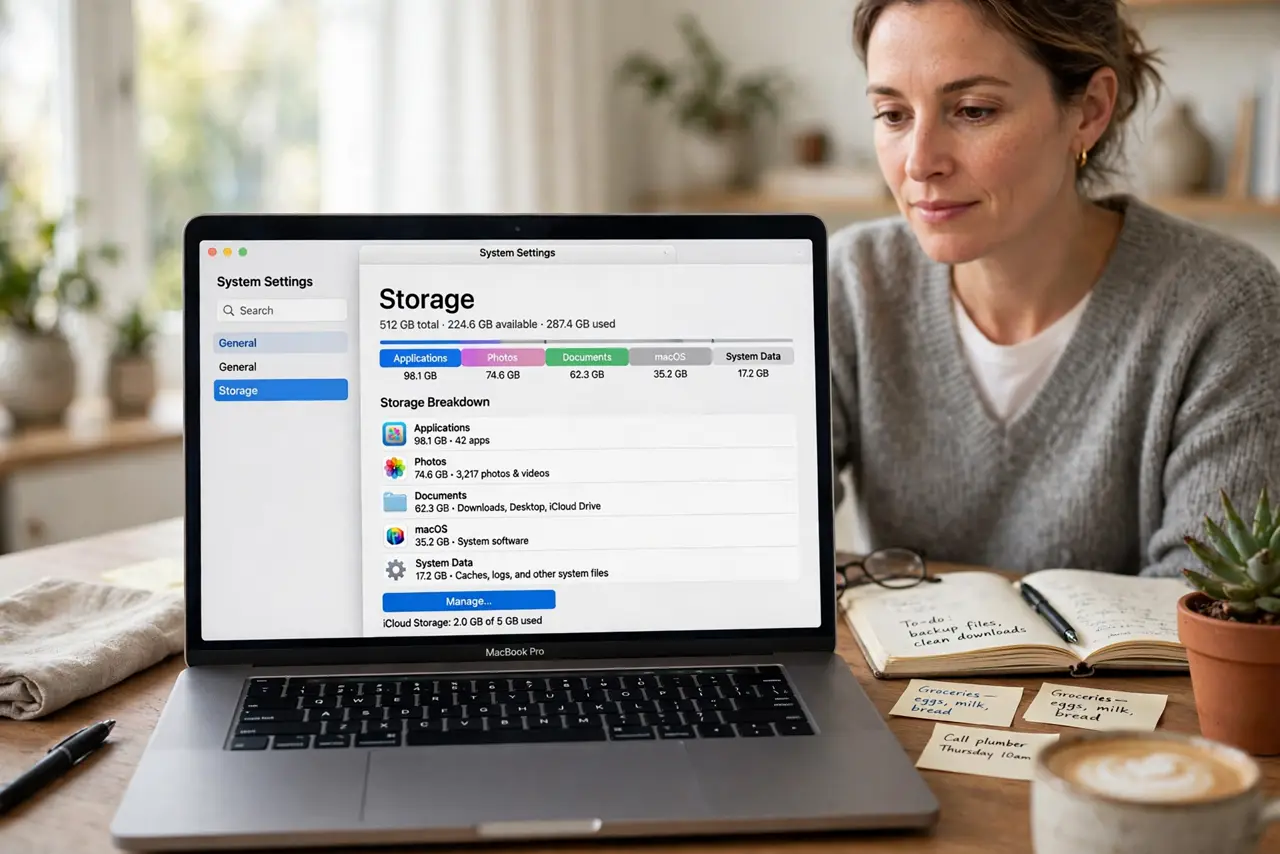
- Check storage honestly. Open storage settings and look at how much space snapshots and system data actually use. A number here beats guessing, and it tells you whether snapshots are really the problem.
- Wait for automatic thinning. Give macOS time after the backup, ideally an hour, to clear snapshots on its own. Automatic thinning is the safe path, and it usually works once a backup succeeds.
- Restart if space looks stuck. Restart the Mac once and recheck storage after it settles. A restart can release snapshots tied to a stuck process that normal thinning missed.
- Free real files too. While waiting, delete files you genuinely do not need, such as large downloads or old installers. Real free space gives macOS room to manage snapshots properly.
- Check again tomorrow. Recheck storage the next day after another backup. If snapshots keep growing despite successful backups, the backup drive or schedule needs attention, not just the snapshots.
What NOT to do
- Do not delete snapshot files by hand from hidden system folders. Removing the wrong files can damage Time Machine and your backups.
- Do not turn Time Machine off permanently to reclaim space. You lose your safety net, and snapshots are not the only thing using the disk.
- Do not fill the disk to zero while troubleshooting. A completely full disk stops macOS from cleaning up anything, including snapshots.
- Do not assume every gigabyte of system data is snapshots. Check the storage breakdown first, so you fix the real cause instead of the suspected one.
Frequently asked questions
What are Time Machine local snapshots?
They are hourly copies Time Machine keeps on your Mac itself when the backup drive is not connected, so you can still recover recent files.
Will macOS delete snapshots on its own?
Yes, when space gets tight and after successful backups. Thinning is automatic, though it can feel slow on a nearly full disk.
Is it safe to force-delete snapshots?
Only through supported methods and as a last resort. Hand-deleting system snapshot files can damage backups, so let backups and thinning work first.