Time Machine on a New Drive?
Your old backup drive is full, dying, or just too small — moving Time Machine to a new drive is straightforward, but the first backup takes hours and there are a couple of traps. This guide shows how to add the new drive, what format it needs, and when it is safe to retire the old one.
TL;DR / Quick Fix
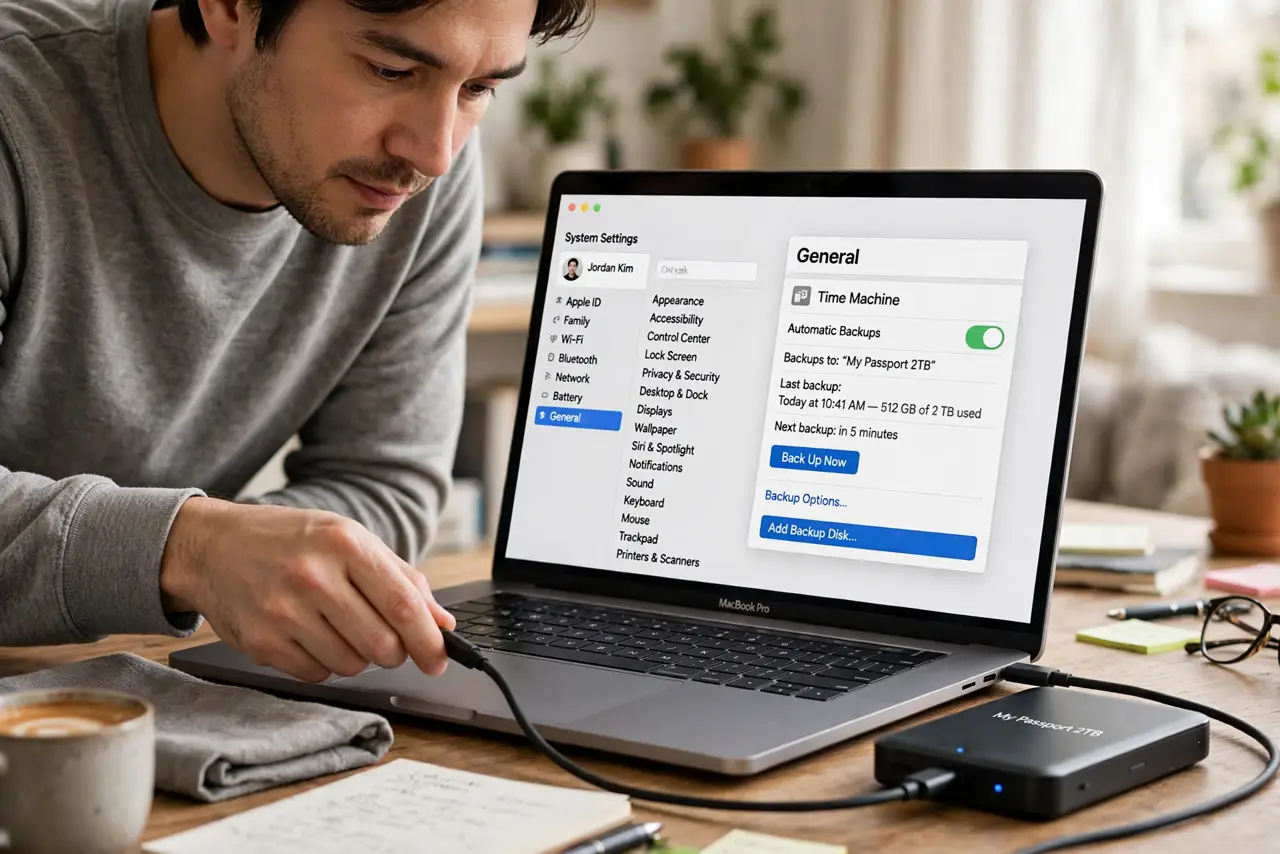
Quick fix: to use Time Machine with a new drive, connect it, open System Settings, General, Time Machine, and add the disk — macOS offers to format it correctly. The first backup takes hours; leave the Mac plugged in. Keep the old drive until the new backup completes successfully.
Follow these steps
- Connect the new drive. Plug it in directly — not through a flaky hub — for the first backup. Bigger than your Mac's internal storage is the rule of thumb; twice as big is comfortable.
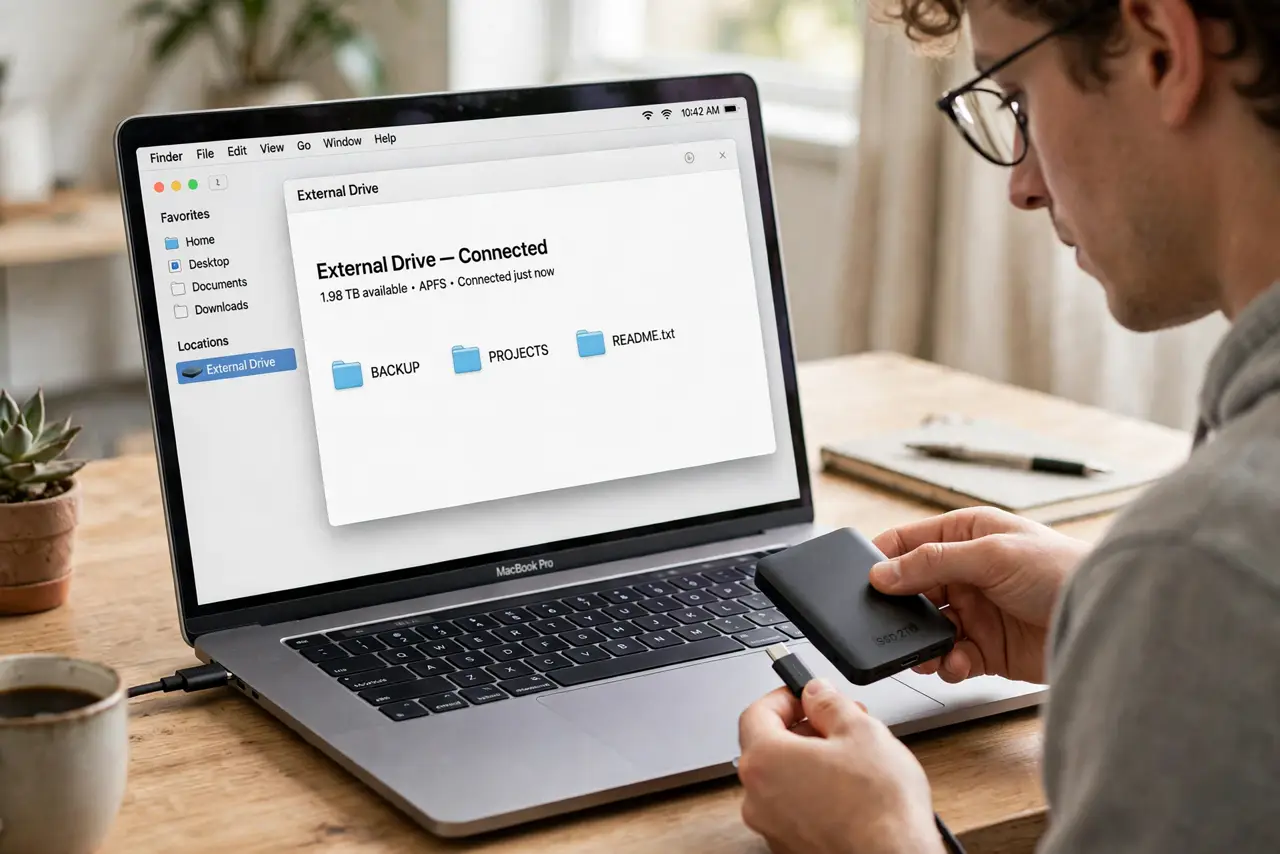
- Add it in Time Machine settings. Open System Settings, General, Time Machine, click Add Backup Disk, and select the drive. macOS offers to erase and format it correctly (APFS) — let it.
- Consider encryption. The setup asks whether to encrypt the backup. Say yes if the drive ever leaves your home — an unencrypted backup is a copy of your entire digital life in a stealable box.
- Start the first backup. Time Machine begins automatically. The first run copies everything and takes hours — leave the Mac plugged in, awake, and alone. See the general Time Machine backup guide if anything stalls.
- Keep the old drive for now. Do not erase or discard the old backup until the new one completes and verifies. Two good backups beat one hopeful one during the transition.
- Verify, then retire the old. Once the new backup finishes, enter Time Machine and confirm you can browse old files. Only then repurpose or store the old drive — it is your fallback if the new one misbehaves.
What NOT to do
- Do not erase the old drive first. The new backup must complete and verify before the old one becomes expendable — impatience here risks everything.
- Do not use the backup drive for other storage. Mixing Time Machine with your file dumping confuses the backup and complicates restores — dedicate the drive.
- Do not unplug mid-backup repeatedly. Occasional interruptions are fine, but yanking the drive constantly corrupts backup history — eject properly.
- Do not skip encryption on a portable drive. A backup drive that travels is a liability unencrypted — the performance cost of encryption is negligible.
Frequently asked questions
Can I use the same drive for two Macs?
Yes — Time Machine keeps separate backup folders per Mac on one drive. Just make sure the drive is big enough for both.
How long does the first backup take?
Hours for a typical Mac — it copies everything. Leave it plugged in overnight; later backups are incremental and quick.
What if the new backup keeps failing?
Try a different cable and port first, then check the drive's health. The backup failure guide walks through the common causes in order.