Touch ID Fails After an Update? Fix It
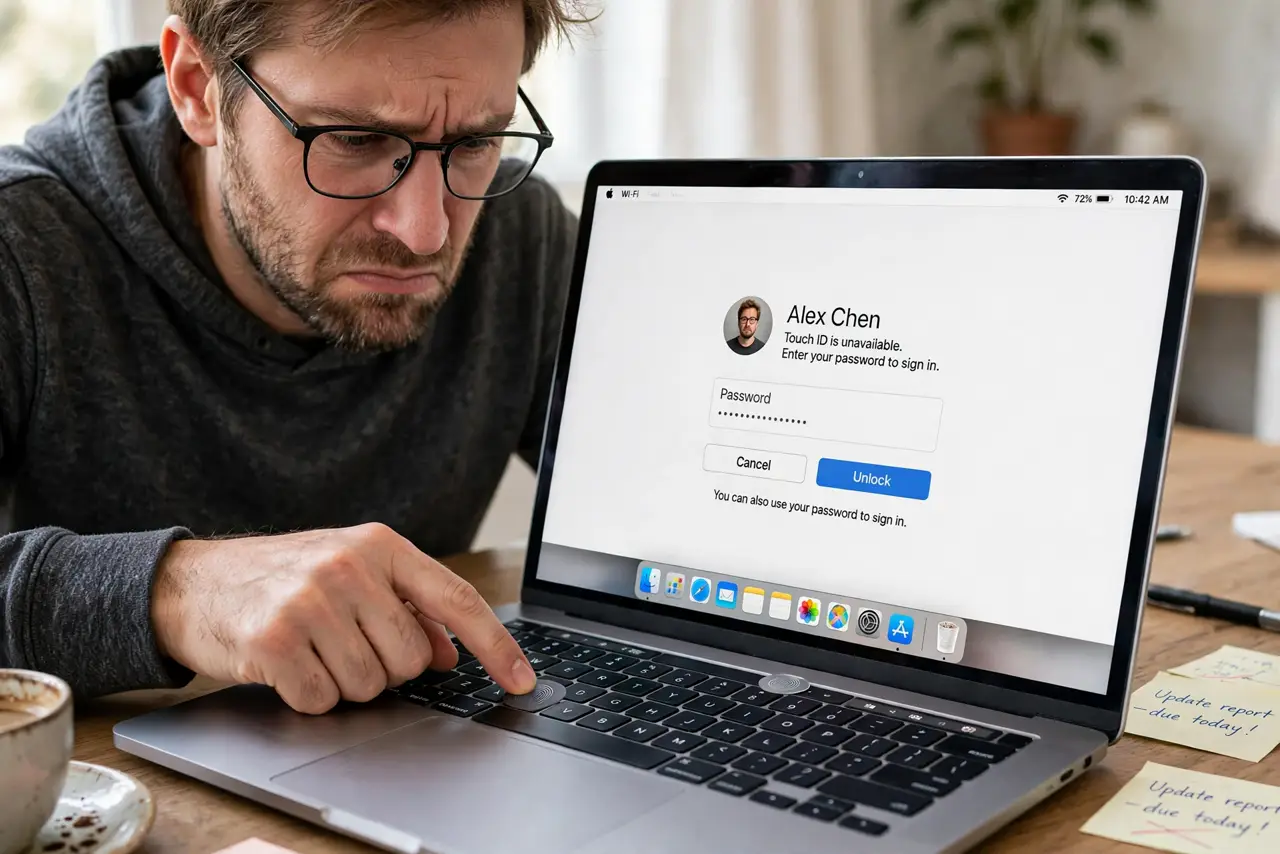
Touch ID worked fine until the macOS update, and now your fingerprint does nothing — no error, just silence, or a prompt for the password instead. Updates can invalidate the stored fingerprint data or wedge the sensor driver. This guide gets your finger unlocking things again.
TL;DR / Quick Fix
Quick fix: delete your fingerprints in System Settings > Touch ID & Password and re-add them fresh — updates often invalidate old prints. Restart first if the sensor seems dead, and enroll your main finger twice at slightly different angles.
Follow these steps
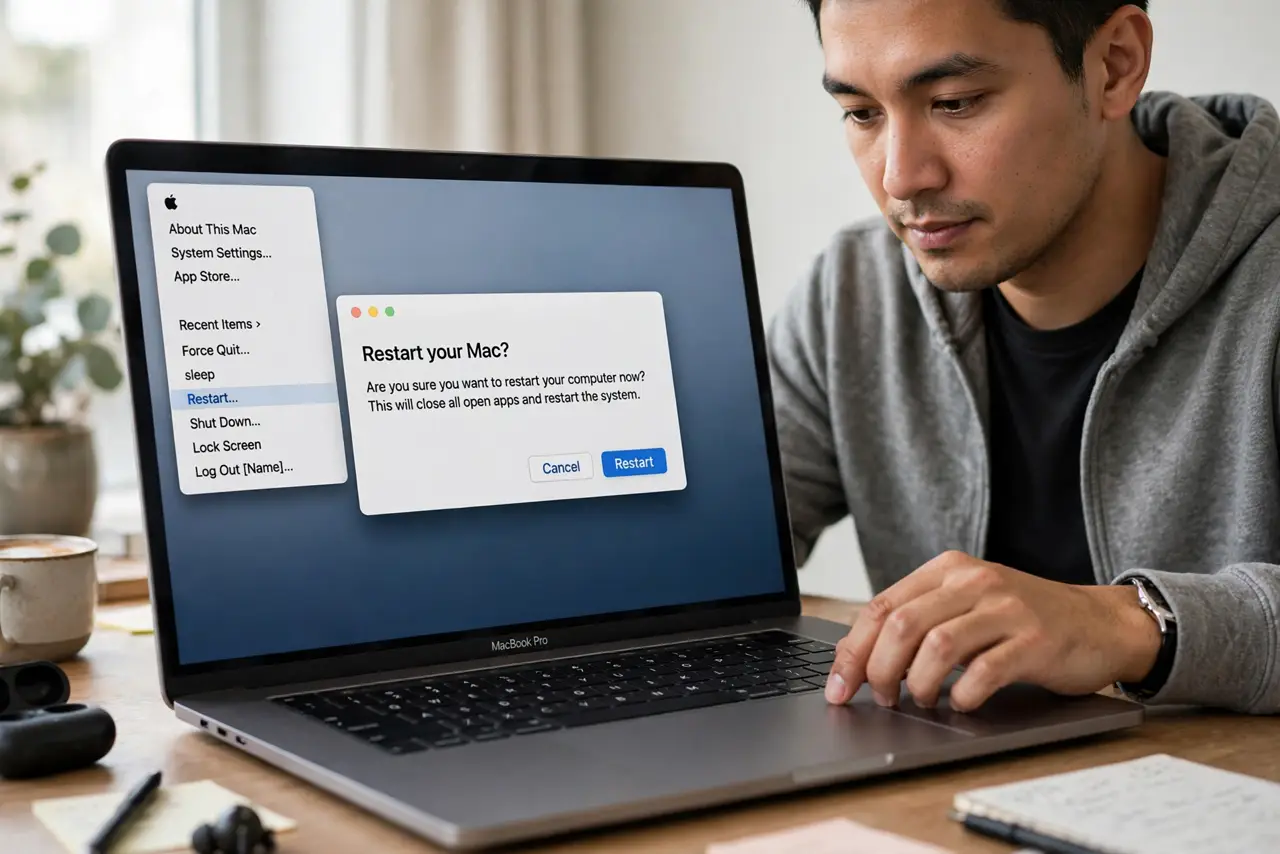
- Restart the Mac first. A restart after the update often wakes the sensor driver. Test Touch ID once after a clean restart before changing any settings.
- Delete and re-add your fingerprints. Go to System Settings > Touch ID & Password, remove each fingerprint, and add them again. Post-update Touch ID failures are usually stale fingerprint data, not broken hardware.
- Enroll the same finger twice. Add your most-used finger a second time at a slightly different angle. Two enrollments of one finger dramatically cut recognition failures.
- Clean the sensor. Wipe the Touch ID sensor with a soft, dry cloth. An update gets the blame for what is sometimes just a grimy sensor finally crossing the failure threshold.
- Check which actions use Touch ID. In the Touch ID settings, confirm unlocking, Apple Pay, and password autofill are each enabled. Updates occasionally untick individual Touch ID uses.
- Test in a new user account. Create a test user and enroll a finger there. If Touch ID works for the new user, your account's Touch ID data is corrupt — the delete-and-re-add step is the fix.
What NOT to do
- Do not assume the sensor died. Updates break Touch ID software-side far more often than hardware fails overnight.
- Do not enroll wet or lotioned fingers. Moisture defeats the capacitive sensor during enrollment and creates a print that never matches.
- Do not skip the password. You will need it after every restart and whenever Touch ID needs a fallback — keep it memorized.
- Do not reinstall macOS over Touch ID. Re-enrolling fingerprints fixes the update issue in two minutes; a reinstall is massive overkill.
Frequently asked questions
Why did Touch ID stop after the update?
The update invalidated the stored fingerprint data or wedged the sensor driver. Deleting and re-adding prints fixes the data side.
Can an update break the Touch ID sensor?
Software-side, yes — temporarily. True hardware failure from an update alone is extremely rare.
Do I need to re-add fingerprints after every update?
No. Most updates leave Touch ID alone; only re-enroll when it actually stops working.