Fix Touch ID That Stopped Working on Mac
Touch ID that suddenly stops recognizing your finger is usually a dirty sensor, a wet finger, or a fingerprint that needs re-adding after a change. The sensor itself rarely fails without warning. Clean and re-add before assuming hardware trouble.
TL;DR / Quick Fix
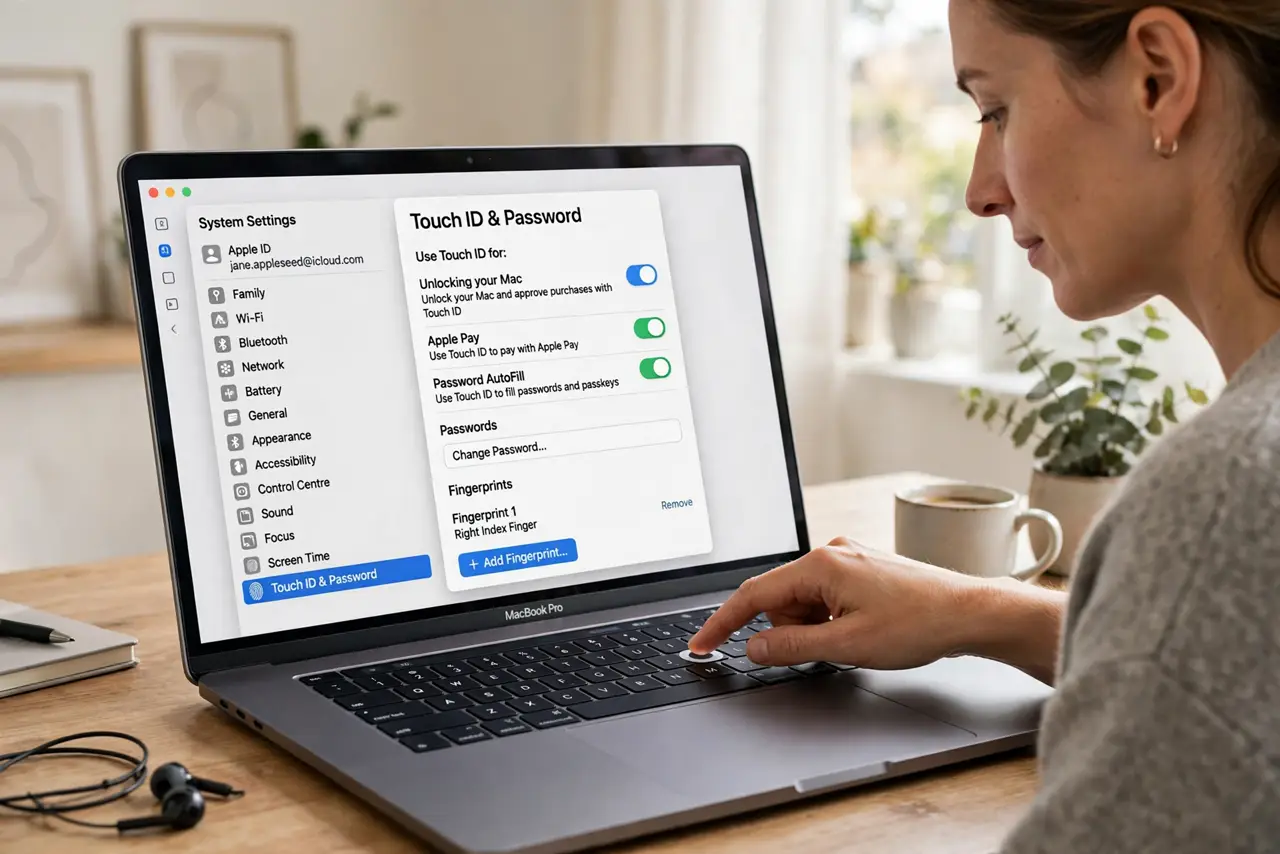
Quick fix: wipe the Touch ID sensor clean and dry, then dry your finger and try again. If it still fails, open System Settings, then Touch ID and Password, remove the fingerprint, and add it again slowly. Restart the Mac if recognition stays unreliable.
Follow these steps
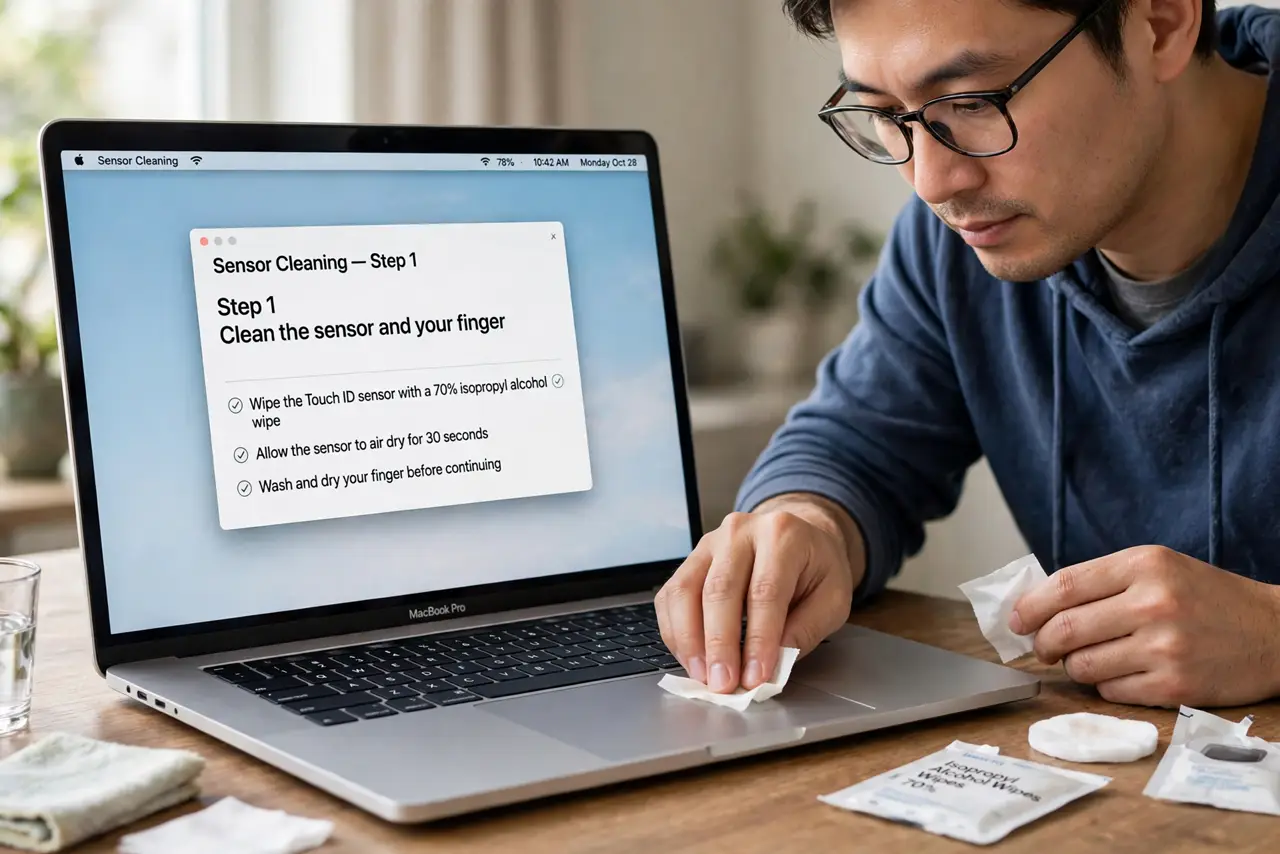
- Clean the sensor and your finger. Wipe the Touch ID sensor with a clean, dry cloth, and dry your finger fully. Moisture, lotion, or dirt on either side prevents a clean read.
- Try another enrolled finger. If you enrolled more than one finger, try another one. If another finger works, the first fingerprint may need re-adding.
- Remove and re-add the fingerprint. Open System Settings, then Touch ID and Password, delete the problem fingerprint, and add it again. Follow the prompts slowly and cover the sensor fully each time.
- Check Touch ID settings. On the same page, confirm Touch ID is enabled for unlocking the Mac and for the uses you want, like purchases or password autofill.
- Restart the Mac. Restart once and test Touch ID at the login screen. A restart clears a stuck authentication process that can reject good fingerprints.
- Test after a software update. Install a macOS update if one is offered. Updates can fix a Touch ID recognition bug that re-adding alone will not solve.
What NOT to do
- Do not press harder on the sensor. Extra force does not improve a fingerprint read and can strain the sensor over time.
- Do not enroll the same finger many times in a row. Delete the old fingerprint first, then add it once cleanly, so the Mac stores one good copy.
- Do not disable Touch ID permanently at the first failure. Cleaning and re-adding fix most recognition problems without losing the convenience.
- Do not use a wet cloth on the sensor. Liquid can seep inside, so use a dry cloth only.
Frequently asked questions
Why did Touch ID stop working suddenly?
A dirty sensor, a wet finger, or a fingerprint changed by dry skin or a small cut can all make a previously good fingerprint fail.
Should I add the same finger twice?
No. Delete the old copy first, then add it once cleanly. Duplicate copies can confuse recognition.
What if no fingerprint works after re-adding?
Restart, check for a macOS update, and if it still fails, the sensor may need professional attention.