Use Touch ID in Terminal
Typing your Mac password every time you use sudo in Terminal gets old fast, especially when your finger is already resting on the Touch ID sensor. The good news: macOS lets you approve those password prompts with your fingerprint, so one tap replaces all the typing. It takes a single short change in Terminal, done once. (If Touch ID keeps asking for your password after sleep or restart, that is a separate quirk.)
TL;DR / Quick Fix
Quick fix: you can approve Terminal sudo prompts with your fingerprint instead of typing your password every time by enabling Touch ID for sudo in the Terminal security settings. It requires one quick edit to a system PAM file with administrator rights, and only needs doing once.
Follow these steps
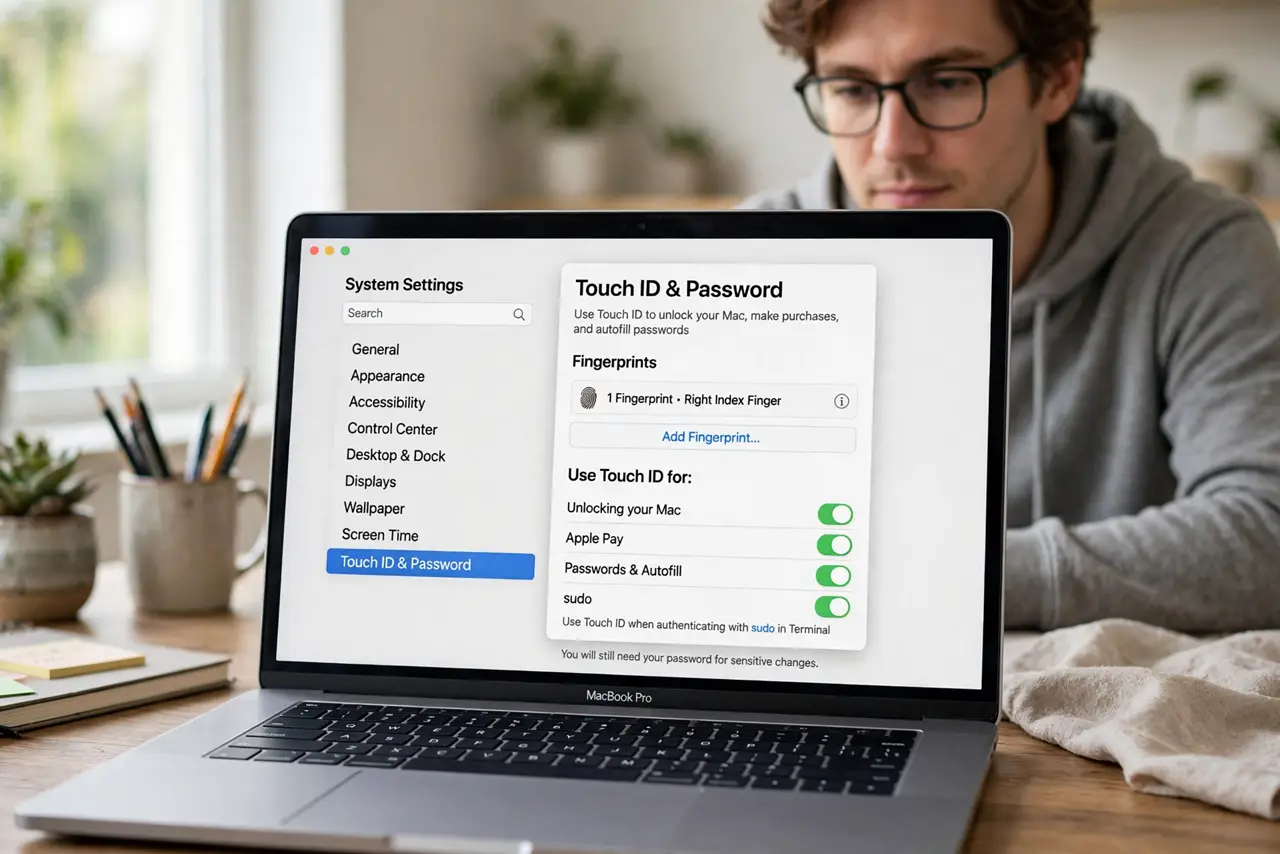
- Confirm Touch ID is set up first. Open System Settings, then Touch ID and Password, and make sure at least one fingerprint is enrolled. Touch ID for sudo builds on the fingerprint you already use to unlock the Mac — without an enrolled finger, there is nothing to approve with.
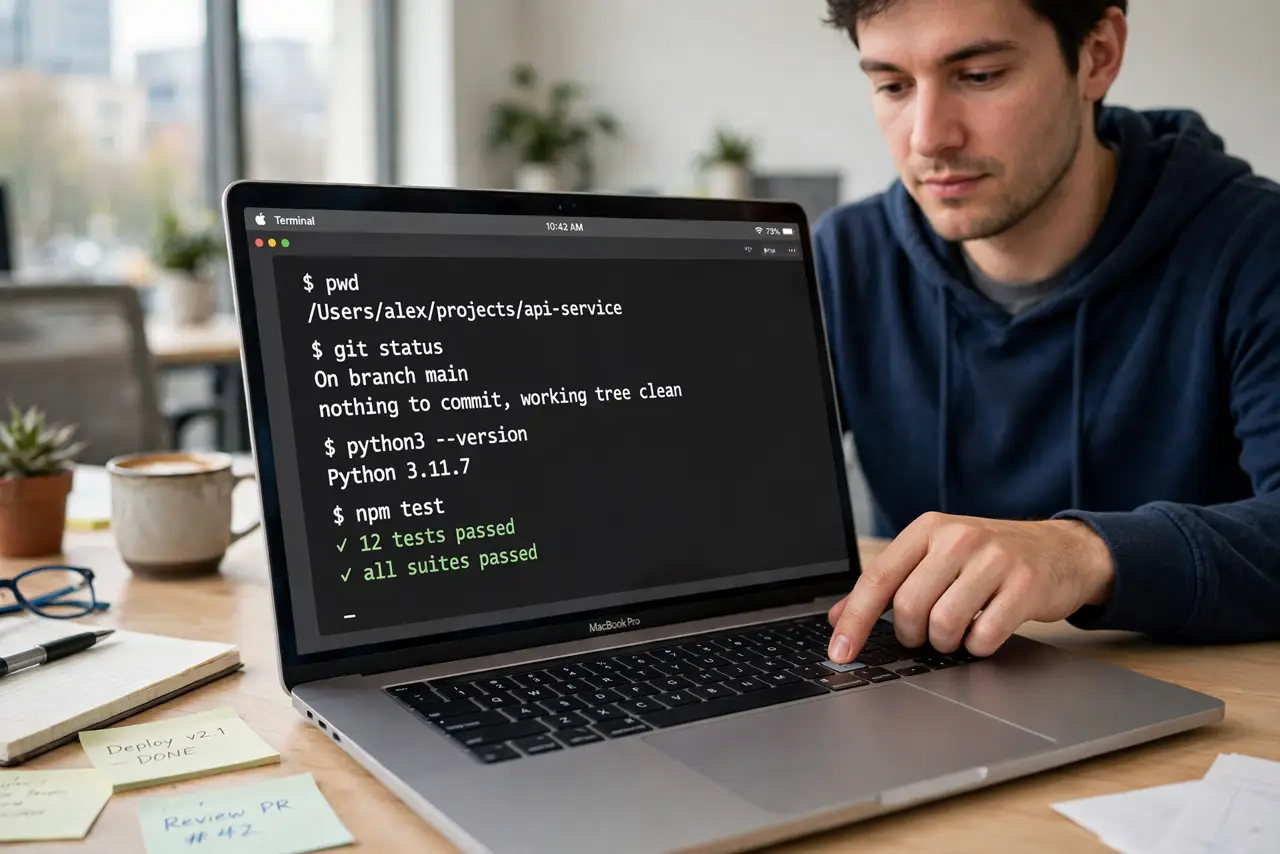
- Run one sudo command the old way. In Terminal, run any sudo command once and type your password manually. This proves sudo works before you change anything, so you can tell the difference after the edit.
- Back up the sudo settings file. The Touch ID option lives in a small system file (the sudo authentication configuration). Copy it to a backup first, so you can restore the original if anything goes wrong — a broken sudo file can lock you out of administrator commands.
- Add the Touch ID line at the top. Open the file with administrator rights in a plain-text editor from Terminal, and add the single line that enables Touch ID authentication as the first rule. Save and close — one line, nothing else touched.
- Test in a brand-new Terminal window. Open a fresh Terminal and run a sudo command. macOS should now show the Touch ID prompt — rest your finger on the sensor instead of typing. If the prompt appears and the command runs, the change worked.
- Keep your typed password as the fallback. Touch ID covers most sudo prompts, but the typed password is still required after restarts and for some security changes. That is by design, so do not let yourself forget the password itself.
What NOT to do
- Do not delete or rename the original settings file without a backup. A broken sudo configuration can lock you out of administrator commands.
- Do not make Touch ID your only authentication everywhere. Keep a strong typed password — Apple still requires it after restarts and for certain changes.
- Do not edit system files with a rich-text editor. Hidden formatting breaks configuration files — use a plain-text editor launched from Terminal.
- Do not run scripts from random forums that rewrite authentication files for you. Type the one-line change yourself so you know exactly what changed.
Frequently asked questions
Does this work on every Mac?
Any Mac with a Touch ID sensor and a supported macOS version — Apple silicon MacBooks and desktops with the Magic Keyboard with Touch ID. Macs without the sensor cannot use it, and the exact file name differs slightly across macOS versions.
Is it safe to edit this system file?
Yes, when done carefully: back up the file first, add only the single Touch ID line, and save. The risk comes from deleting lines or breaking the file's syntax, which is exactly what the backup protects against.
Why does it still ask for my password sometimes?
Certain actions always need the typed password — the first login after a restart and some security changes. That is Apple being cautious on purpose, not a bug in your setup.