Fix a Mac Trackpad That Clicks but Won't Move
A trackpad that still clicks but will not move the pointer is a strange fault, and it usually has a simple cause: a setting, a stuck process, or something on the surface. Check the surface and settings before assuming the trackpad is broken.
TL;DR / Quick Fix
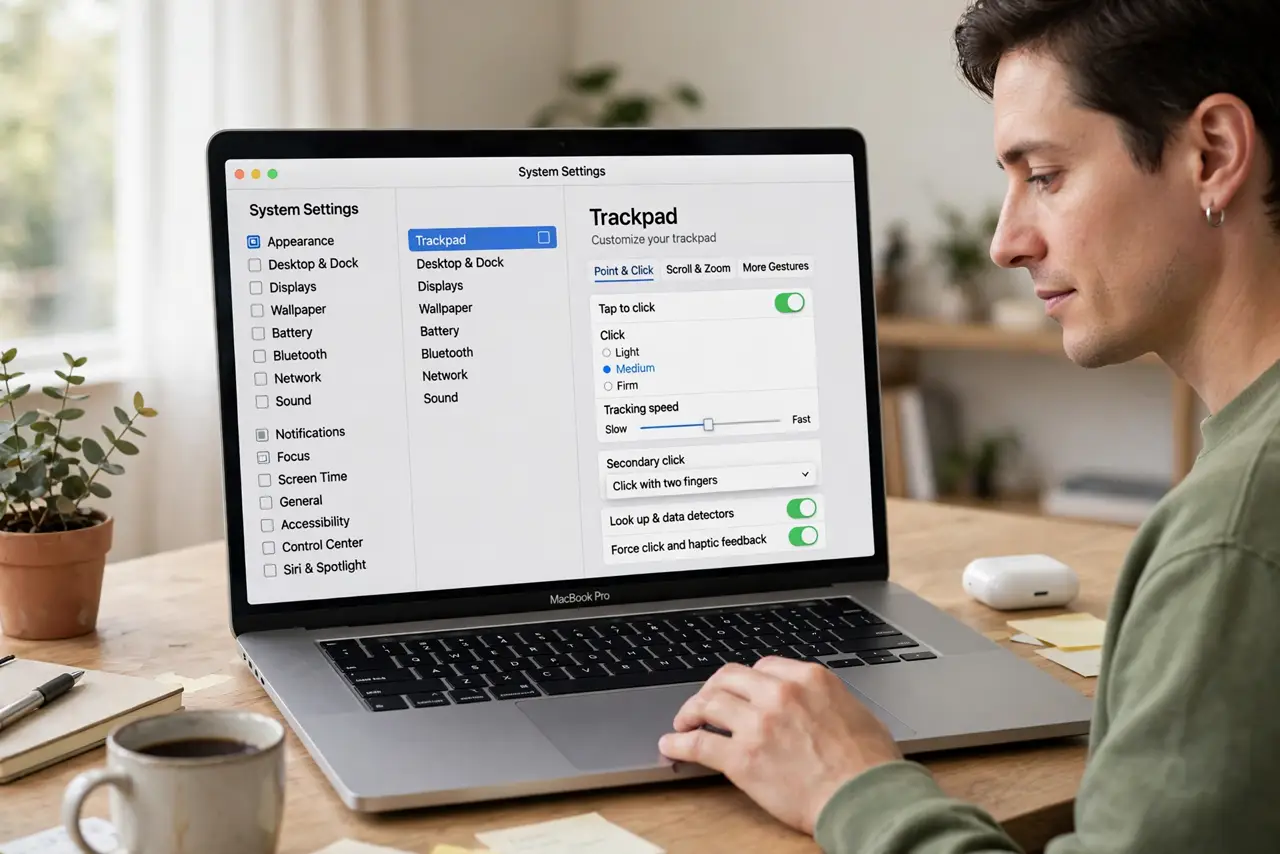
Quick fix: wipe the trackpad clean and dry, then open System Settings, then Trackpad, and check tracking speed and gestures. Then restart the Mac, and test with a mouse to confirm the pointer itself works before concluding the trackpad is faulty.
Follow these steps
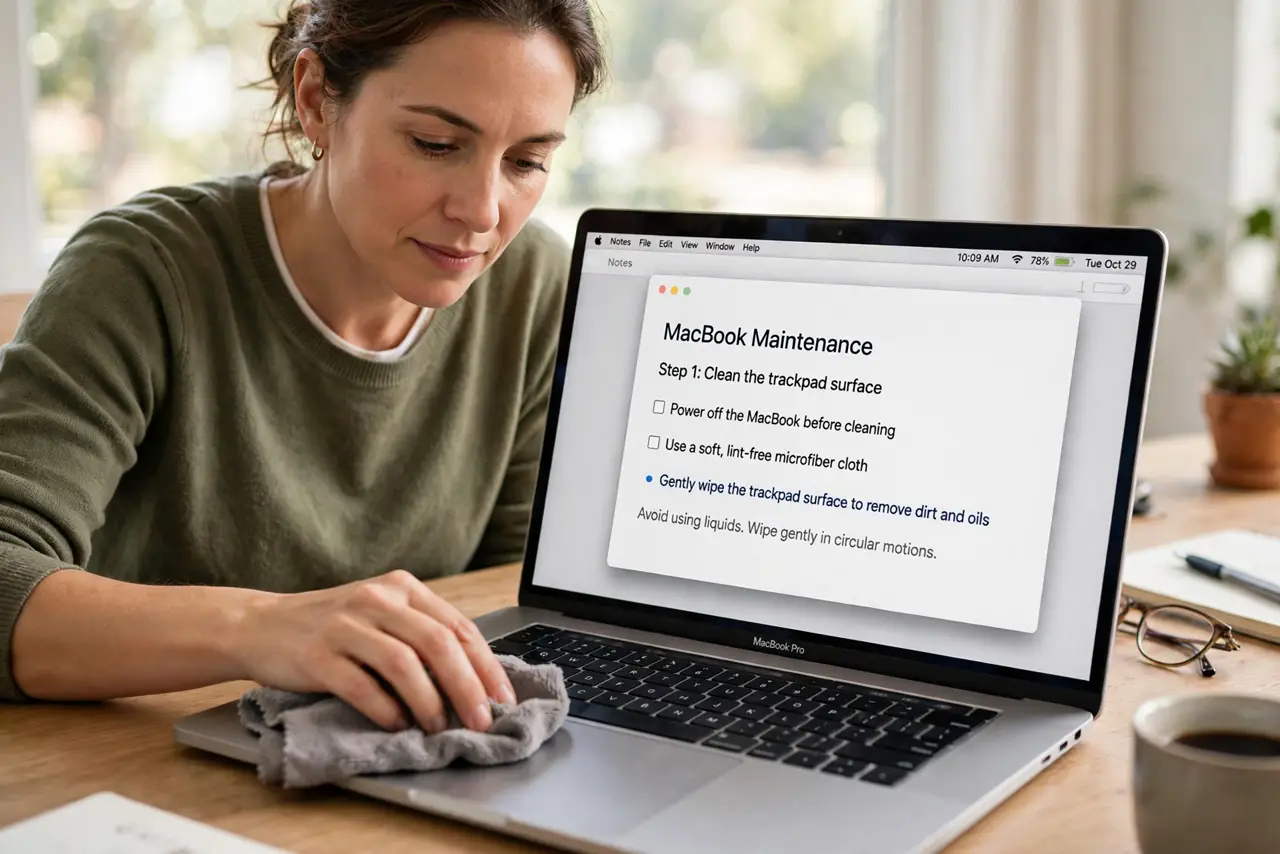
- Clean the trackpad surface. Wipe the trackpad with a clean, dry, lint-free cloth. Moisture, crumbs, or a sticky film can stop tracking while the click still works.
- Check tracking speed. Open System Settings, then Trackpad, and move the Tracking speed slider. A speed set far too low can feel like the pointer is not moving at all.
- Turn off conflicting gestures temporarily. On the same Trackpad page, note which gestures are on. Turn off unusual ones one at a time and test, in case a gesture setting is intercepting movement.
- Restart the Mac. Restart once and test the trackpad at the login screen and on the desktop. A restart clears a stuck input process that can freeze pointer movement.
- Test with a mouse. Connect a mouse and check whether its pointer moves normally. If it does, the problem is the trackpad, not the pointer system as a whole.
- Test in a clean user account if it persists. Create a temporary user account and test the trackpad there. If it works in the new account, a setting or login item in your account is the cause.
What NOT to do
- Do not press harder on the trackpad. Extra force will not restore tracking and can strain the click mechanism over time.
- Do not pour cleaner on the trackpad. Liquid can seep inside, so use a dry or barely damp cloth only.
- Do not reset the whole Mac for a trackpad fault. Test settings, a restart, and a mouse first, since those isolate the cause quickly.
- Do not ignore a swollen battery sign. If the trackpad feels raised or the case bulges, stop using the Mac and seek professional help promptly.
Frequently asked questions
Why does the click work but movement does not?
Click and tracking use different parts of the system, so a surface problem, a setting, or a stuck process can affect one and not the other.
Will a mouse fix the trackpad?
No, but it tells you whether the pointer system works. If the mouse moves fine, the fault is specific to the trackpad.
What if the trackpad is raised or swollen?
Stop using the Mac and get professional help. A swollen battery can push the trackpad up and is not a do-it-yourself fix.