Trash Won't Empty: 'File in Use'? Fix It
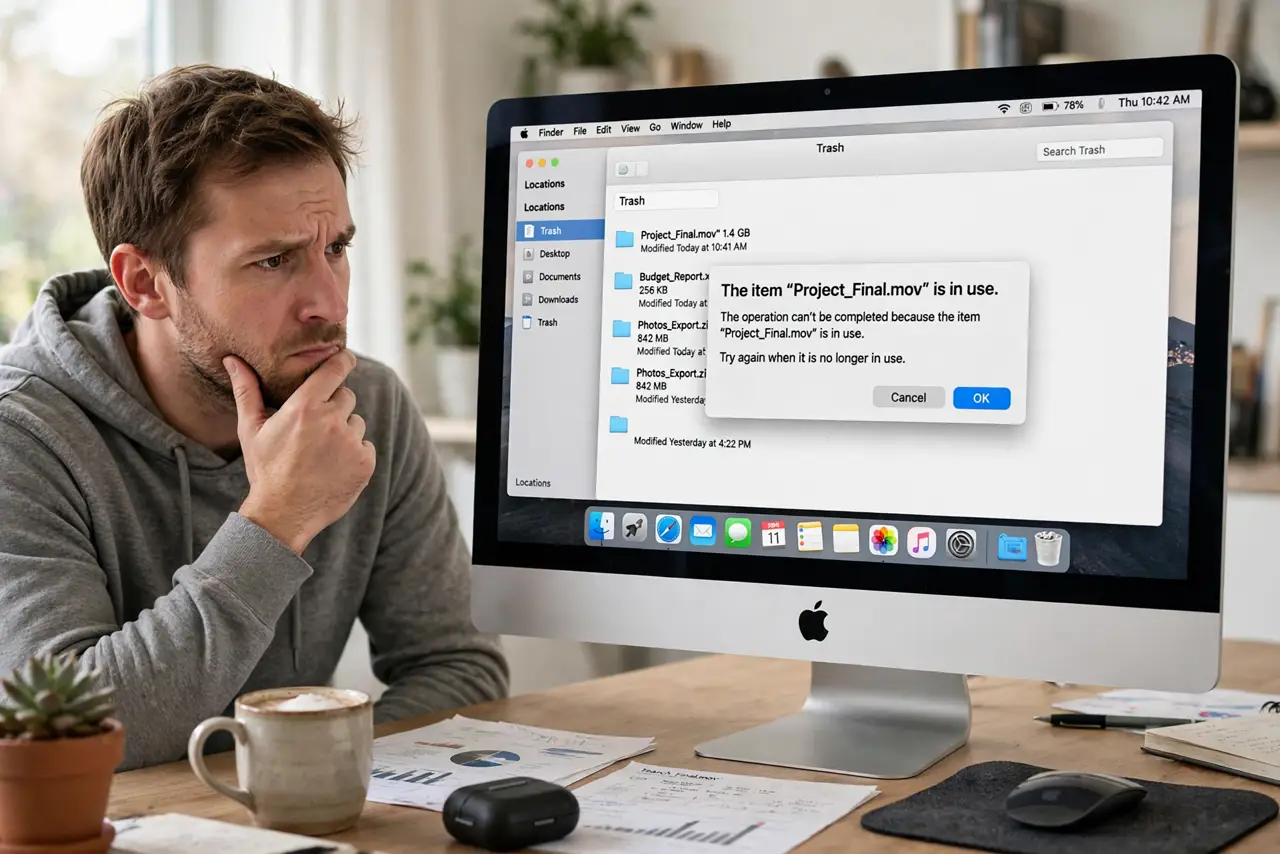
You empty the Trash and macOS refuses: 'the operation can't be completed because the item is in use.' The file often is not visibly open anywhere — a background process or a stuck Finder hold keeps it locked. This guide finds the holder and frees the file safely.
TL;DR / Quick Fix
Quick fix: quit the app that created the file, then try emptying the Trash again. If it persists, relaunch the Finder or restart the Mac to release stuck file locks. Emptying in Safe Mode works when a background helper keeps holding the file.
Follow these steps
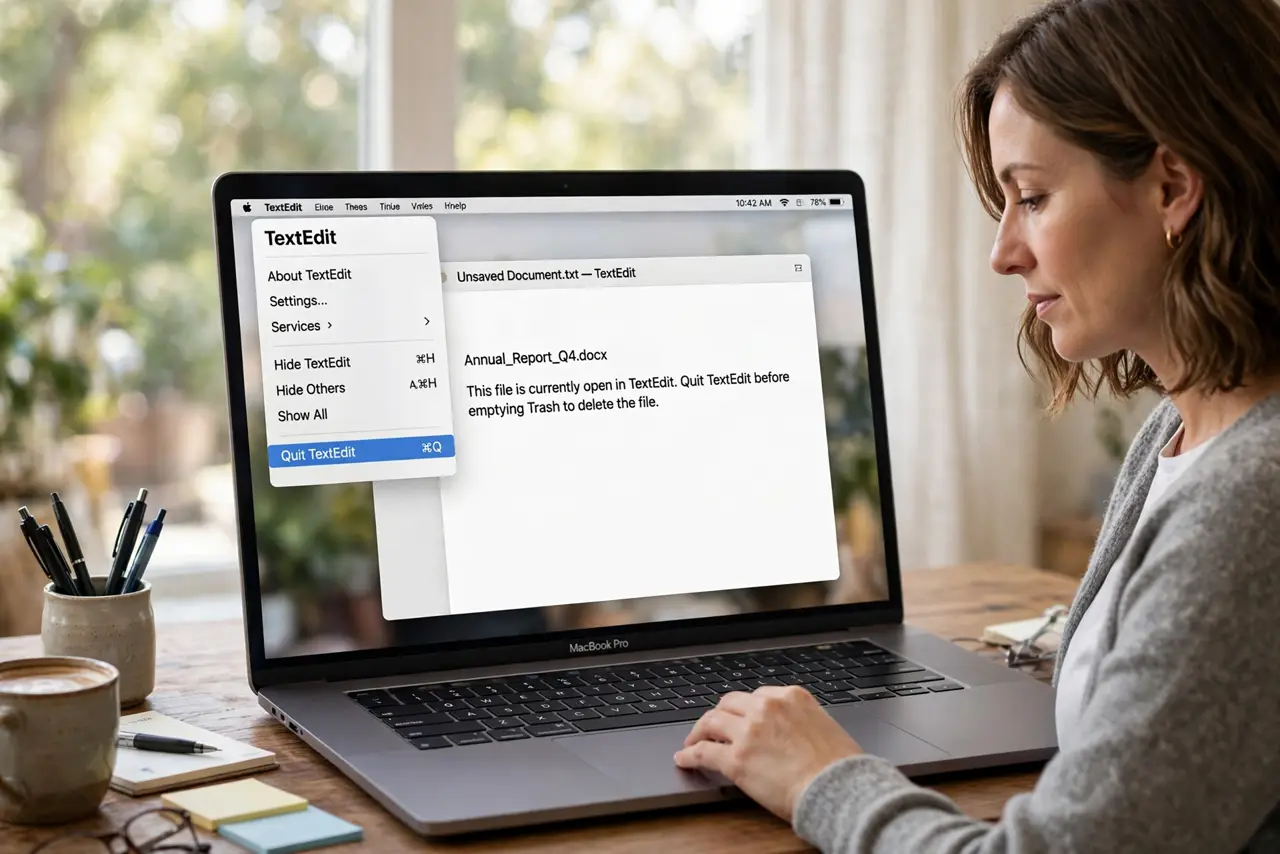
- Quit the likely app. Quit the application that created or last opened the file — a document held open by its app cannot be trashed. Then try Empty Trash again.
- Check for background helpers. Some apps leave helper processes running after you quit the main window. Open Activity Monitor, find the app's helper, quit it, and retry the empty.
- Restart the Finder. Hold Option, right-click the Finder icon in the Dock, and choose Relaunch. A stuck Finder hold on the file releases when Finder restarts.
- Restart the Mac. A full restart releases every file lock with certainty. Empty the Trash immediately after logging back in, before reopening apps.
- Try emptying in Safe Mode. Restart into Safe Mode and empty the Trash there. Safe Mode loads no third-party helpers, so nothing can hold the file.
- Check the file's lock flag. Select the file in Trash, press Command + I, and uncheck Locked if it is set. A locked file refuses deletion regardless of what holds it.
What NOT to do
- Do not use a terminal force-delete on files you do not recognize. A wrong rm command in Trash can delete the wrong thing permanently.
- Do not delete system files from Trash to 'clean up.' If you do not know what a file is, leave it — system files regenerate or break things.
- Do not ignore the warning and pull the drive. If the file lives on an external drive, eject the drive properly before forcing anything.
- Do not install a 'force empty trash' app from a random site. The built-in restart and Safe Mode methods are safer and free.
Frequently asked questions
Why does macOS say a file is in use when nothing is open?
A background helper or a stuck Finder process still holds it. Restarting the Finder or the Mac releases the hold.
Is it safe to restart to empty the Trash?
Yes. Restarting is the safest way to release every lock, and your trashed files wait patiently.
What if the file is on an external drive?
Empty the Trash with the drive connected. Trashed files on external drives live in a hidden folder on that drive.