Turn Off True Tone
Your Mac's screen keeps shifting warmer and cooler as the light changes — whites look yellow in the evening, bluish at noon. That is True Tone, Apple's ambient-light color adaptation. It is pleasant for reading but maddening for photo editing or anyone who wants consistent color. Here is how to turn it off.
TL;DR / Quick Fix
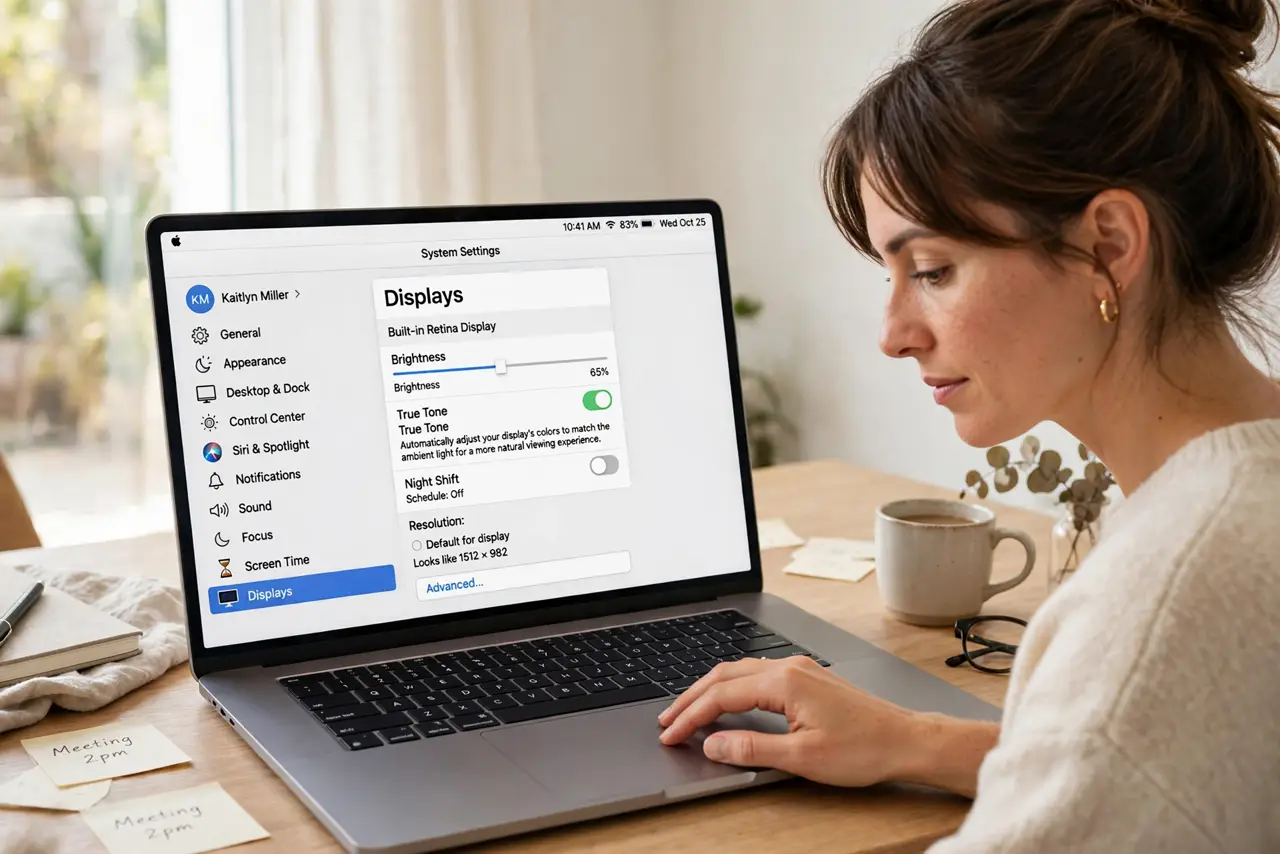
Quick fix: True Tone automatically adjusts your Mac's white balance to match ambient light — turn it off in System Settings, Displays, by toggling True Tone off. Your colors will stay consistent regardless of room lighting. Turn it back on for comfortable reading; keep it off for any color-critical work.
Follow these steps
- Open the Displays settings. Go to System Settings, then Displays. The True Tone toggle sits in the display options — on MacBooks it is right there; on desktops it appears when a True Tone-capable display is connected.
- Toggle True Tone off. One switch, immediate effect — the screen snaps to its fixed color profile. Compare a white window before and after to see exactly what True Tone was doing.
- Know when to keep it on. For reading, browsing, and general comfort, True Tone genuinely reduces the harsh mismatch between screen and room. Only color work demands it off — see the True Tone explainer for the tradeoffs.
- Do not confuse it with Night Shift. Night Shift warms colors on a schedule for evening comfort; True Tone adapts continuously to ambient light. They are separate toggles — your Night Shift schedule stays as you set it.
- Check per-display settings. With multiple monitors, True Tone is set per display. Turn it off on the editing monitor while leaving it on elsewhere if you like.
- Recalibrate expectations, not the screen. With True Tone off, whites may look cooler than you are used to — that is the accurate profile, not a problem. Give your eyes a day to adjust.
What to avoid
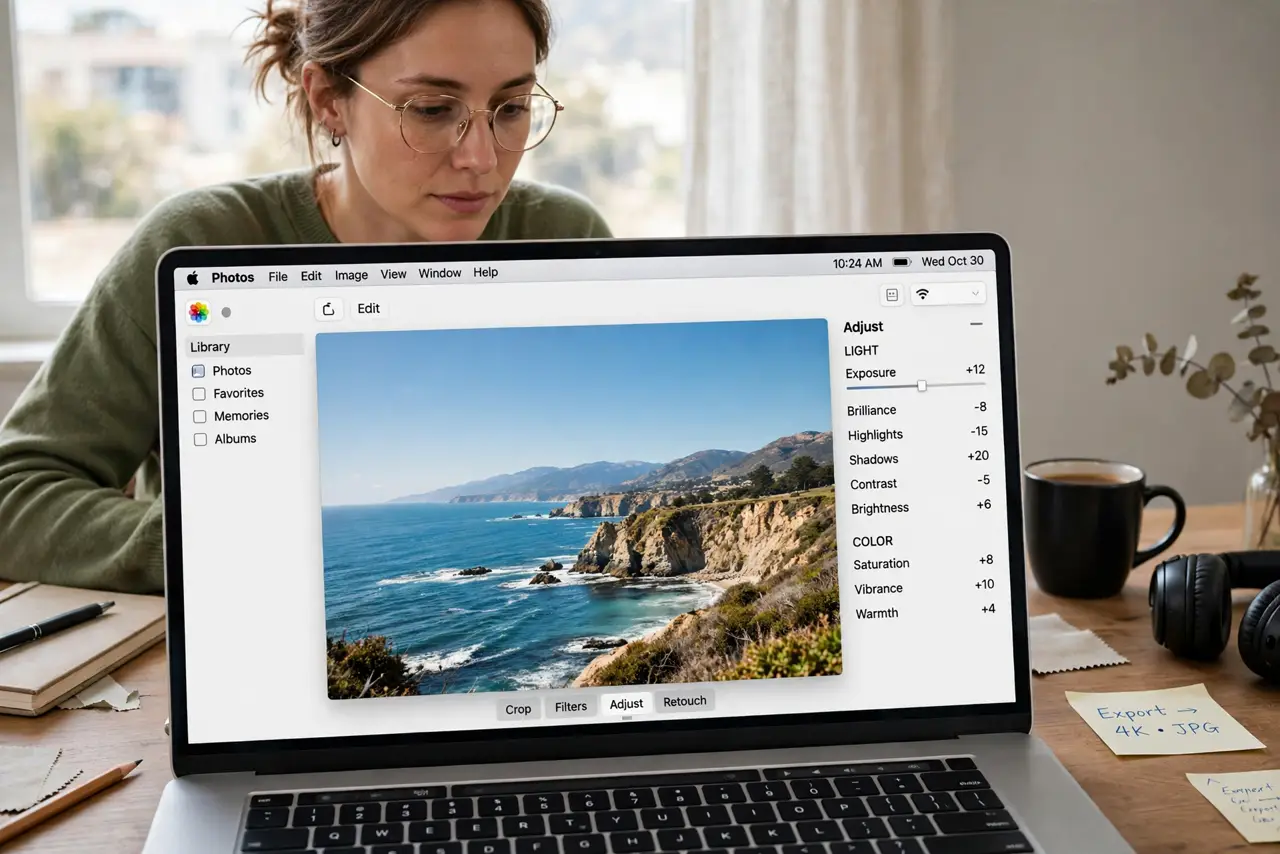
- Do not edit photos with True Tone on. Shifting white balance means your edits chase a moving target — the classic washed-out-print cause.
- Do not confuse True Tone with a failing display. Yellowish whites in warm light are the feature working, not the backlight dying.
- Do not turn it off and forget why colors feel harsh. If evenings feel glaring afterward, that is the tradeoff — toggle it back for comfort use.
- Do not assume it is on every display. External monitors only get True Tone if they support it — check each display's settings individually.
Frequently asked questions
Does True Tone affect screenshots?
No — screenshots capture the underlying image data, not the display adaptation. What you see shifts; the file stays constant.
Why do whites look yellow with it on?
Because your room light is warm and True Tone matches it. Under daylight the same screen looks neutral — the adaptation is the point.
Is True Tone bad for your eyes?
No — if anything it reduces the screen-room mismatch that causes strain. It is a comfort feature, not a health risk.