Turn True Tone On or Off
Your Mac's screen looks warm and yellowish in the evening, then normal again in daylight — or it always looks off and you cannot say why. That is True Tone: it adjusts the display's color temperature to match the room's light. Lovely for eyes, terrible for color work. Here is how to control it instead of wondering about it.
TL;DR / Quick Fix
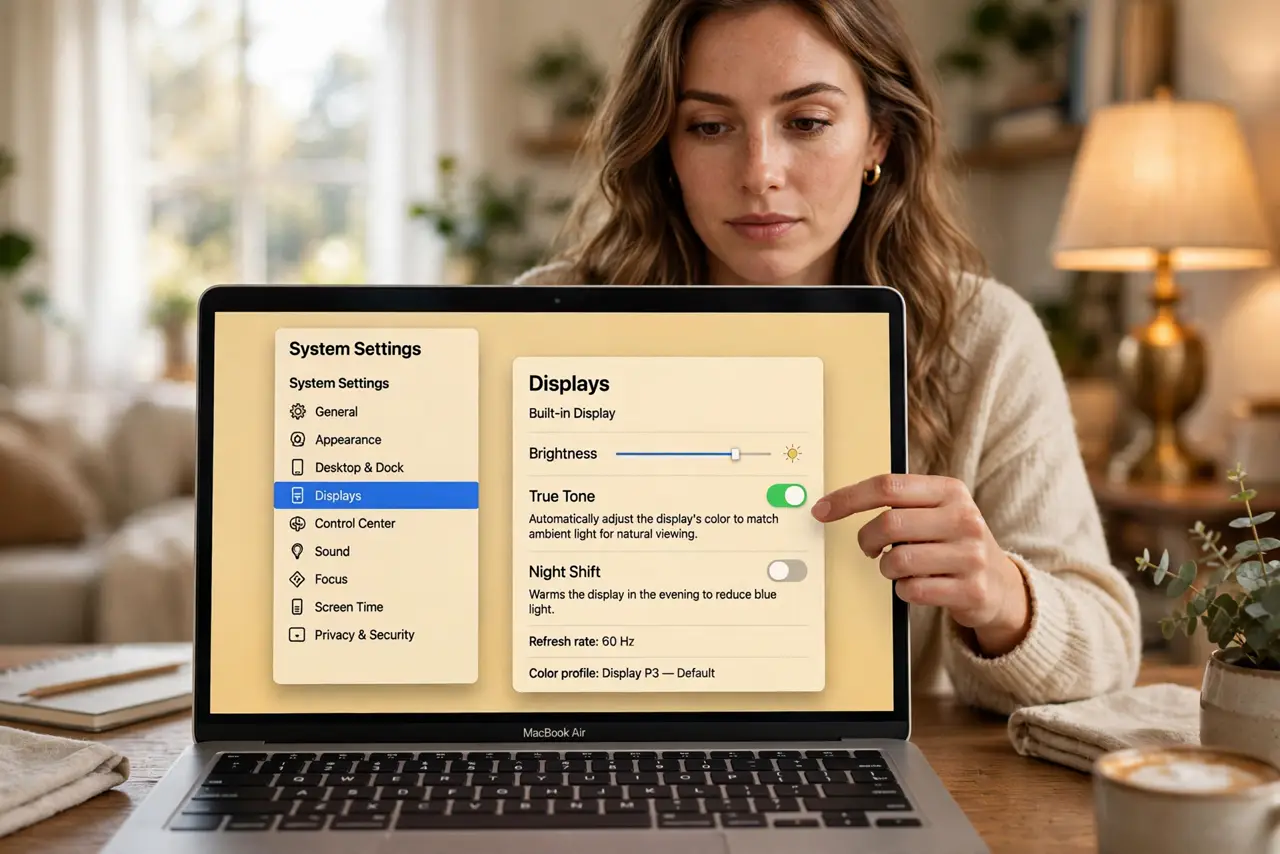
Quick fix: open System Settings, then Displays, and toggle True Tone. Leave it on for comfortable everyday use — it reduces harsh blue light. Turn it off for photo editing, design, or any color-critical work, where the shifting white point lies to you.
Follow these steps
- Find the toggle. Open System Settings, then Displays. True Tone sits right in the display options — one switch, no digging. This is the entire control panel for the feature.
- Understand what it does. True Tone uses ambient light sensors to warm or cool the screen to match your room. Under warm lamps the screen goes warm; in daylight it goes neutral. The goal is paper-like consistency.
- Leave it on for comfort. For reading, browsing, and office work, True Tone reduces the harsh blue-white glare that tires eyes. Most people prefer it on for everything non-critical.
- Turn it off for color work. Photo editing, design, and video grading need a stable white point. True Tone's constant shifting makes accurate color judgment impossible — off is the professional setting.
- Do not confuse it with Night Shift. Night Shift warms the screen on a schedule for evenings; True Tone adapts continuously to room light. They are independent — you can run either, both, or neither.
- Check per-display. On multi-monitor Macs, True Tone applies per display and needs a sensor. External monitors without sensors will not True Tone — only the built-in display adapts.
What NOT to do
- Do not edit photos with True Tone on. The shifting white point guarantees your edits look wrong everywhere else.
- Do not assume the screen is broken. A yellowish evening screen is True Tone working, not a failing backlight — check the toggle first.
- Do not run both True Tone and Night Shift for color work. Either one alone disqualifies the display for critical color — turn both off.
- Do not forget it when comparing screens. Side-by-side Mac comparisons are meaningless with True Tone on one and off the other.
Frequently asked questions
Is True Tone bad for your eyes?
No — it is designed for comfort, reducing harsh blue light. The only 'harm' is to color accuracy, which does not matter for reading and browsing.
Why does my screen look yellow?
True Tone matching warm room light, or Night Shift on schedule. Check both toggles before worrying.
Does True Tone affect screenshots?
No — screenshots capture the image data, not the display adaptation. What you see warmed is not what the file holds.