Use a TV as a Mac Display
You need a huge screen for a presentation, a movie night, or a temporary desk — and there is a perfectly good TV sitting in the living room. A modern TV works fine as a Mac display over HDMI, with two classic gotchas: blurry text and overscan cutting off the edges. Both are fixable in a few minutes.
TL;DR / Quick Fix
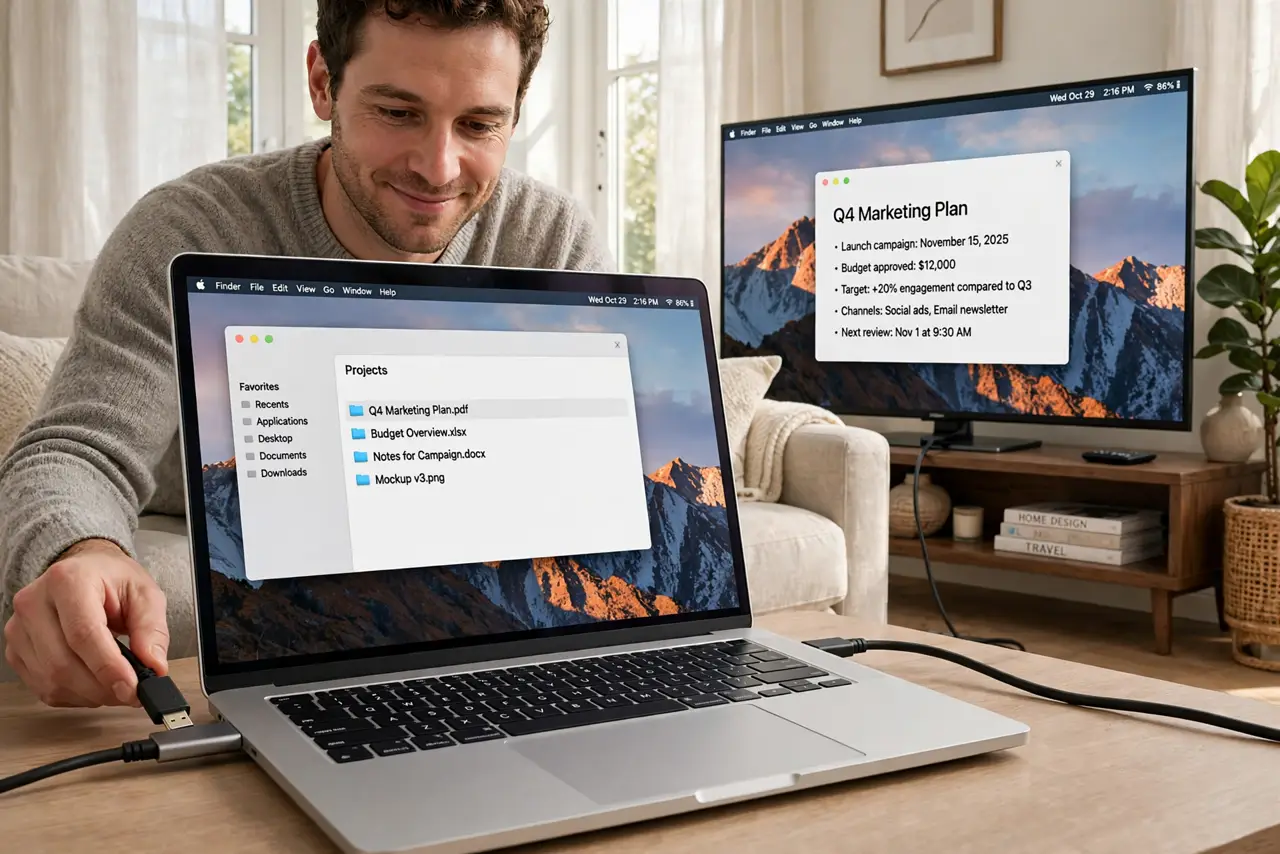
Quick fix: connect your Mac to the TV with HDMI, then fix the two classic problems — enable the TV's PC or Game mode for sharp text, and turn off overscan so the edges are not cropped. Use the TV as a separate display, not a mirror.
Follow these steps
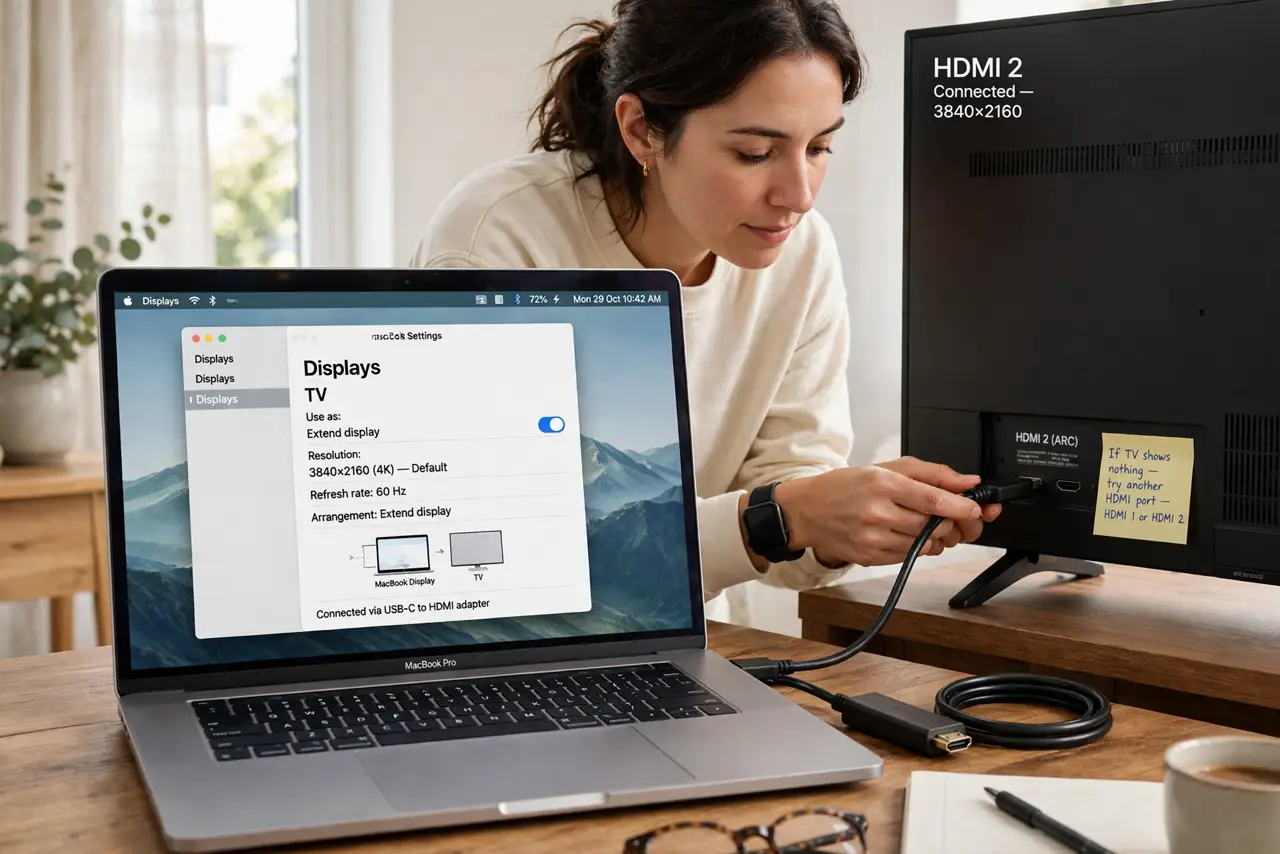
- Connect with a proper HDMI cable. Plug the Mac into the TV's HDMI port with a good cable and adapter. If the TV shows nothing, try another HDMI port — some TVs only accept PC signals on specific inputs.
- Enable PC or Game mode on the TV. In the TV's picture settings, switch the input to PC or Game mode. This disables the TV's image processing, which is what makes text blurry on TVs.
- Fix overscan. If the menu bar or window edges are cut off, find the TV's overscan, screen fit, or 'just scan' setting and disable it. Every TV hides this differently — check the picture-size menu.
- Set the right resolution on the Mac. In Display settings, choose the TV's native resolution (usually 4K or 1080p). Mirroring forces the laptop's resolution — use extended display instead for the full panel.
- Adjust text size, not resolution. If text is too small at 4K, increase the Mac's scaled text size rather than dropping resolution. Dropping resolution reintroduces blur; scaling keeps it sharp.
- Know the limits for desk work. TV pixels are big and response is slow compared to a monitor. Great for presentations and media; tiring for eight hours of spreadsheets at arm's length.
What NOT to do
- Do not leave the TV in movie picture mode for computer use. The processing that flatters films smears text — PC/Game mode exists for this.
- Do not mirror when you can extend. Mirroring wastes the TV's resolution on the laptop's aspect ratio.
- Do not sit monitor-distance from a 55-inch TV. Back up — TV-as-monitor works at TV viewing distances, not desk distances.
- Do not expect monitor-grade text sharpness. Even fixed up, a TV is a big-screen compromise, not a monitor replacement.
Frequently asked questions
Why is text blurry on my TV?
Image processing and chroma subsampling. PC/Game mode plus the native resolution fixes most of it — the rest is the panel's nature.
Can I use the TV wirelessly instead?
Yes via AirPlay, with added latency. Fine for video; annoying for mouse work. A cable is always better for a desk.
Will this hurt the TV?
No. Displaying a computer image is normal use — just avoid static bright images for days on end, as with any screen.