Type to Siri Instead
You are in a quiet office, a library, or a meeting, and you need Siri — but speaking out loud is not an option. Type to Siri solves this: it gives you a text field for Siri requests instead of voice. Everything Siri can do spoken works typed, from setting reminders to the ChatGPT handoff. Here is how to enable it.

TL;DR / Quick Fix
Quick fix: when you cannot speak out loud, Type to Siri lets you type requests instead — enable it in System Settings under Accessibility, then Siri. Press and hold the Siri shortcut and a text field appears. Everything Siri can do by voice works by typing, including the ChatGPT handoff.
Follow these steps
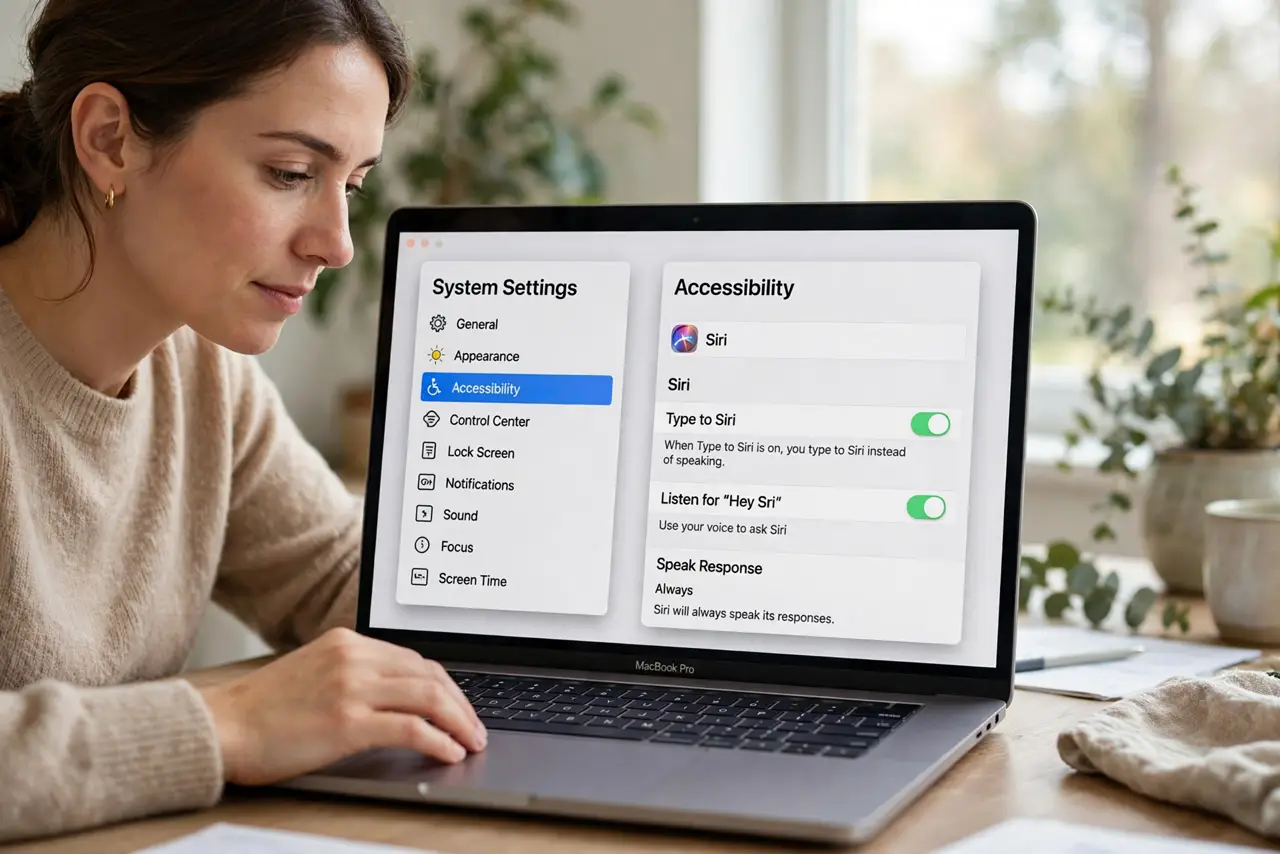
- Enable Type to Siri. Open System Settings, go to Accessibility, then Siri, and turn on Type to Siri. This changes Siri's input from voice-first to text-first on your Mac.
- Learn the shortcut. Press and hold the Siri keyboard shortcut (customizable in settings) to open the text field. It appears wherever you are — no need to switch apps or lose your place.
- Type requests naturally. Write what you would have said: 'remind me to call Mom at 5' or 'what is 15 percent of 240.' Siri handles typed requests identically to spoken ones, minus the misheard words.
- Use it for the hard questions too. Type to Siri works with the ChatGPT handoff — type a complex question and Siri can still route it to ChatGPT. Quiet room, full AI power.
- Dictate when privacy allows. In private, you can still speak to Siri normally — Type to Siri does not remove voice, it adds text. Switch between them freely based on where you are.
- Customize the shortcut. If the default shortcut conflicts with an app you use, change it in the Siri settings. A shortcut you can hit blind is one you will actually use.
What NOT to do
- Do not assume it is voice-only or text-only. Type to Siri adds a mode — speaking still works whenever the setting is on, so use whichever fits the moment.
- Do not type sensitive requests on a shared screen. Typed Siri requests are visible to anyone watching your display — shoulder surfers read text easier than they overhear whispers.
- Do not forget it exists on iPhone too. The same feature lives in iOS accessibility settings — enable it on both devices for consistency.
- Do not expect it to fix Siri's limits. Typing does not make Siri smarter — it just changes the input method. The ChatGPT handoff is what extends its brain.
Frequently asked questions
Can I still talk to Siri with this on?
Yes. Type to Siri adds text input; voice keeps working. Hold the shortcut and speak, or type — your choice each time.
Does it work in every app?
The Siri text field is system-wide — it works wherever Siri works, regardless of which app is frontmost.
Why would I type instead of talk?
Quiet spaces, noisy spaces where the mic struggles, complex requests with names Siri mishears, and privacy — typing is precise where voice is approximate.