Uninstall Mac Apps Cleanly
Dragging a Mac app to the Trash feels like uninstalling it — and mostly it is. But many apps leave behind preference files, caches, and support folders scattered in your Library, quietly eating storage. A truly clean uninstall removes the app and its leftovers. Here is the manual method that works for almost everything, and what to try when an app misbehaves.
TL;DR / Quick Fix
Quick fix: to uninstall a Mac app cleanly, drag it to the Trash from the Applications folder, then check ~/Library/Application Support and Preferences for leftover folders with the app's name. Empty the Trash afterward. App-cleaner utilities help, but manual checking works fine for most apps.
Follow these steps
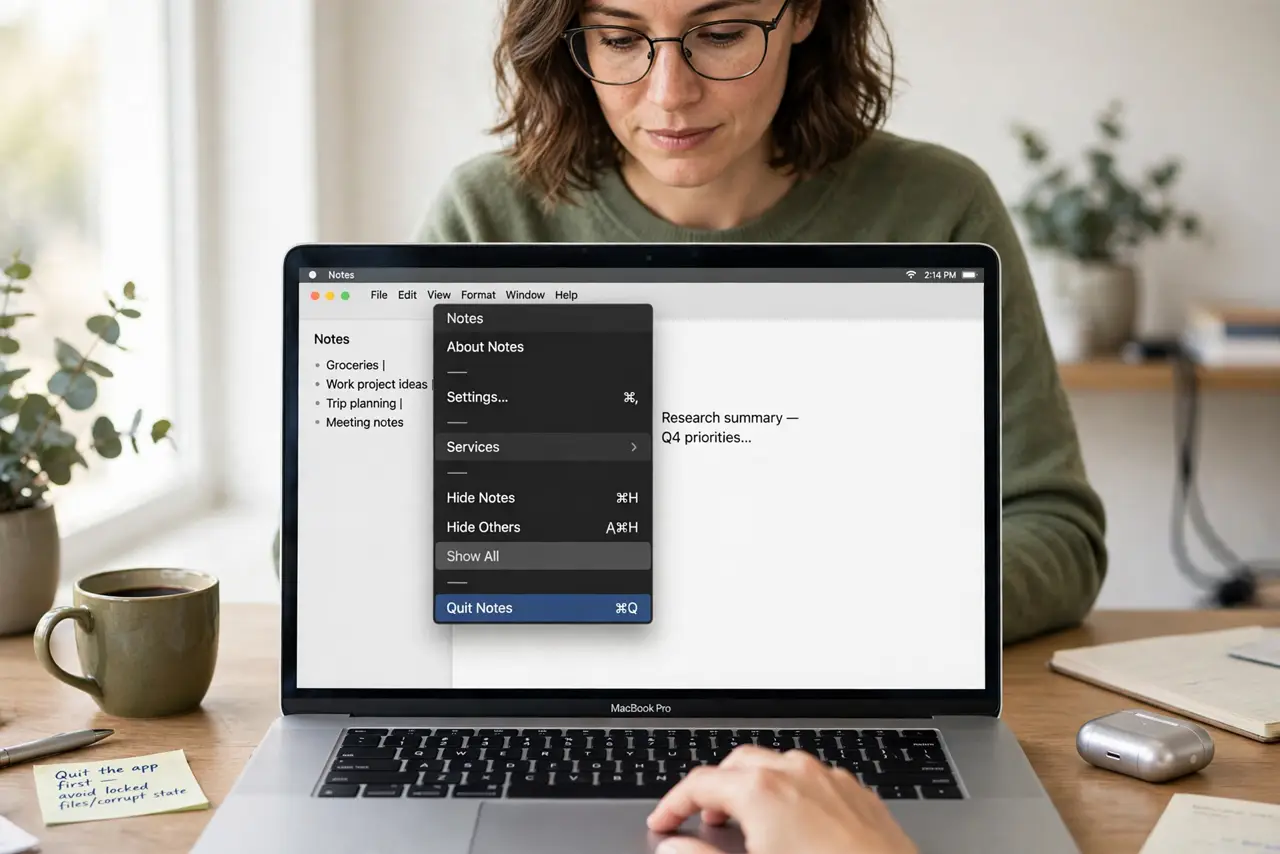
- Quit the app completely first. Open the app's menu and choose Quit, or use Force Quit if it is frozen. Deleting files while the app runs leaves locked files behind and can corrupt its saved state.
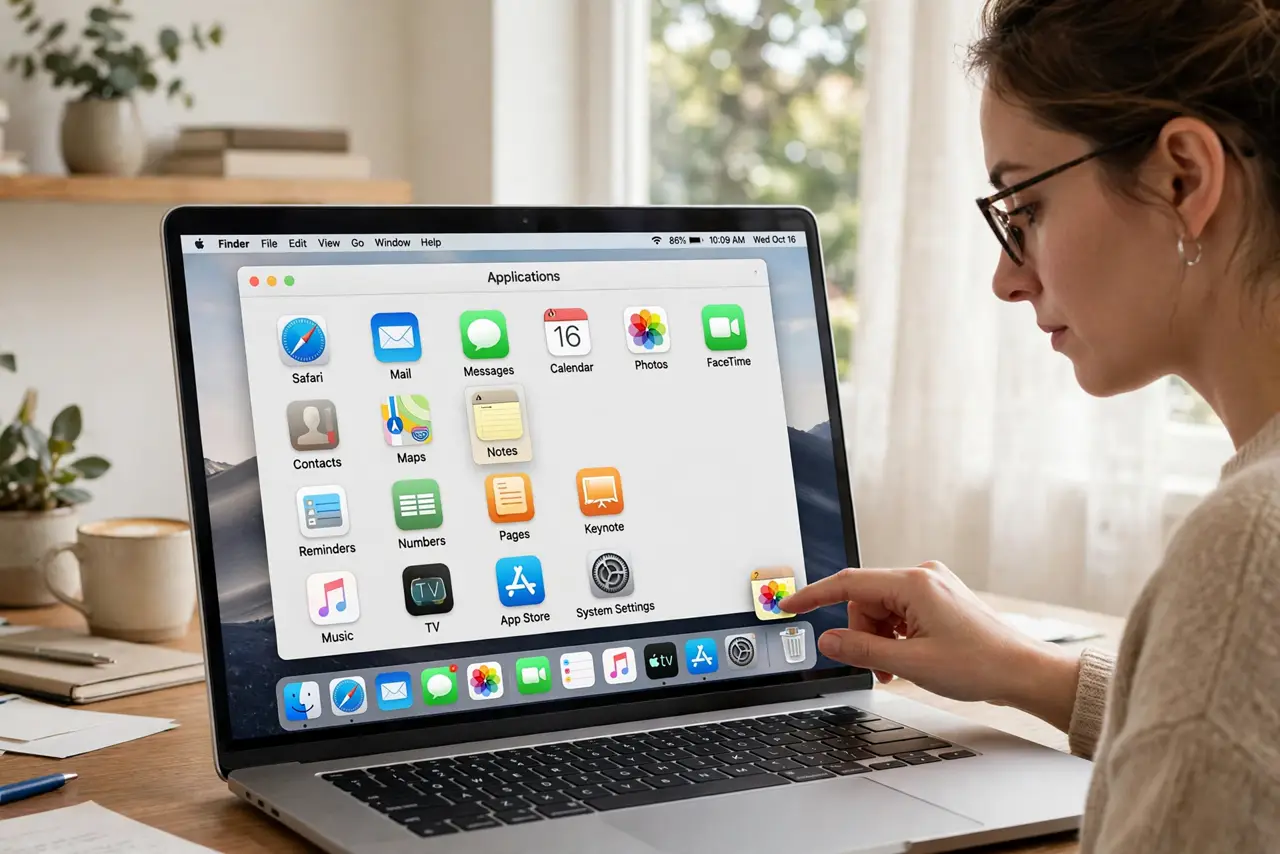
- Delete the app from Applications. Open Finder, go to Applications, and drag the app to the Trash — or right-click and choose Move to Trash. This removes the main program bundle.
- Hunt down leftover support files. In Finder, press Command+Shift+G and type ~/Library, then check Application Support, Preferences, and Caches for folders with the app's name. Move those leftovers to the Trash too.
- Empty the Trash to finish. Right-click the Trash and choose Empty Trash. Until you do, the files still occupy disk space — deleting without emptying is the classic reason 'uninstalling' frees nothing.
- Remove login items and helpers. Some apps install background helpers that survive deletion. Check System Settings > General > Login Items and remove anything tied to the app, then restart.
- Consider an uninstaller app for stubborn cases. Free uninstaller utilities scan for leftover files automatically. They are worth it if you uninstall apps often — but review what they delete before confirming.
What NOT to do
- Do not delete random folders from ~/Library by guesswork. Removing the wrong folder can break other apps — only delete items clearly named after the app you removed.
- Do not assume dragging to Trash removes everything. Preference files and caches stay behind by design; that is the whole point of this guide.
- Do not use sketchy 'Mac cleaner' apps from pop-up ads. Stick to well-reviewed uninstallers — aggressive cleaners cause more problems than leftovers.
- Do not delete an app while it is running. Quit it first, or locked files and background processes will survive the uninstall.
Frequently asked questions
Will deleting the app also delete my documents?
Usually not — documents live in your Documents folder or iCloud Drive, separate from the app. But back up any projects the app created before uninstalling, just in case.
What about apps from the App Store?
App Store apps uninstall the same way, and they leave fewer leftovers since they are sandboxed. Deleting from Launchpad (long-press, then the X) works for those.
Can I reinstall later?
Yes. Your license or purchase stays tied to your account or the developer. Reinstalling a clean copy is actually a standard fix for a misbehaving app.