Parental Controls on Mac?
Handing a kid a Mac without guardrails means unlimited screen time, surprise purchases, and the open internet. macOS Screen Time gives you Downtime schedules, app limits, content filters, and purchase approvals — all tied to your child's own account. This guide shows the setup that actually works, and its honest limits.
TL;DR / Quick Fix
Quick fix: set up parental controls on Mac with Screen Time — create a separate account for your child, then set Downtime, App Limits, and content restrictions from your admin account. Use a child Apple ID for purchase approvals. Review the reports weekly at first; kids find workarounds fast.
Follow these steps
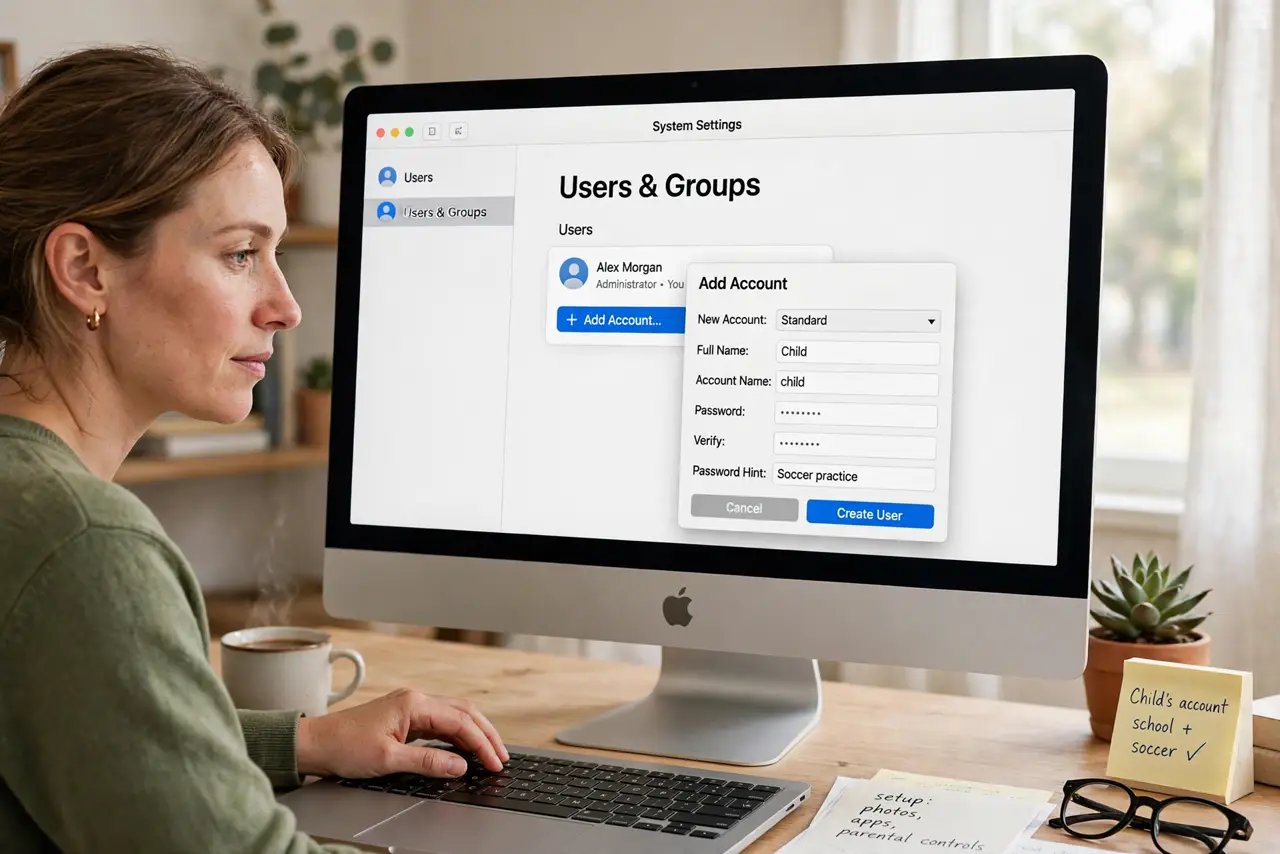
- Create a separate account for your child. Go to System Settings, Users and Groups, and add a standard account for the child. Controls attach to accounts — without their own account, there is nothing to limit.
- Use a child Apple ID. Create a child Apple ID in Family Sharing. It enables Ask to Buy for purchases and keeps their iCloud separate — do not just sign them into your Apple ID.
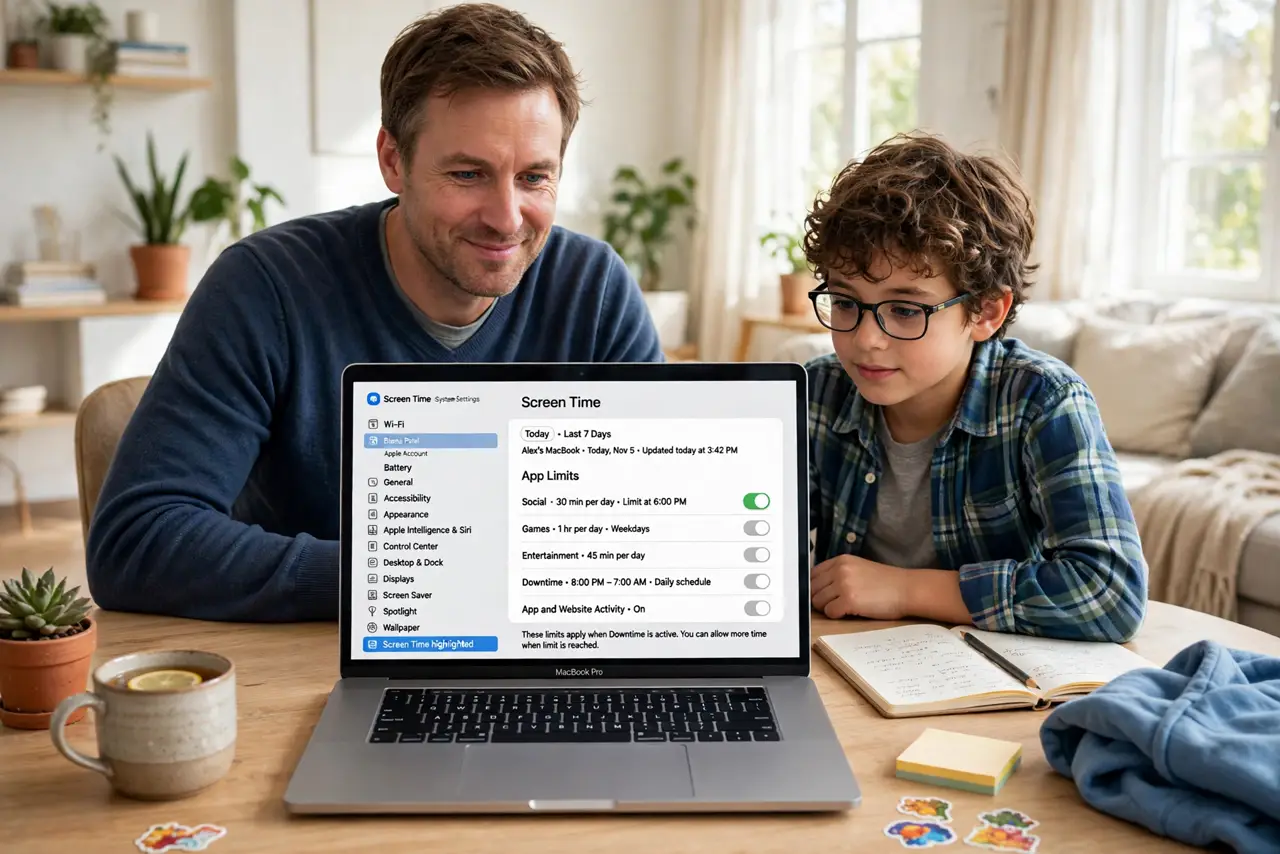
- Set Downtime hours. In Screen Time for the child's account, set Downtime for bedtime hours. Only apps you specifically allow work during Downtime — everything else waits until morning.
- Add App Limits. Cap categories or specific apps — an hour of games, unlimited reading. Kids negotiate these limits, which is fine; the point is the conversation plus the boundary.
- Turn on content restrictions. Under Content and Privacy, limit web content, block explicit media, and restrict the App Store by age rating. It is not perfect, but it filters the casual worst of the internet.
- Layer router controls on top. Mac controls cover the Mac; network-level router parental controls cover every device including friends' phones on your Wi-Fi. The two layers together are far harder to dodge.
What NOT to do
- Do not set it and forget it. Kids find workarounds fast — new apps, browser tricks, time-zone changes. Review the Screen Time reports weekly, at least at first.
- Do not rely on controls instead of conversation. Filters catch accidents; they do not teach judgment. The controls buy time for the talks that actually matter.
- Do not use your admin password as the Screen Time passcode. Kids watch you type — use a separate four-digit code they have never seen.
- Do not expect perfection. Determined teenagers bypass most consumer controls eventually — the goal is friction and visibility, not an unbreakable wall.
Frequently asked questions
Can my child just change the settings back?
Not without the Screen Time passcode, which should differ from your login password. Keep it secret and the settings hold.
Do parental controls work if they use a browser?
Content restrictions filter Safari; determined kids try other browsers. Allow only Safari via App Limits for younger kids, and keep the conversation going for older ones.
What age should controls come off?
There is no magic number — loosen gradually as they show judgment. Many families drop Downtime first and keep purchase approvals longest.