Unzip Files? Basics
Someone sent you a .zip file and you need what is inside. On a Mac, unzipping is almost embarrassingly easy — double-click and macOS does the rest, no extra software needed. But zips can also hide surprises: password prompts, weird nested folders, or files from sketchy sources. Here is how to unzip safely and handle the edge cases.
TL;DR / Quick Fix
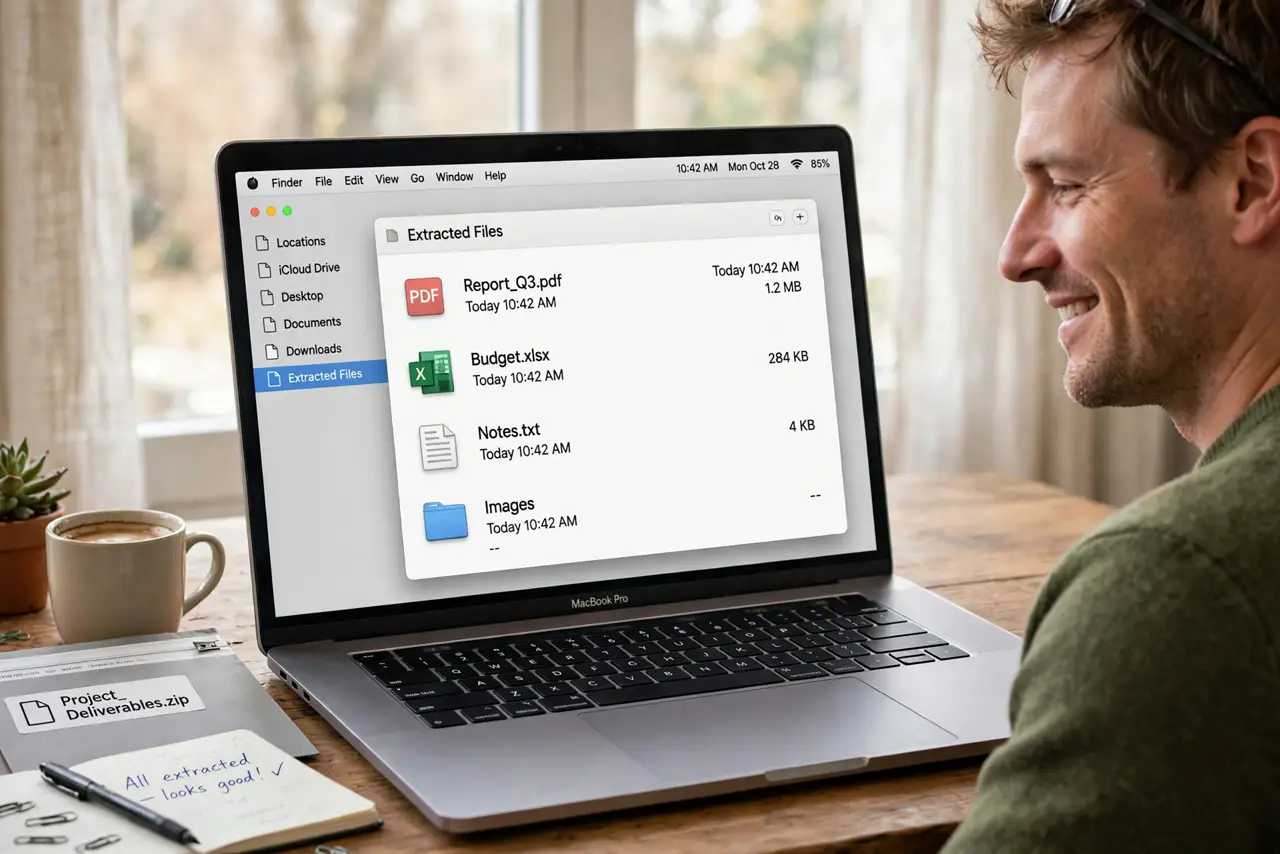
Quick fix: double-click the .zip file and macOS extracts it into a folder beside the archive automatically. If it asks for a password, get it from the sender — there is no way around it. For zips from strangers, scan the contents before opening anything inside.
Follow these steps
- Double-click to extract. The built-in Archive Utility handles it: double-click the .zip and a folder appears next to it with the contents. The original zip stays put — delete it after you confirm everything extracted.
- Choose where it extracts. By default, files land next to the zip. To change this, open Archive Utility (in /System/Library/CoreServices/), set preferences, and pick a destination — handy for a busy Downloads folder.
- Handle password-protected zips. If the zip is encrypted, macOS prompts for the password — get it from the sender through a separate channel, not the same email. There is no legitimate way to bypass it, and 'zip password crackers' are a security nightmare.
- Deal with nested zips. Sometimes a zip contains another zip (or ten). Extract layer by layer — and watch for 'zip bombs,' tiny archives that expand enormously; if a small zip starts extracting gigabytes, stop and delete it.
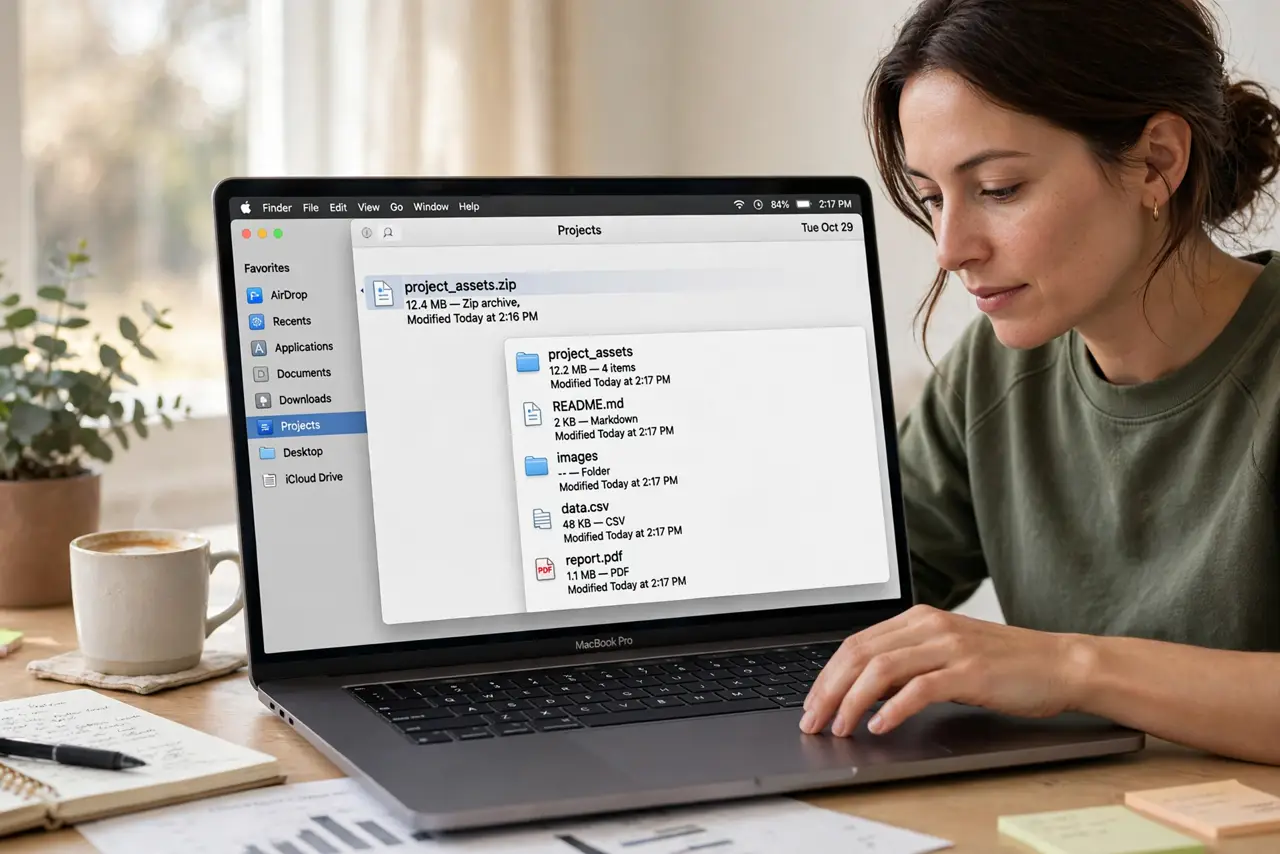
- Be cautious with zips from strangers. Never double-click a zip from an unknown sender without thinking — it is a classic malware vector. Preview the file list first (Quick Look with Spacebar), and see our zipping guide for making your own.
- Use Terminal for power moves. For batch extraction or automation, the built-in 'unzip' command in Terminal handles wildcards and scripting. Most people never need it — but it is there, free and fast.
What NOT to do
- Do not double-click zips from unknown senders blindly. Preview the contents first — malware loves the zip disguise.
- Do not download 'zip password recovery' tools. They are overwhelmingly scams or malware themselves — get the password from the sender.
- Do not extract a suspiciously tiny zip that explodes in size. Zip bombs are rare but real — abort if gigabytes pour out of kilobytes.
- Do not forget to delete the zip after extracting. Downloads folders full of redundant zips waste space — verify, then trash the archive.
Frequently asked questions
The zip won't open — what now?
It may be corrupted from a bad download — re-download it. If it is a .rar or .7z file, macOS cannot open it natively; you need a third-party extractor.
Why did it extract to a weird location?
Archive Utility extracts beside the archive by default. Change the destination in its preferences if you want extractions routed elsewhere.
Can I unzip on iPhone?
Yes — the Files app extracts zips with a tap. Same caution about unknown senders applies on mobile.