Fix a Stuck Mac Update Download
A macOS update download that stalls for hours is usually a network hiccup, low disk space, or a paused download, not a broken update. Do not interrupt an update that is actually installing. First confirm whether it is downloading or installing, then act.
TL;DR / Quick Fix
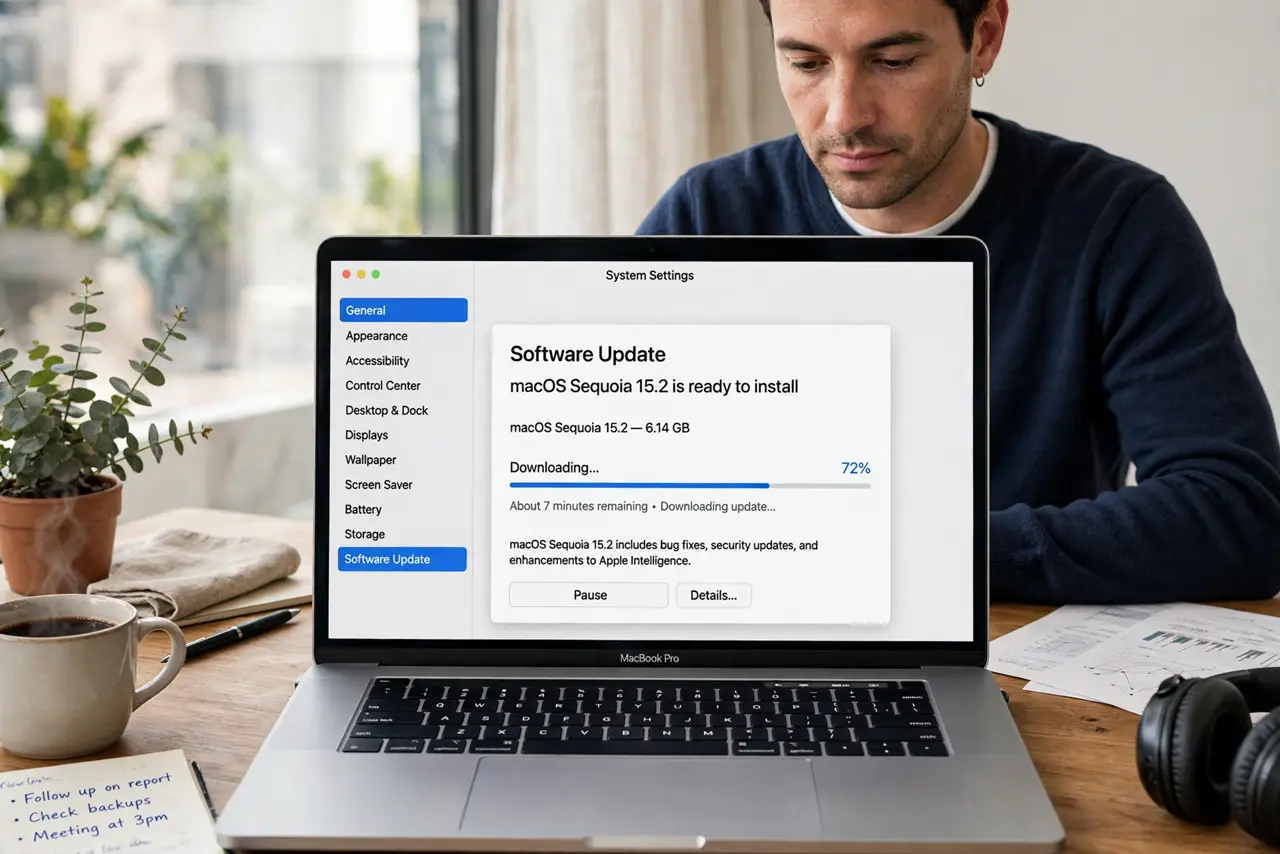
Quick fix: check your internet connection and free disk space first. Then open System Settings, then Software Update, and pause and resume the download once. If it still stalls, restart the Mac and try the download again on a stable network.
Follow these steps
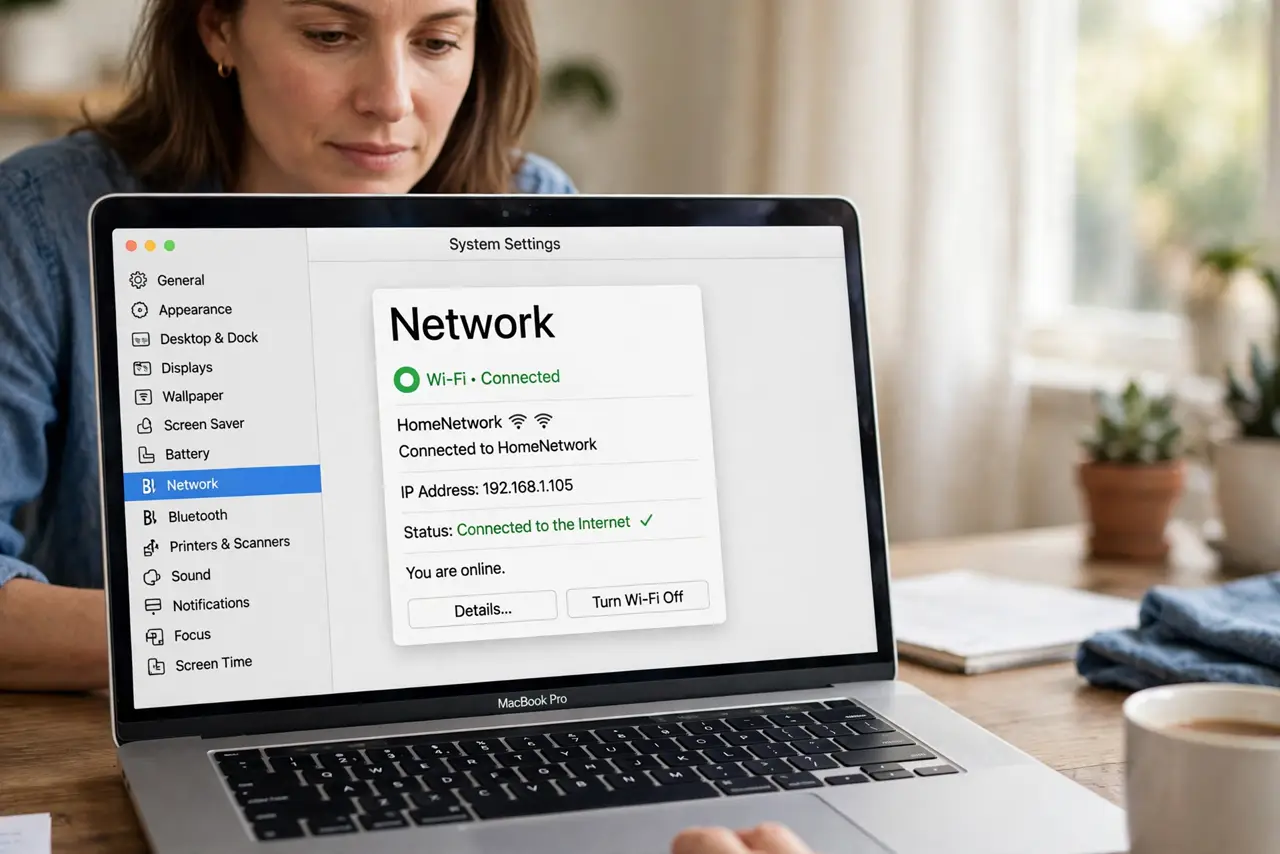
- Check the network connection. Open a web page to confirm the internet works, and move closer to the router if Wi-Fi is weak. A stalled download on a weak connection often resumes on a stronger one.
- Check free disk space. Open System Settings, then General, then Storage, and confirm there is enough free space for the update. A nearly full drive can stall a download.
- Pause and resume the download. In Software Update, pause the download if that option is offered, wait a few seconds, then resume it. A fresh resume can clear a stuck network session.
- Restart the Mac if it stays stuck. If the download is still stuck and not installing, restart the Mac and return to Software Update. Only restart when no installation progress is shown.
- Try again at a quieter time. If the network is busy with streaming or large downloads, pause those and retry the update download. A shared connection can starve a large download.
- Leave an installing update alone. If the Mac shows installation progress, do not restart or power it off. Installation can take a long time, especially on an older Mac, and interrupting it can cause damage.
What NOT to do
- Do not power off the Mac during installation. Turning it off mid-install is the fastest way to turn a slow update into a serious problem.
- Do not delete update files by hand. Let Software Update manage its downloads, since deleting them can force a full re-download or an error.
- Do not keep starting the download over rapidly. Give each attempt time on a stable network, or you may stack up partial downloads.
- Do not install the update from an unofficial source. Use Software Update only, so you get the genuine macOS version for your Mac.
Frequently asked questions
How do I know if the update is downloading or installing?
Software Update shows download progress separately from installation. Only act on a stuck download; leave an installing update alone.
How much free space does an update need?
It needs room to download and install, so free space well beyond the download size if the drive is nearly full.
What if the download stalls every time?
Test a different network, check free space, and restart. If it still stalls, check Apple's system status and support pages for known issues.