Fix a Read-Only USB Drive on Your Mac
A USB drive that lets you read files but not save, delete, or rename them is usually locked, formatted for another system, or set with restrictive permissions. Do not reformat it at once, since that erases everything on it. Check the lock and format first.
TL;DR / Quick Fix
Quick fix: check the drive for a small physical lock switch and slide it to unlocked. Then open Get Info in Finder and check permissions and format. If the format is for Windows only, copy your files off first before considering any format change.
Follow these steps
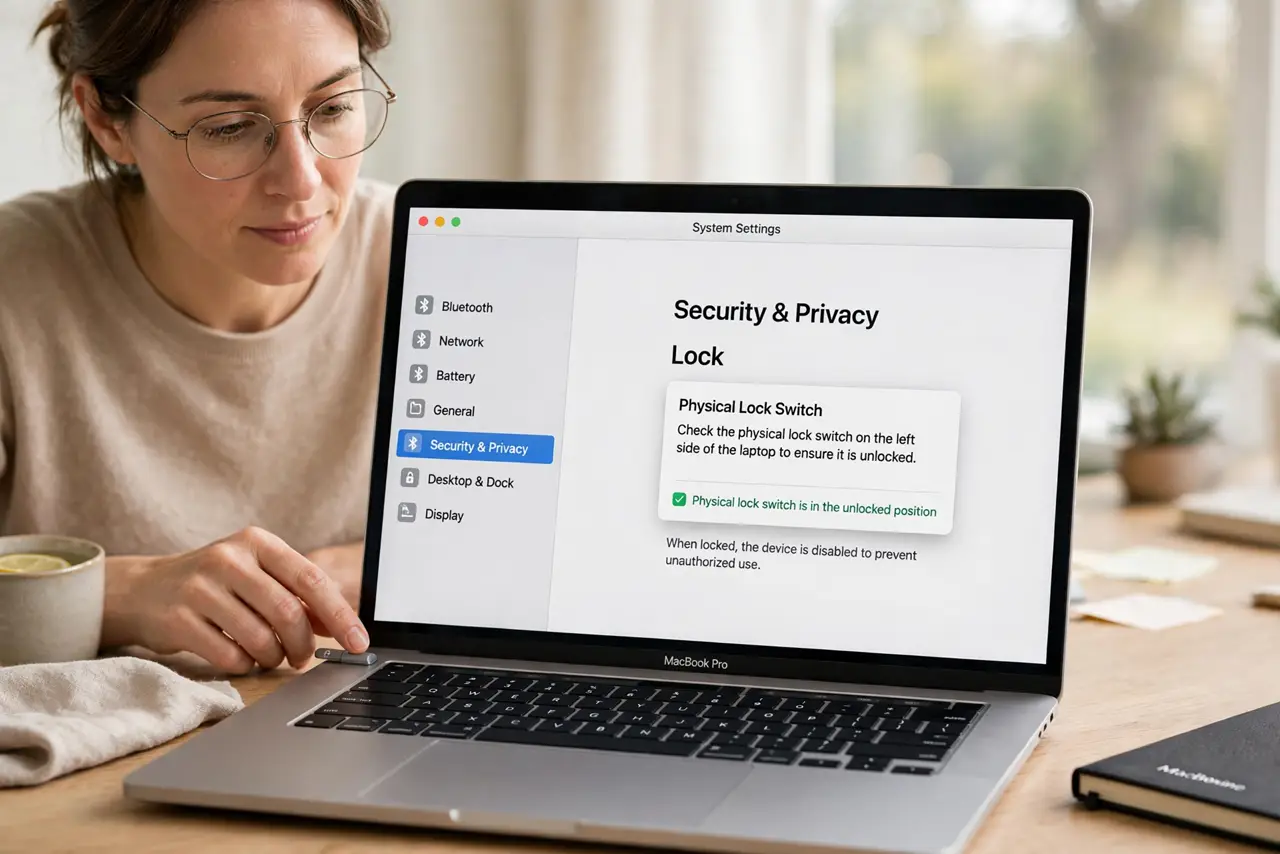
- Check the physical lock switch. Look for a tiny lock switch on the side of the drive or adapter and slide it to the unlocked position. A locked drive reads fine but refuses all changes.
- Eject and reconnect the drive. Eject the drive safely, unplug it, and plug it back in. A fresh mount can clear a temporary read-only state after an unsafe removal.
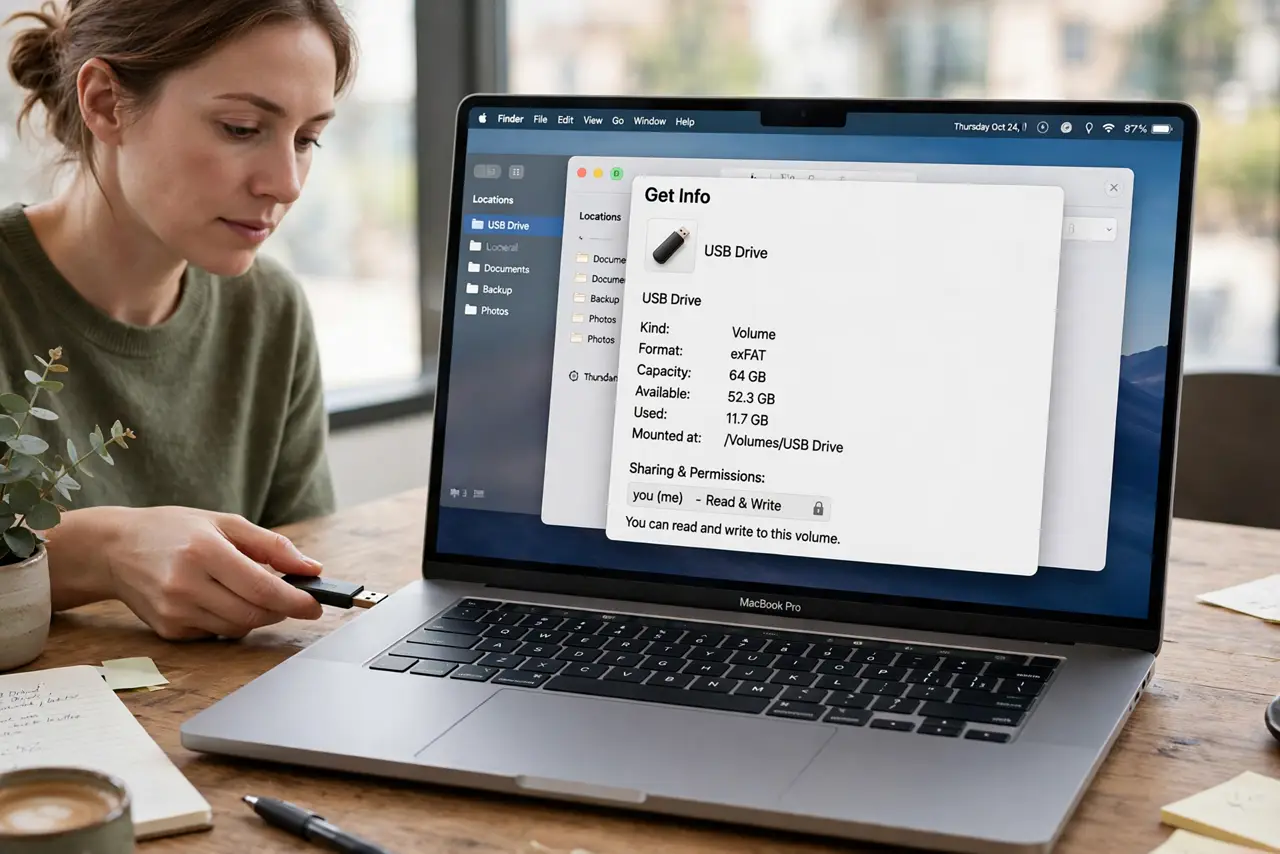
- Check Get Info for format and permissions. In Finder, select the drive and choose Get Info. Note the format and the Sharing and Permissions section at the bottom.
- Check for a Windows-only format. A drive formatted as NTFS reads on a Mac but does not write without extra software. Copy needed files to the Mac first, then decide whether to reformat it.
- Test another USB drive. Plug in a different USB drive and try saving a small test file. If the second drive writes fine, the problem is the first drive, not the Mac.
- Copy files off before any format change. If you decide to reformat, copy every needed file to the Mac first and verify the copies open. Reformatting erases the drive completely.
What NOT to do
- Do not reformat the drive as a first step. Reformatting erases all files, and a lock switch or permission fix may solve the problem without data loss.
- Do not force-write to the drive with unofficial tools. Extra software that forces NTFS writing can corrupt files if it fails partway.
- Do not pull the drive out without ejecting. Unsafe removal can leave a drive in a read-only or damaged state on the next mount.
- Do not change permissions on files you do not own. If the drive came from another computer, copy the files off rather than forcing permission changes.
Frequently asked questions
Why can I read but not write to this drive?
It is usually locked, formatted as NTFS for Windows, or set with permissions that allow reading only on this Mac.
Will reformatting fix a read-only drive?
Yes, but it erases everything, so copy your files to the Mac first and verify they open before reformatting.
What if another drive writes fine?
Then the Mac's USB ports work and the first drive is the problem. Check its lock switch, format, and permissions.