'Verification Failed'? Fix It
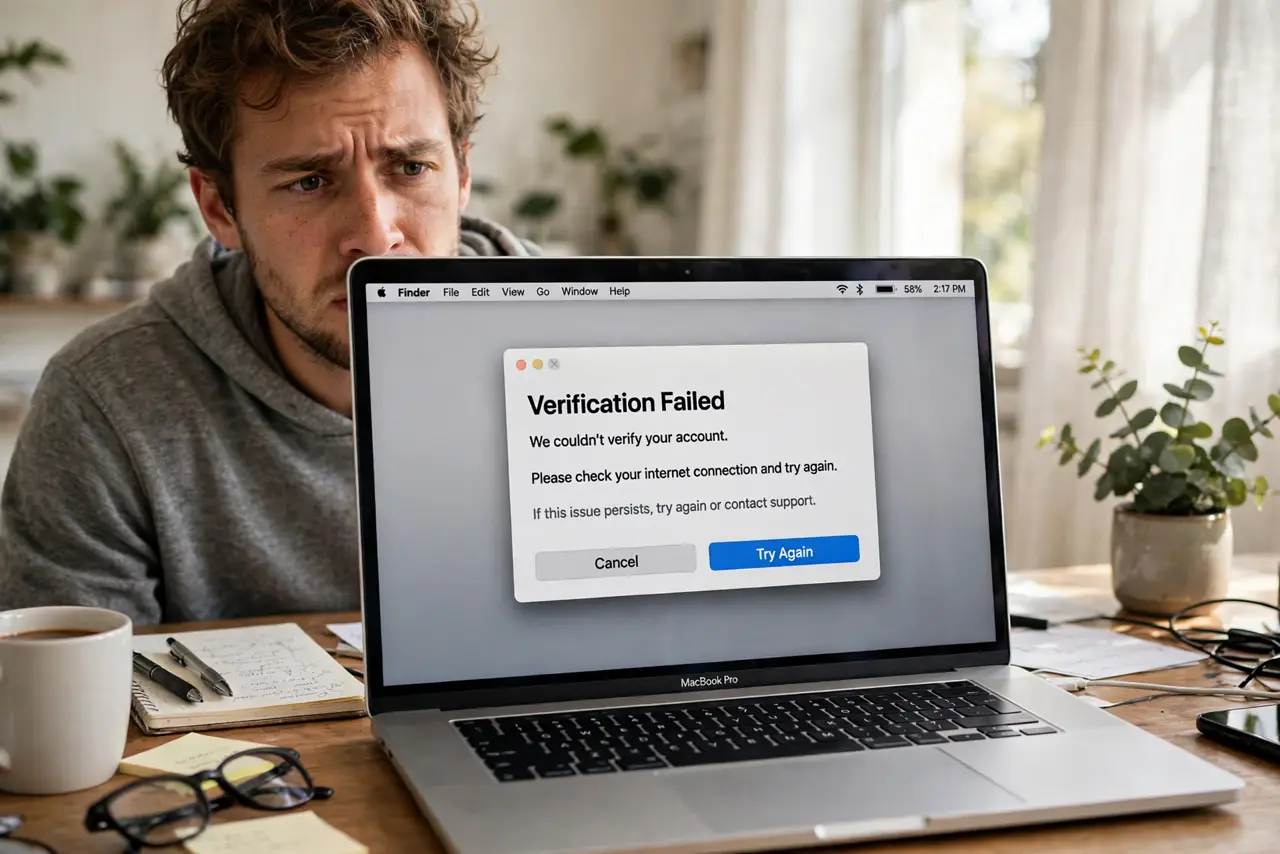
You type the right Apple ID password — you are sure — and macOS answers 'Verification Failed.' Infuriating, because the message blames your credentials while the real cause is usually the network, the clock, or an outdated system. Work this list before resetting anything.
TL;DR / Quick Fix
Quick fix: 'Verification Failed' usually means a network hiccup or an outdated macOS, not a wrong password. Check your internet connection, make sure the date and time are set automatically, and update macOS. If it persists, sign out of the Apple ID and sign back in.
Follow these steps
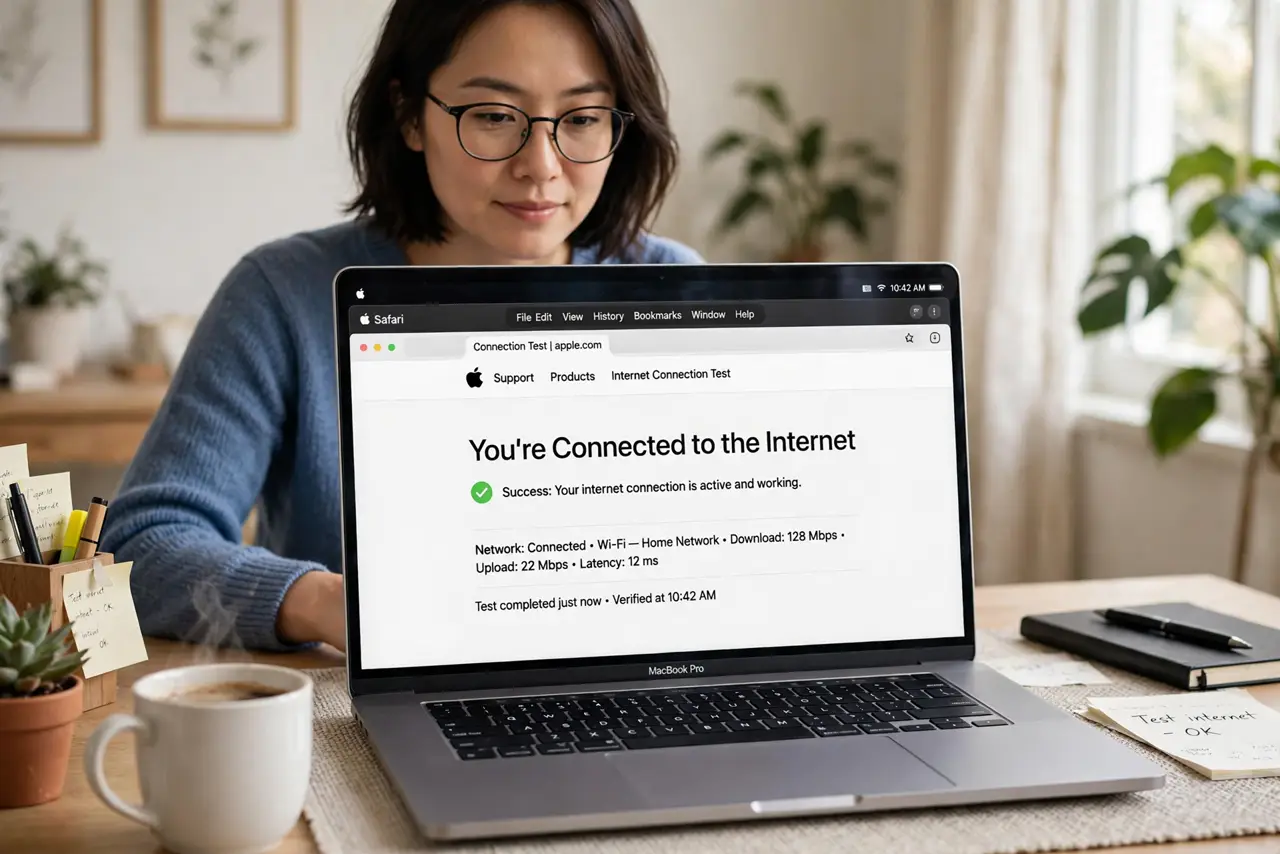
- Confirm the internet actually works. Open a website in Safari. Apple's verification servers need a real connection — captive hotel and cafe Wi-Fi blocks them silently.
- Check date and time are automatic. In System Settings, under General, then Date and Time, enable Set time and date automatically. Wrong clocks break the security handshake behind verification.
- Update macOS. Old systems fail against new server requirements. Install pending updates, then try signing in again.
- Try a different network. Switch from Wi-Fi to a phone hotspot or vice versa. Some networks block Apple's servers — the error never tells you this.
- Sign out and back in. In System Settings, sign out of the Apple ID completely, restart, and sign back in. This clears corrupted local tokens.
- Check Apple's system status. Rarely, Apple's own servers are down. A quick status check saves an hour of pointless troubleshooting.
What NOT to do
- Do not reset your password five times. The password is almost never the problem — repeated resets just lock the account.
- Do not disable two-factor to 'simplify' things. That trades a fixable error for a permanent security downgrade.
- Do not follow 'verification fix' tools from ads. They are scams or junkware — every real fix here is built into macOS.
- Do not factory-reset the Mac over this. Verification failures are account and network issues, never a reason to erase.
Frequently asked questions
I know my password is right — why does it fail?
Because the message is misleading. Verification involves network, clock, certificates, and tokens — the password is only one ingredient.
Does this mean my account is hacked?
Almost certainly not. Hacked accounts show unfamiliar devices and purchases — check your trusted devices if you are worried.
It works on my iPhone but not my Mac — why?
The Mac-specific causes are clock skew and outdated macOS. iPhones update more aggressively, so they dodge the outdated-system failure.