Use Video as Wallpaper
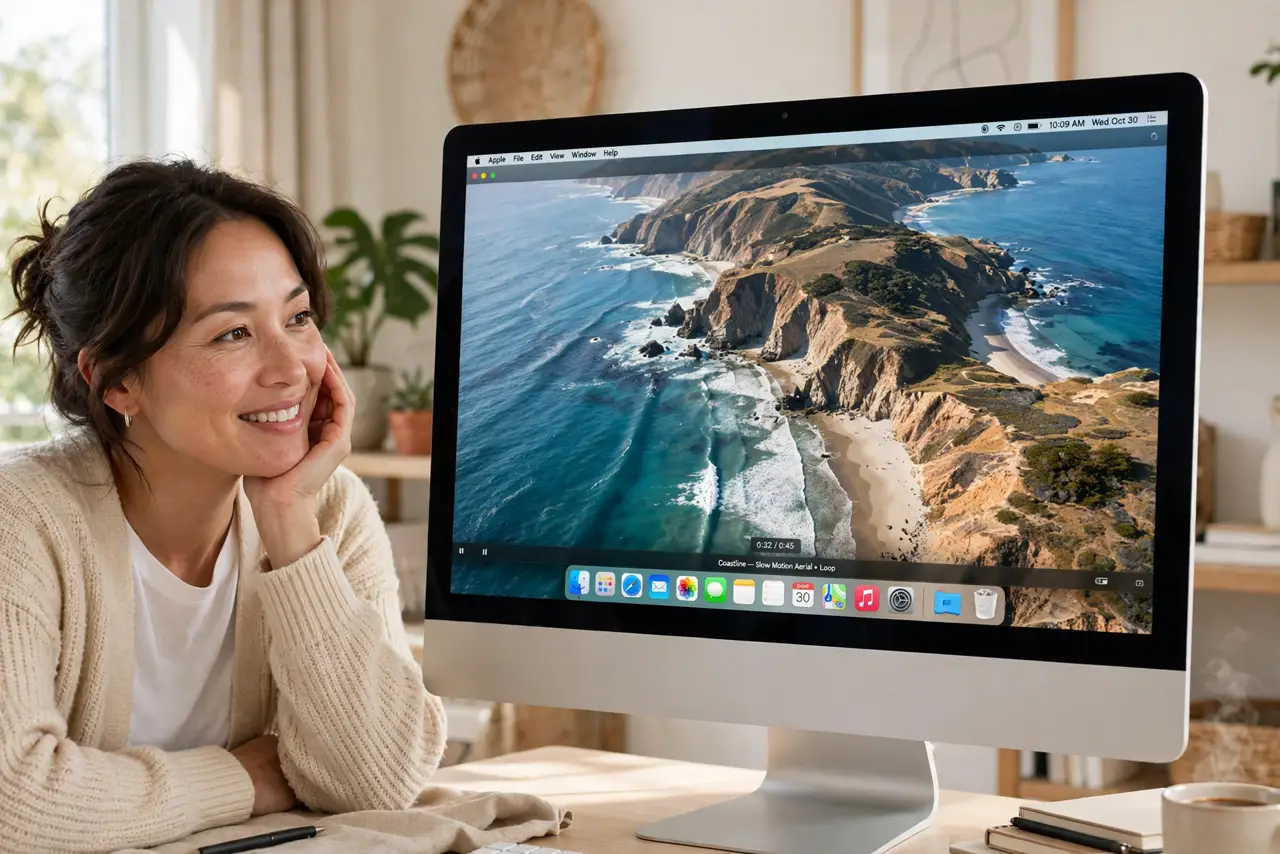
Your static wallpaper has been the same mountain for a year and you have stopped seeing it. A video wallpaper — slow-moving aerial footage drifting across your desktop — makes the Mac feel alive again every time you minimize a window. Recent macOS versions include these built in, and they pause politely when you are working. For the full-screen version, check the aerial screensavers too.
TL;DR / Quick Fix
Quick fix: on a recent macOS, open System Settings, then Wallpaper, and pick one of the built-in video wallpapers. They play on the desktop and pause while you work. If battery or distraction is a concern, any video wallpaper can switch back to a still with one click.
Follow these steps
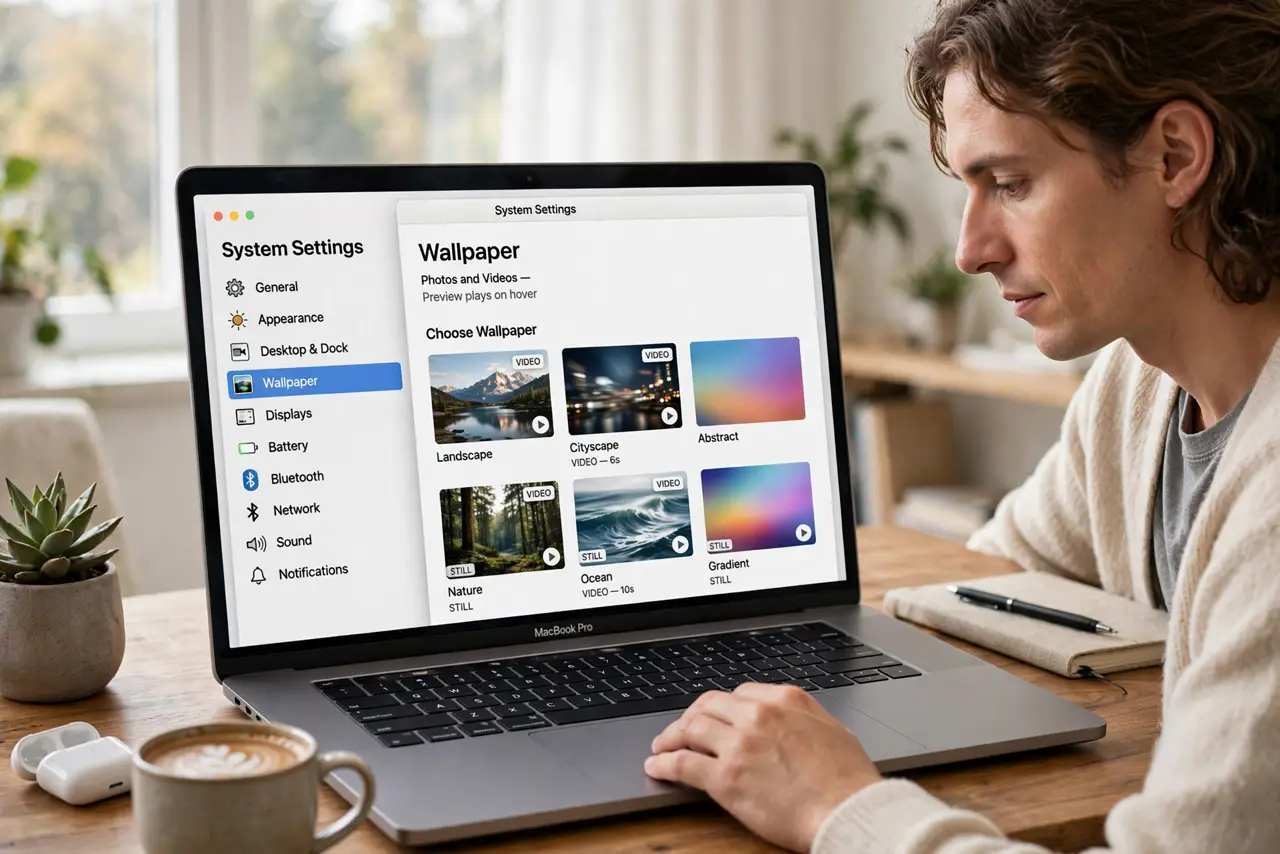
- Open the Wallpaper settings. Go to System Settings and choose Wallpaper. The gallery shows stills and videos together — the video ones are marked and preview in motion.
- Pick a video wallpaper. Choose an aerial landscape that suits your taste — coasts, cities, deserts. They are slow and calm by design, not distracting loops.
- Let it settle on the desktop. The video plays gently behind your windows. When you work, it is just a pleasant backdrop; minimize everything and it becomes the show.
- Know it pauses when needed. Video wallpapers pause during heavy work and on battery saver, so they do not fight your actual tasks for resources. The system manages this automatically.
- Match it with the screensaver. Pair the wallpaper with the matching aerial screensaver and the transition from desktop to idle looks seamless — one continuous scene.
- Switch back anytime. If it ever distracts you, one click in the same settings returns to a still image. Nothing is permanent and nothing needs uninstalling.
What NOT to do
- Do not download video wallpapers from shady sites. The built-in collection is free, high quality, and safe — random downloads are a classic malware vector.
- Do not expect zero battery impact on a laptop. The system pauses video on battery saver, but a plugged-in desktop is its natural home.
- Do not pick a busy, fast-moving video. The built-ins are slow for a reason — frantic motion behind your work is genuinely distracting.
- Do not forget it is just wallpaper. If you never see your desktop under your windows, the prettiest video changes nothing — try it for a week first.
Frequently asked questions
Will it slow down my Mac?
No, not noticeably — the system pauses video wallpapers during demanding work and manages resources automatically.
Can I use my own video?
The built-in gallery is the supported path. Third-party tools exist but add complexity and risk for little gain over the free collection.
Does it work on multiple monitors?
Yes — the wallpaper applies across displays, so the aerial scene can span your whole setup.