Virtual Machines? Basics
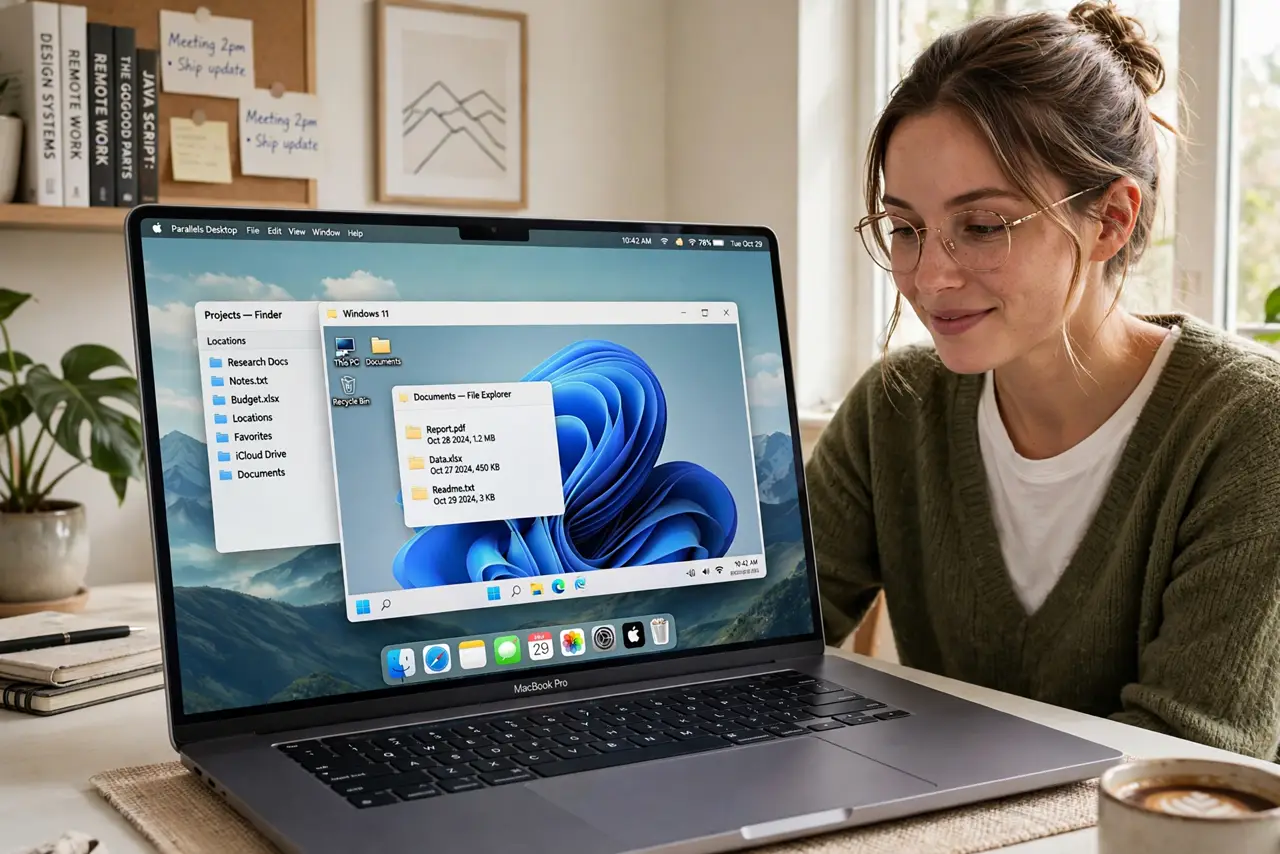
A virtual machine is a computer inside your computer — a window on your Mac that runs a whole other operating system like Windows or Linux, with its own desktop, apps, and files. It is how Mac users run Windows-only software without rebooting, and how developers test things safely. The concept sounds exotic; the practice is surprisingly ordinary.
TL;DR / Quick Fix
Quick fix: a virtual machine runs another operating system in a window on your Mac — handy for Windows-only apps and safe testing. A setup wizard handles the basics; give Windows at least 8 GB of RAM and 60+ GB of disk. Office apps run well; heavy gaming does not.
Follow these steps
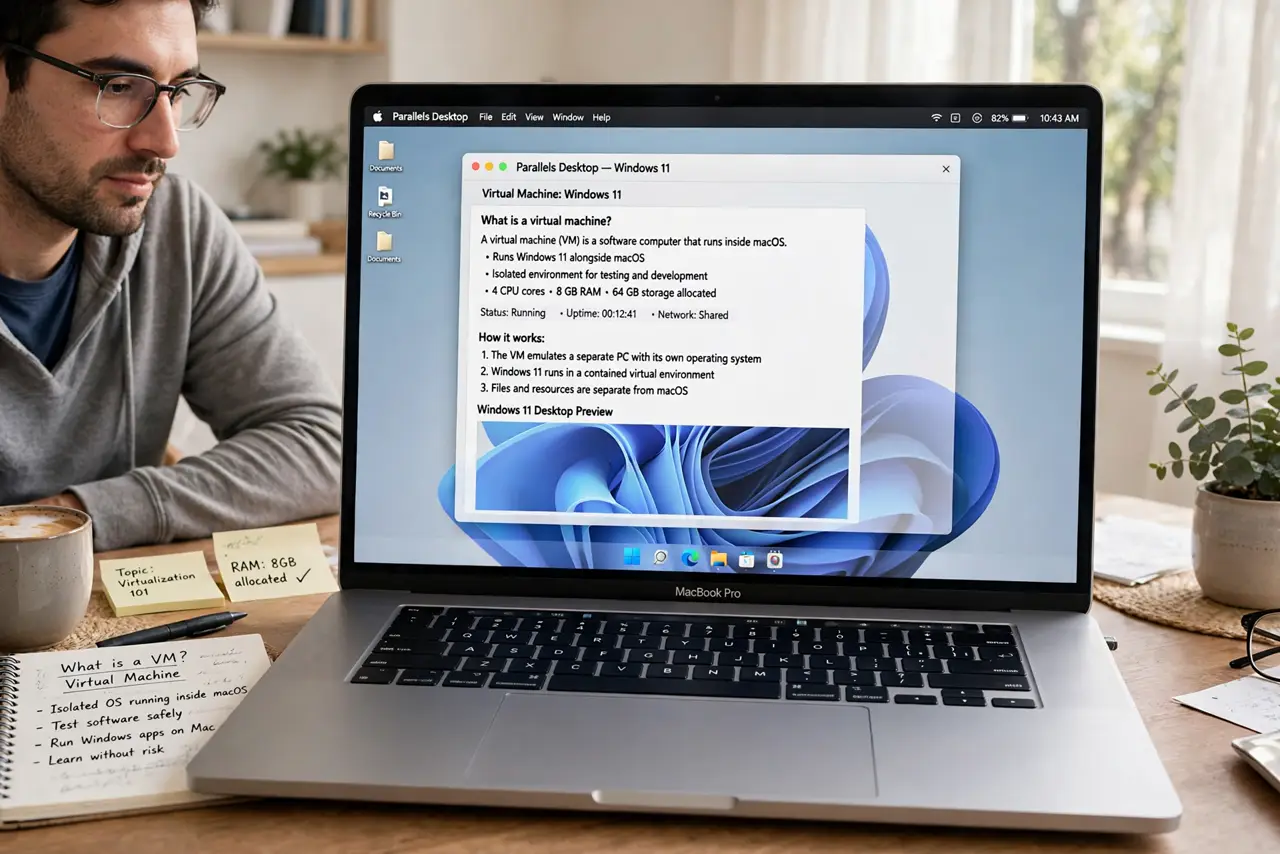
- Understand what a VM actually is. Virtualization software carves off some CPU, RAM, and disk to pretend to be a separate PC. The guest OS — Windows, Linux — runs in a window, files and clipboard shared with the Mac.
- Pick a VM app for Apple silicon. Modern Macs need ARM-native virtualization apps. The big names all offer Apple silicon versions with guided setup — choose one with an active update history, since macOS updates break stale VM apps.
- Give it enough resources. Windows wants 8 GB of RAM and 60+ GB of disk minimum to feel decent. Starving the VM is the number one cause of 'virtual machines are slow' — be generous if your Mac has the headroom.
- Install the guest tools. Every VM app offers 'guest additions' or 'tools' inside the virtual machine — install them. They enable smooth mouse, shared folders, clipboard sync, and proper screen resolution.
- Snapshot before experiments. Snapshots freeze the VM's state; break something and you roll back in seconds. Take one before installing sketchy software or major updates inside the guest.
- Use VMs for Windows-on-Mac needs. The classic Mac VM job is running Windows apps — one program, one work tool. A VM beats dual-booting for anything you need alongside macOS rather than instead of it.
What NOT to do
- Do not give the VM all your RAM. macOS needs at least 8 GB for itself — a starved host makes everything slow, VM included.
- Do not skip the guest tools install. Without them the VM feels broken — laggy mouse, wrong resolution, no shared clipboard.
- Do not treat the VM as disposable security-wise. A Windows VM needs updates and caution like any Windows PC.
- Do not run heavy games expecting native speed. Virtualized 3D works for light titles; demanding games belong on real hardware.
Frequently asked questions
Are virtual machines free?
The concept is; the apps vary — some are free for personal use, others are paid. Windows itself still needs a license inside the VM.
VM vs dual-boot — which is better?
VMs win for convenience: no rebooting, easy file sharing, snapshots. Dual-boot (where available) wins for raw performance, mainly gaming.
Can a virus in the VM infect my Mac?
Extremely unlikely with modern VM apps — the guest is isolated. Shared folders are the one bridge; keep them minimal.