Control Mac with Your Voice
Talking to your Mac used to mean asking Siri and hoping for the best. Voice Control is the deeper system: full hands-free control of the entire Mac — clicking, typing, scrolling — by voice. Whether your hands are full, injured, or you just want to try it, here is how to switch it on and actually make it usable.
TL;DR / Quick Fix
Quick fix: turn on Voice Control in System Settings under Accessibility — it downloads a voice model once, then runs offline. Learn the core commands (‘Click File’, ‘Show numbers’, ‘Scroll down’) and pause briefly after each. Keep the microphone close and the room reasonably quiet for reliable recognition.
Follow these steps
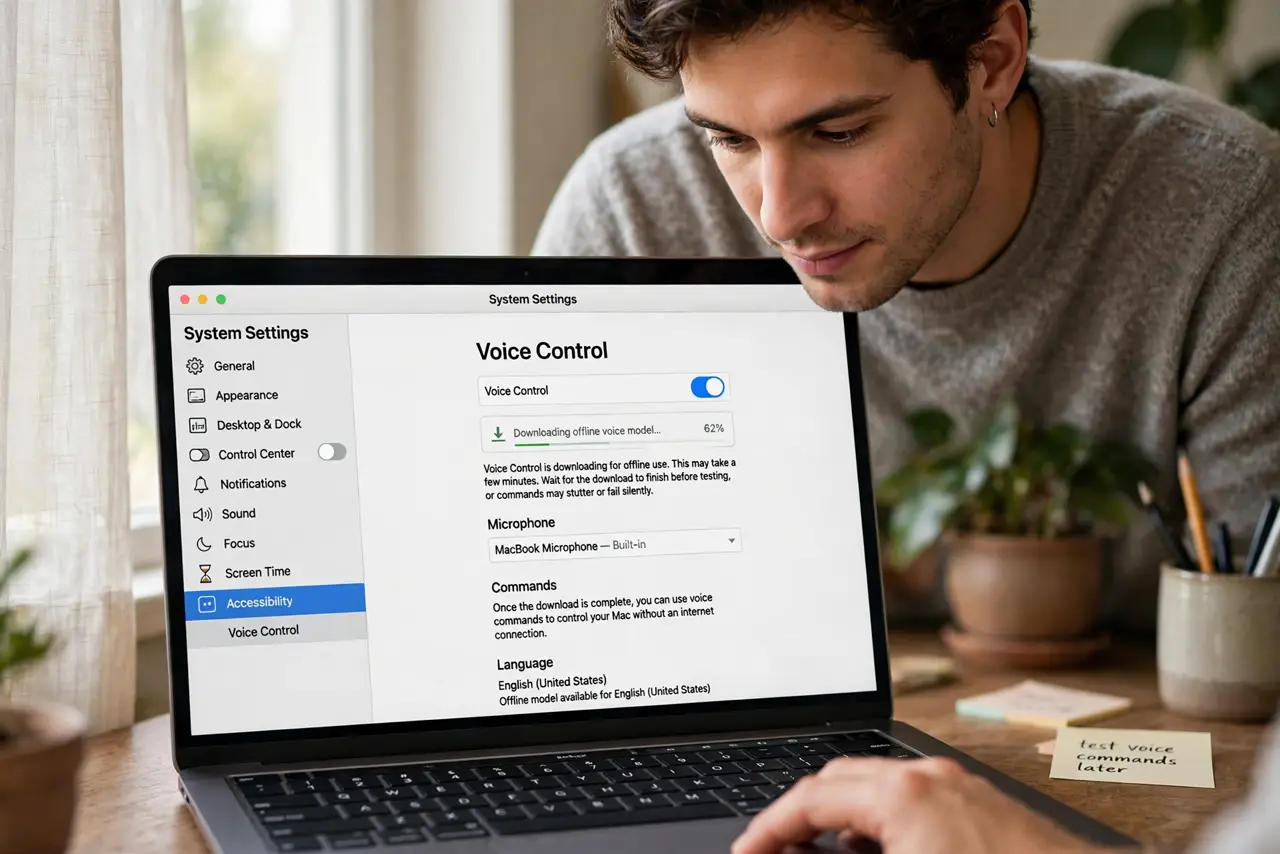
- Turn on Voice Control. Open System Settings > Accessibility > Voice Control and switch it on. macOS downloads the offline voice model the first time — wait for it to finish before testing, or commands will stutter or fail silently.
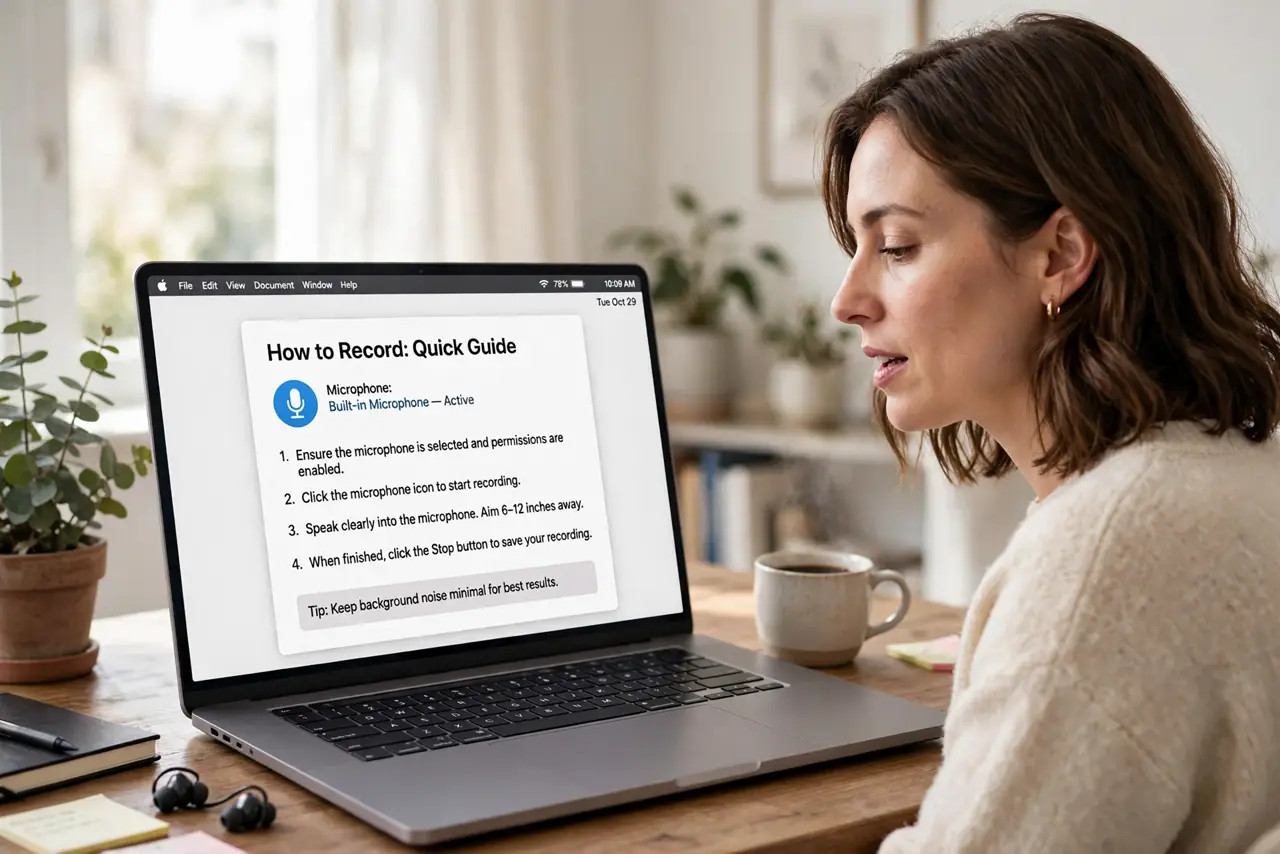
- Pick a microphone. If you have headphones with a mic or an external microphone, select it as the input. A headset mic beats a room-far laptop mic by a wide margin — distance is the single biggest factor in accuracy.
- Learn the ‘show numbers’ command. Say ‘Show numbers’ and every clickable item gets a numbered overlay, then say the number to click it. This is the core trick that turns vague pointing into precise control — practice it until it feels natural.
- Dictate with ‘start dictation’. Say ‘Start dictation’ and speak normally; say ‘Stop dictation’ when done. It works in any text field, not just documents — try it in a web form.
- Use vocabulary commands for symbols. Voice Control knows command words for punctuation — say ‘comma,’ ‘period,’ ‘new paragraph.’ Check the Commands list in settings to see everything available, including custom commands you can add yourself.
- Pair it with accessibility shortcuts. Combine Voice Control with Sticky Keys for tricky key combinations you cannot easily say, and keep a keyboard handy during the learning phase — nobody goes fully hands-free on day one.
What NOT to do
- Do not test Voice Control in a noisy room and judge it. A TV or conversation nearby wrecks recognition — quiet room first, opinions later.
- Do not expect Siri-level chattiness. Voice Control is a control system, not a conversational assistant — Siri handles questions; Voice Control handles the cursor.
- Do not disable the microphone permission for apps you dictate into. The system-level permission is separate from per-app microphone access.
- Do not forget to turn it off for private conversations. Say ‘Stop listening’ or ‘Go to sleep’ when you are done — otherwise it keeps transcribing.
Frequently asked questions
Does Voice Control work offline?
Yes — after the initial model download, everything runs on the Mac. That is also why it is more private than cloud voice assistants.
Can it type in another language?
It supports several languages; add yours in the Voice Control settings and download the matching model. Mixing languages mid-sentence works poorly — pick one per session.
Why does it click the wrong thing?
Usually background noise or similar-sounding numbers. ‘Show numbers’ with a clear pause after each command, plus a closer microphone, fixes most mis-clicks.