Turn On Sticky Keys
Keyboard shortcuts that need three fingers at once — Command + Option + Shift + something — are genuinely hard for many people, whether from a hand injury, arthritis, or just small hands. Sticky Keys lets you press modifier keys one at a time instead of all together. It is built into macOS, free, and takes a minute to enable.
TL;DR / Quick Fix
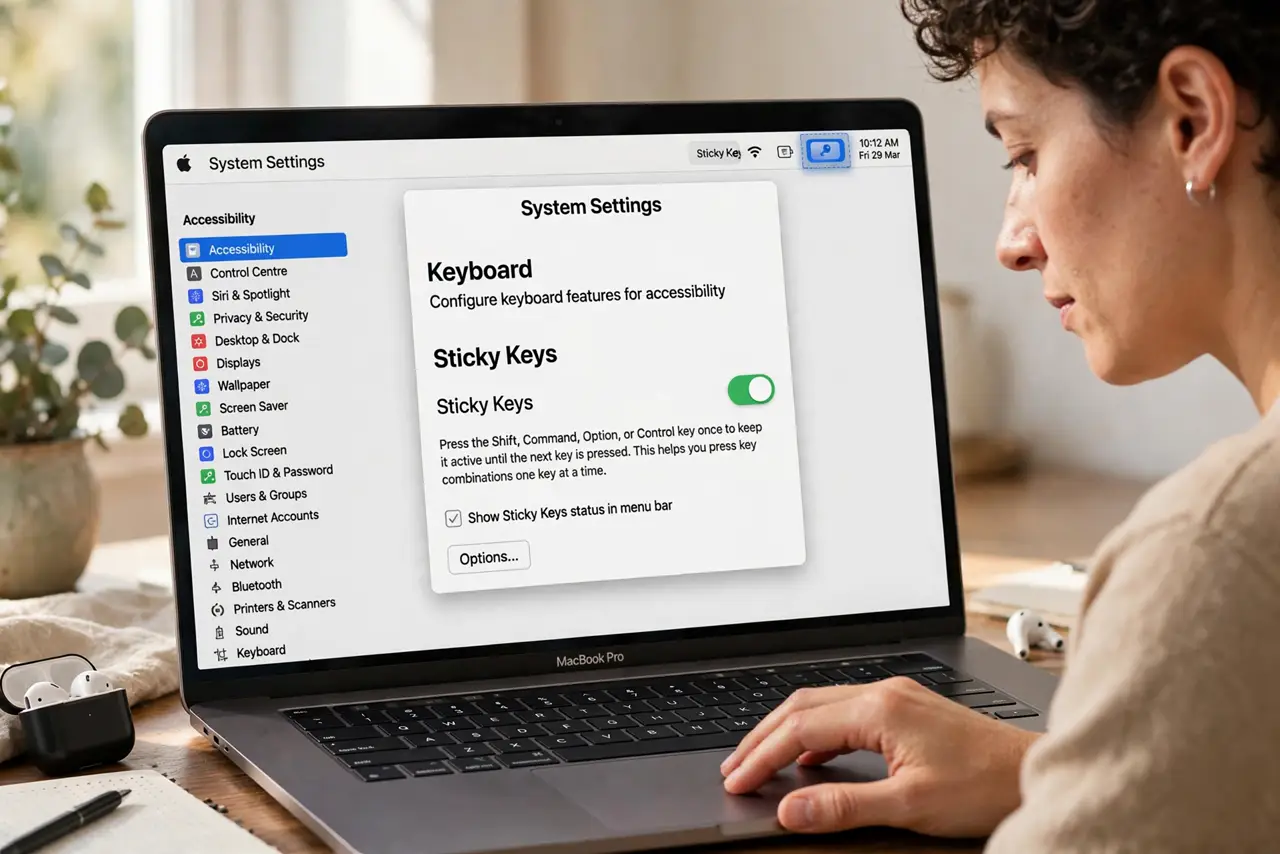
Quick fix: open System Settings > Accessibility > Keyboard and turn on Sticky Keys. Press Shift, Control, Option, or Command once and it ‘sticks’ until you press the next key — so Command+C becomes two separate taps. Press a modifier twice to lock it for repeated shortcuts.
Follow these steps
- Turn on Sticky Keys. Go to System Settings > Accessibility > Keyboard and enable Sticky Keys. macOS confirms each stuck modifier with a subtle highlight in the menu bar — watch for it the first few times so you trust it is working.
- Try a simple shortcut. Tap Command once, then tap C. That is Command+C, done in two relaxed presses. Undo the habit of holding — Sticky Keys rewards the tap-tap rhythm.
- Learn the double-tap lock. Press a modifier twice quickly to lock it down for multiple shortcuts in a row — handy for Command+Tab app switching. Press it a third time to release the lock.
- Adjust the acceptance delay if needed. In the Sticky Keys options, you can tweak how the feature behaves. If keys seem to unstick too fast while you think, look for the timing options and give yourself more room.
- Combine it with Slow Keys if typing is the issue. If accidental key presses are also a problem, Slow Keys (same settings page) requires holding each key briefly — the two features complement each other well for motor difficulties.
- Consider voice as a partner. For longer stretches of hands-free work, Voice Control handles clicking and dictation while Sticky Keys handles the shortcuts — the combination covers nearly everything.
What NOT to do
- Do not enable it accidentally via the five-press shortcut. Tapping Shift five times offers Sticky Keys — if a dialog appears unexpectedly, that is what happened; just decline it.
- Do not use it for gaming. Games expect real simultaneous key presses, and Sticky Keys will fight fast input — turn it off before playing.
- Do not assume it works in the login screen. Accessibility keyboard features apply after login; the password field still needs normal typing.
- Do not forget it is on when someone else uses the Mac. Guests will think the keyboard is broken — the menu-bar indicator is your reminder to switch it off.
Frequently asked questions
Why did Sticky Keys turn on by itself?
You probably pressed Shift five times — that is the built-in shortcut that offers to enable it. Decline the dialog, or disable the shortcut in the Sticky Keys options.
Does Sticky Keys slow down normal typing?
No — it only affects modifier keys (Shift, Control, Option, Command). Regular letter typing behaves exactly as before.
Can I use it with an external keyboard?
Yes — it works with any keyboard connected to the Mac, including Bluetooth ones. The setting is system-wide, not per-keyboard.