Cut Noise on Calls
Your dog barks, a siren passes, the dishwasher roars — and everyone on the call hears all of it. macOS has a built-in microphone mode called Voice Isolation that strips background noise and keeps only your voice, and it works in almost any call app. It is one toggle, it costs nothing, and it is the single biggest audio upgrade for home-office calls. Pair it with decent call lighting and you are fully presentable.

TL;DR / Quick Fix
Quick fix: on a Mac, open Control Center during a call and switch the microphone mode to Voice Isolation — background noise drops away instantly. It works in FaceTime, Zoom, Teams, and most other apps. Use it whenever the house is noisy; switch back to Standard in quiet rooms.
Follow these steps
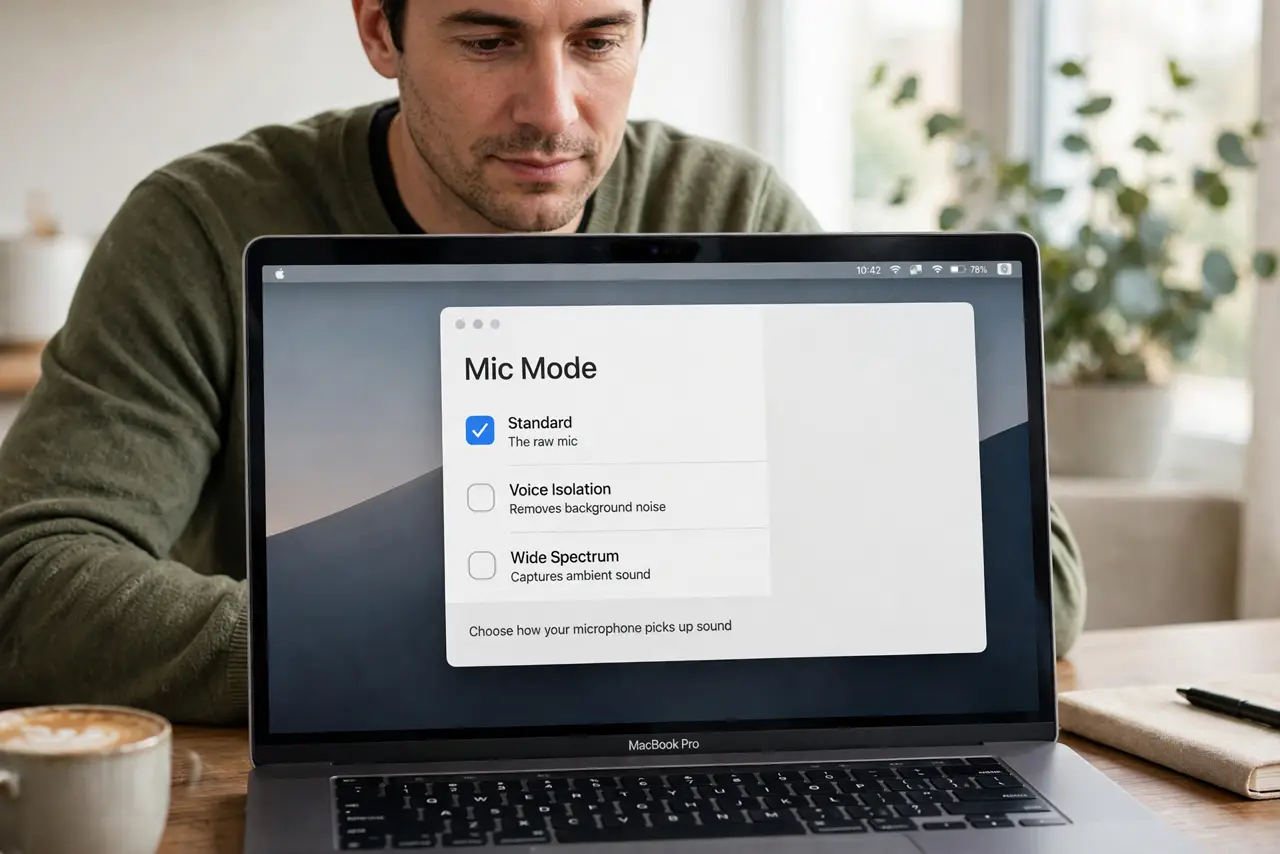
- Understand the three mic modes. macOS offers Standard, Voice Isolation, and Wide Spectrum. Standard is the raw mic; Voice Isolation removes background noise; Wide Spectrum deliberately captures everything — useful for music, terrible for barking dogs.
- Open it during a live call. The mic mode control appears in Control Center only while an app is using the microphone. Join or start a call first, then open Control Center from the menu bar.
- Switch to Voice Isolation. Click the Mic Mode button and choose Voice Isolation. The change is instant — your callers will hear the room go quiet around your voice.
- Test it before it matters. Record a quick voice memo or do a test call while making noise. Hearing the before-and-after yourself builds the habit of actually using it.
- Know when to turn it off. In a quiet room, Standard sounds more natural — Voice Isolation can slightly thin your voice. And never use Wide Spectrum for a normal meeting; it exists for jam sessions, not standups.
- Fix the room too. Software helps, but closing the door and moving away from the dishwasher helps more. Voice Isolation is a filter, not a miracle — give it less noise to remove.
What NOT to do
- Do not leave it on Wide Spectrum for meetings. It amplifies every background sound on purpose — the opposite of what a call needs.
- Do not expect it to erase everything. Sudden loud noises still punch through; it tames steady background noise best.
- Do not look for the toggle when no call is active. The mic mode menu only appears while an app is using the microphone.
- Do not shout over the noise instead. Speak normally — the filter works on your natural voice, and shouting distorts it.
Frequently asked questions
Does Voice Isolation work in Zoom and Teams?
Yes — it is a system-level mic mode, so it applies to nearly any app that uses the microphone, not just FaceTime.
Will it make my voice sound robotic?
Slightly processed, but not robotic. In a noisy room the tradeoff is overwhelmingly worth it; in a quiet room, switch back to Standard.
Is there a Windows equivalent?
Windows has noise suppression in some apps and drivers, but nothing as universal and simple as the macOS mic mode toggle.