Trim Voice Memos
You recorded a forty-minute meeting and the good stuff starts at minute twelve — or a voice note rambles for five minutes before the actual message. Voice Memos on the Mac has a built-in trim tool that cuts the dead air from either end in seconds, no audio editor needed. This guide trims precisely, replaces sections, and keeps the original safe. For capturing the screen alongside audio, see how to master screen recording.
TL;DR / Quick Fix
Quick fix: open the recording in Voice Memos, click Edit, and drag the yellow trim handles to keep only the part you want, then Trim to save. Use Replace to re-record a middle section. Duplicate the memo first if the original must stay untouched.
Follow these steps
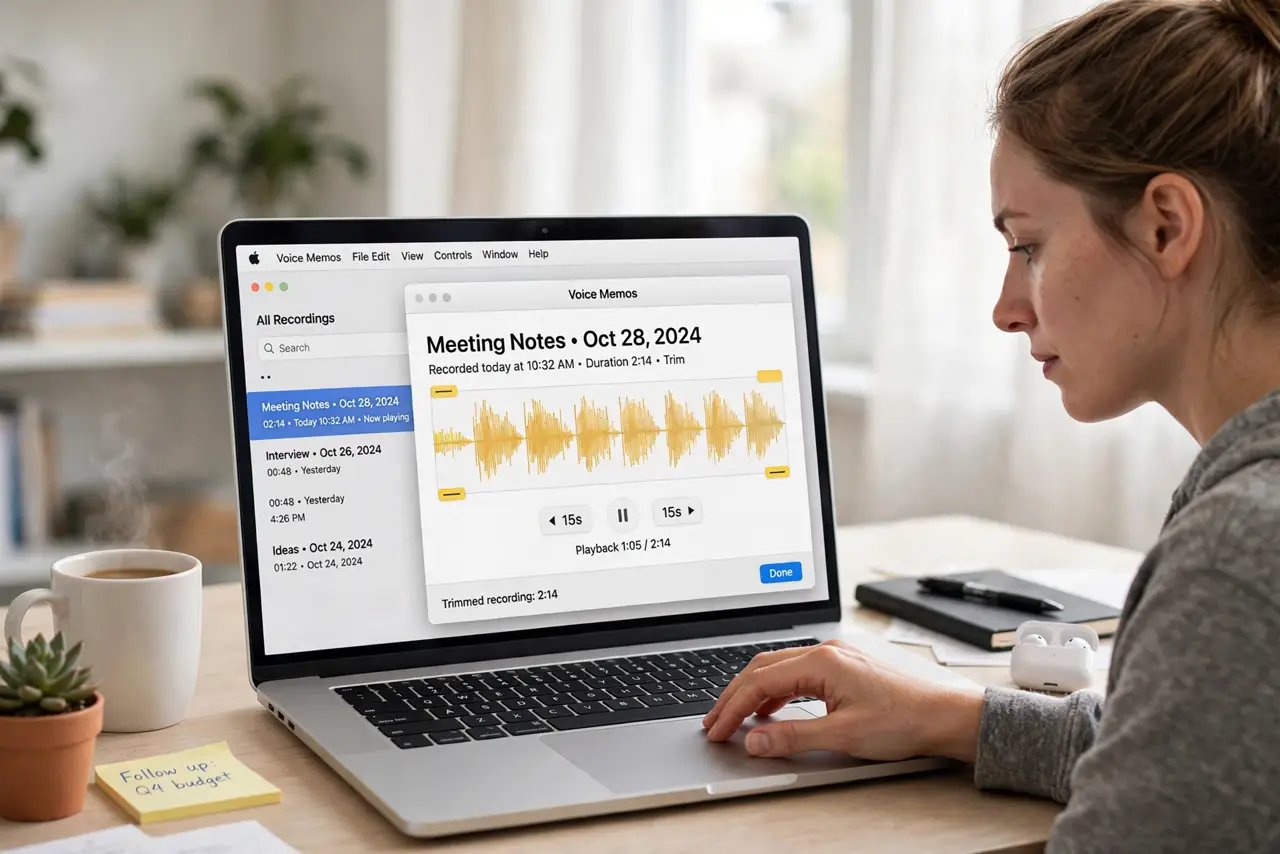
- Open the memo for editing. Select the recording in Voice Memos and click the Edit button (the waveform icon). The editing view shows the full waveform with trim handles at each end.
- Drag the trim handles. Drag the yellow handles inward to mark what to keep. Play the selection to check the cut points — ears beat eyes for finding the right spot.
- Trim or delete. Click Trim to keep only the selected part, or Delete to remove the selection and join the rest. Trim is for cutting ends; Delete removes a middle chunk.
- Replace a section. Select a portion and click Replace, then record the new take. The app punches in over the old audio — perfect for fixing a flubbed sentence without re-recording everything.
- Duplicate before risky edits. For important recordings, duplicate the memo first (File, then Duplicate). Edits in Voice Memos are destructive once saved — the copy is your undo button.
- Rename and organize. Give the trimmed memo a real name and move it to a folder. 'New Recording 47' is unfindable; 'Client call March — trimmed' is not.
What NOT to do
- Do not trim the only copy of an important recording. Duplicate first — Voice Memos edits cannot be undone after saving.
- Do not expect studio editing. Trim and Replace handle ends and fixes; for multi-track work you need a real audio editor.
- Do not trim on the iPhone and expect the Mac to sync instantly. iCloud sync of edited memos can lag — wait for it before deleting anything.
- Do not record in a noisy room and hope trimming fixes it. Trimming cuts time, not background noise — record clean in the first place.
Frequently asked questions
Can I trim the middle of a recording?
Yes — select the middle section and use Delete to remove it, or Replace to record over it. The ends-only limit does not apply.
Does trimming reduce quality?
No. Trimming just marks new start and end points; the kept audio is untouched at original quality.
Where do trimmed memos sync?
Through iCloud to your other Apple devices if Voice Memos sync is on. Large memos can take a while on slow connections.