Fix Wacom Pen Pressure on Mac
Your Wacom pen moves the cursor fine, but every stroke comes out the same thickness — pressure sensitivity is dead. On a Mac this is almost always the driver: outdated, blocked by macOS permissions, or installed without the restart it needed. Work through this order and pressure usually comes back.
TL;DR / Quick Fix
Quick fix: install the latest Wacom driver from Wacom's site, grant the permissions it asks for in System Settings, then restart your Mac. Test pressure in Wacom Center first. If it works there but not in your art app, check the app's brush settings next.
Follow these steps
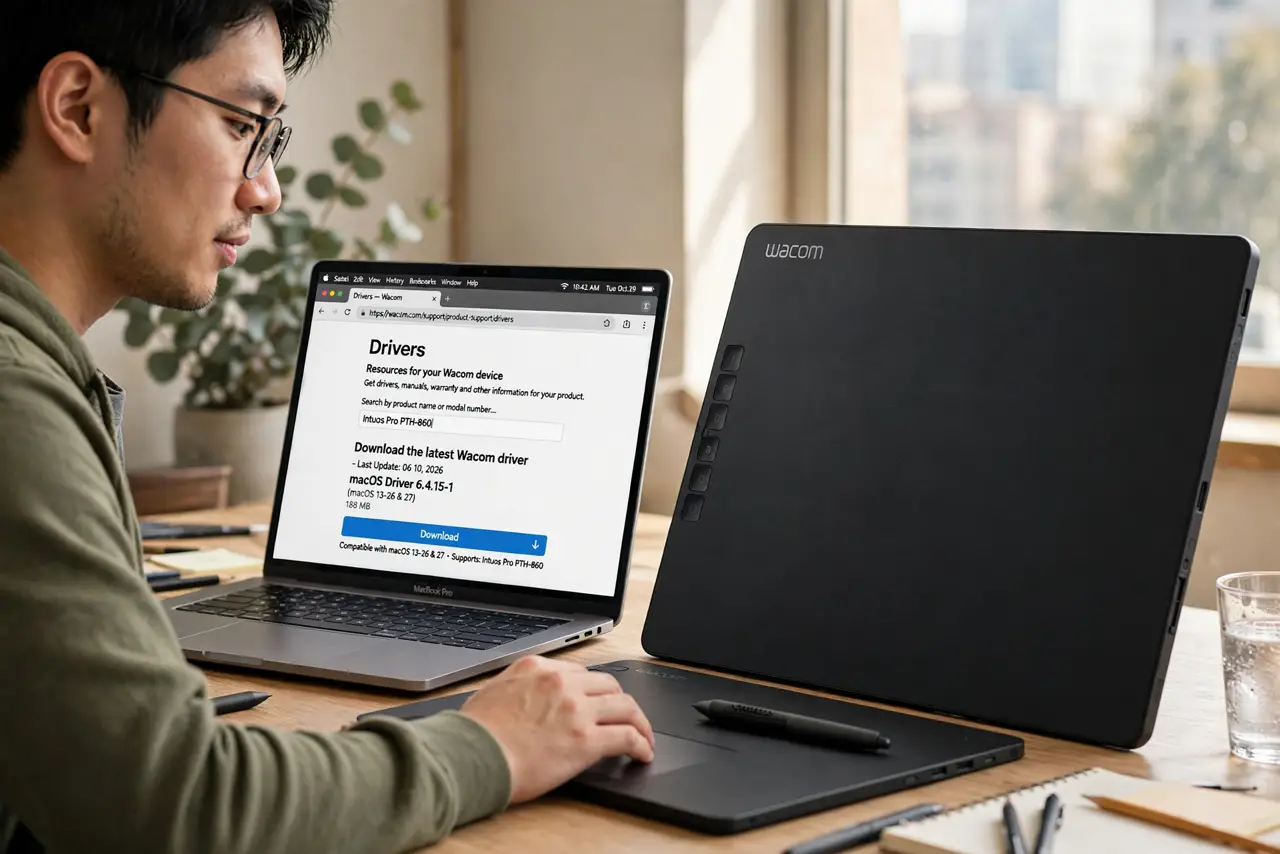
- Install the latest driver from Wacom's own site. Download the driver for your exact tablet model from Wacom — not from a driver aggregator. Old drivers are the number one cause of dead pressure on current macOS versions.
- Grant every permission the installer requests. macOS will prompt for Accessibility and Input Monitoring access. Approve them in System Settings under Privacy and Security — a driver without these permissions moves the cursor but gets no pressure data. See the permissions overview if a prompt never appeared.
- Restart your Mac after installing. The driver needs a restart to load its pressure components. Skipping this step and testing immediately is why many 'new driver didn't help' reports happen.
- Test pressure in Wacom Center first. Open Wacom Center and use its pressure test area. If pressure works there, the driver is fine and the problem lives in your art app's settings.
- Check the app's brush and tablet settings. In your art program, make sure the brush has pressure mapped to size or opacity. A brush with pressure disabled looks exactly like a driver failure — check before reinstalling anything.
- Rule out hardware: nib, cable, and pen. A worn nib, a damaged pen, or a flaky cable can kill pressure while the cursor still moves. Try a fresh nib and, if wired, a different cable before blaming software.
What NOT to do
- Do not download Wacom drivers from third-party driver sites. Bundled junk and outdated versions are the norm there — Wacom's own site only.
- Do not skip the restart after installing. Testing a fresh driver without restarting proves nothing and wastes an hour.
- Do not blame the art app before testing Wacom Center. The two-minute Center test tells you instantly whether it is driver or app.
- Do not draw with a worn-down nib and expect pressure. A nib worn to a stub misbehaves in ways that look exactly like software bugs.
Frequently asked questions
Why does macOS block the Wacom driver?
macOS requires explicit permission for input devices. If you dismissed the prompt during install, open System Settings, Privacy and Security, and approve the Wacom entries manually.
Pressure works in Photoshop but not in my other app — why?
Each app has its own tablet and brush settings. The driver is fine; enable pressure sensitivity inside that specific app's brush options.
Should I use Bluetooth or the cable?
Cable first for troubleshooting — it removes wireless interference from the equation. Switch back to Bluetooth once pressure is confirmed working.