Wi-Fi Got Slow After a macOS Update
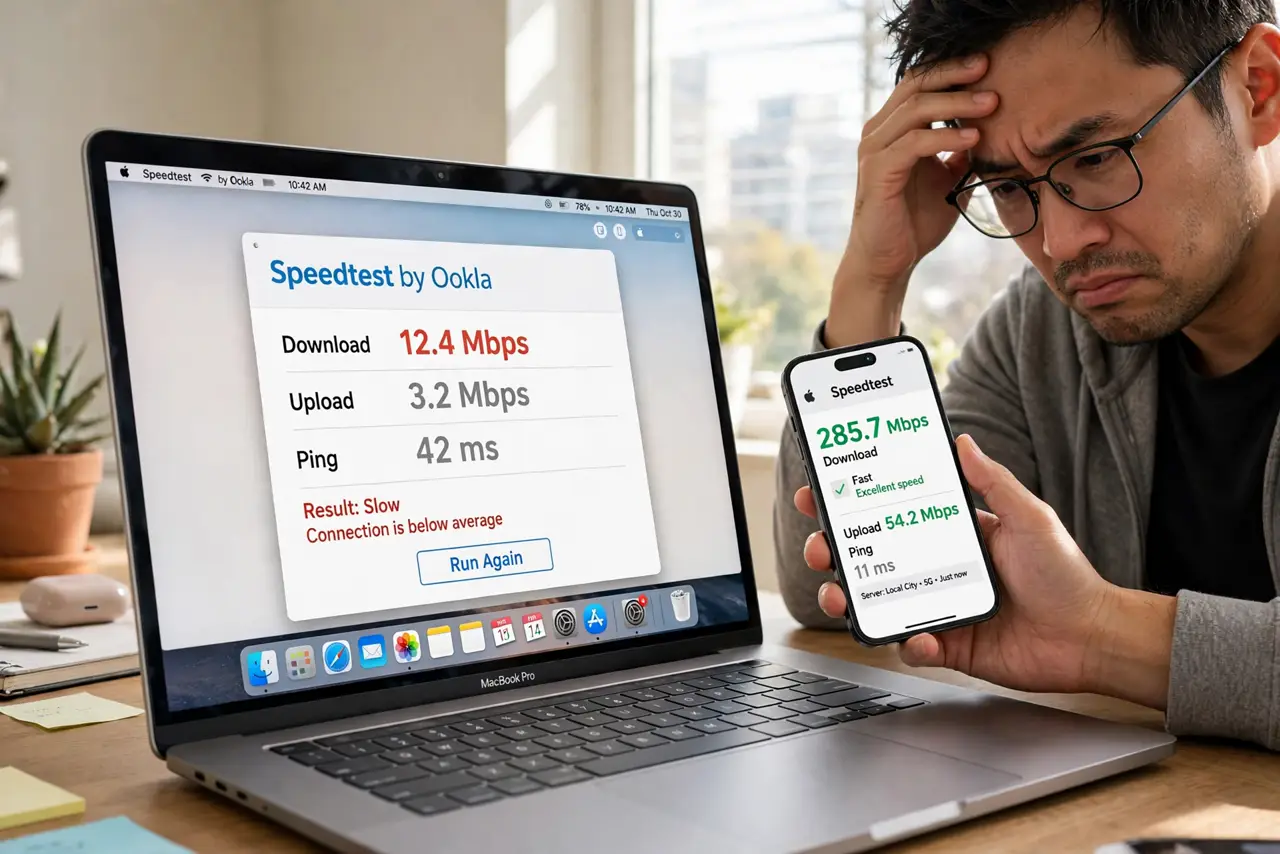
Wi-Fi was fast yesterday, you installed a macOS update, and now everything crawls — same router, same spot, half the speed. Updates can reset network settings, change preferred bands, or introduce a driver regression. This guide gets your speed back without rolling anything back.
TL;DR / Quick Fix
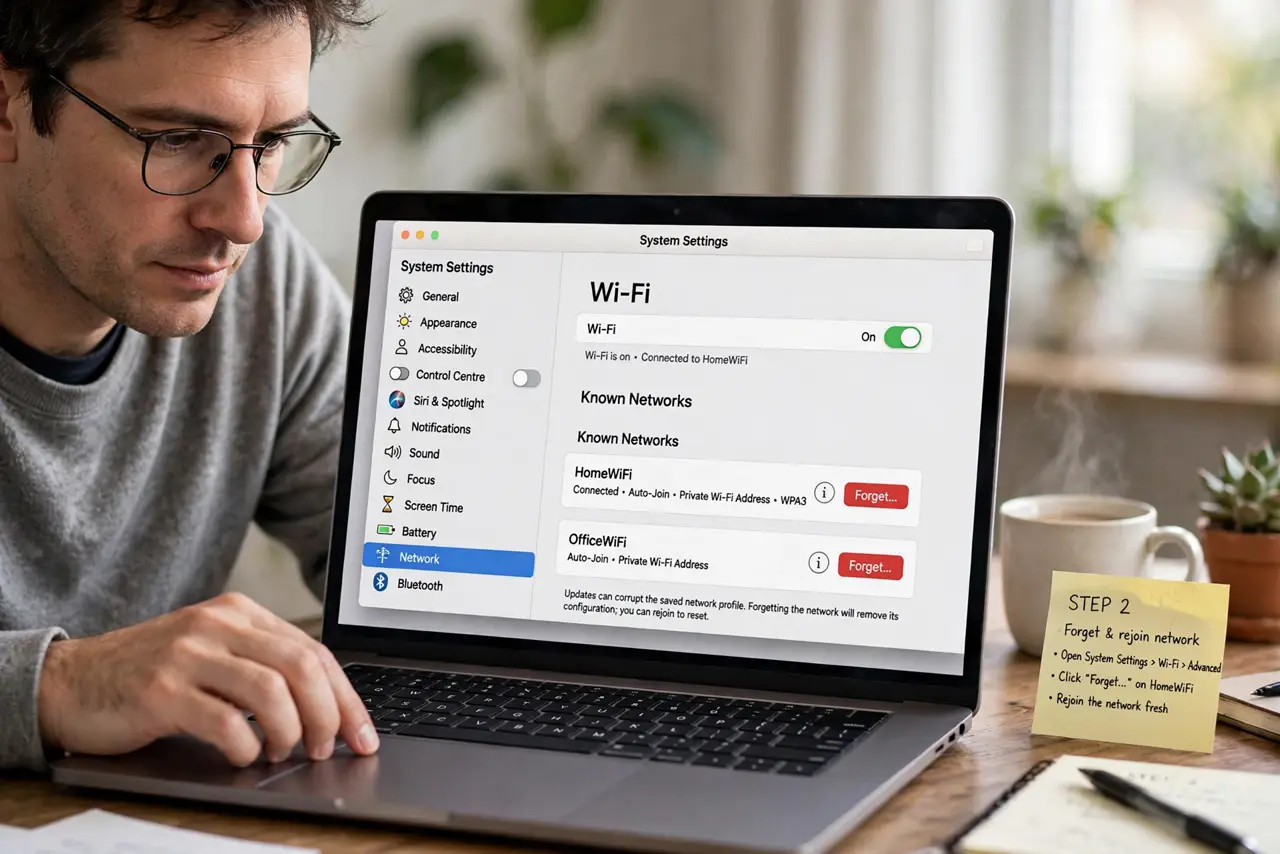
Quick fix: forget and rejoin your Wi-Fi network to clear the profile the update mangled. Confirm the Mac uses the 5 GHz band, then restart both the Mac and the router. Test speed next to the router to separate Mac issues from coverage issues.
Follow these steps
- Forget and rejoin the network. Remove the Wi-Fi network in System Settings > Wi-Fi > Advanced, then join it fresh. Updates can corrupt the saved network profile in ways only a clean rejoin fixes.
- Check the band preference. Make sure the Mac joins your router's 5 GHz network, not the slower 2.4 GHz one. After updates, the Mac sometimes 'prefers' the stronger-but-slower signal.
- Restart the Mac and the router. Power both fully off for thirty seconds. An update can leave both sides in a confused state that only a clean restart clears.
- Test next to the router. Run a speed test a few feet from the router. Full speed there but slow in your room means the update exposed a coverage issue, not a Mac issue.
- Check for background downloads. After an update, the Mac may be downloading follow-up content or reindexing. Open Activity Monitor's Network tab and see whether the Mac itself is saturating the connection.
- Look up the update's known issues. Search Apple's support notes for your exact macOS version and Wi-Fi. If it is a widespread regression, the fix is the next update — report it and wait rather than hacking settings.
What NOT to do
- Do not roll back macOS over slow Wi-Fi. Downgrading is drastic, risky, and unnecessary when the fix is usually a network rejoin.
- Do not buy a new router first. The timing — fast before the update, slow after — points at the Mac, not hardware that worked yesterday.
- Do not change router channels blindly. If the Mac is the only slow device, the router's settings were fine before the update.
- Do not disable Wi-Fi security to 'speed things up.' An open network is never the fix for a post-update slowdown.
Frequently asked questions
Why is Wi-Fi slow after updating macOS?
The update can corrupt the saved network profile, switch bands, or introduce a temporary regression. Rejoin the network first.
Will another update fix it?
If it is a genuine regression affecting many users, yes — Apple's next point update usually addresses it.
Should I reset network settings?
Forgetting and rejoining your network does 90% of what a full reset does, with far less collateral damage.