Password-Protect a Zip on Mac
You need to email sensitive documents — tax forms, contracts, scans — and a plain zip is readable by anyone who intercepts it. macOS can create a password-protected zip, though Apple hides the option in Terminal. Here's the honest method plus its limits.
TL;DR / Quick Fix
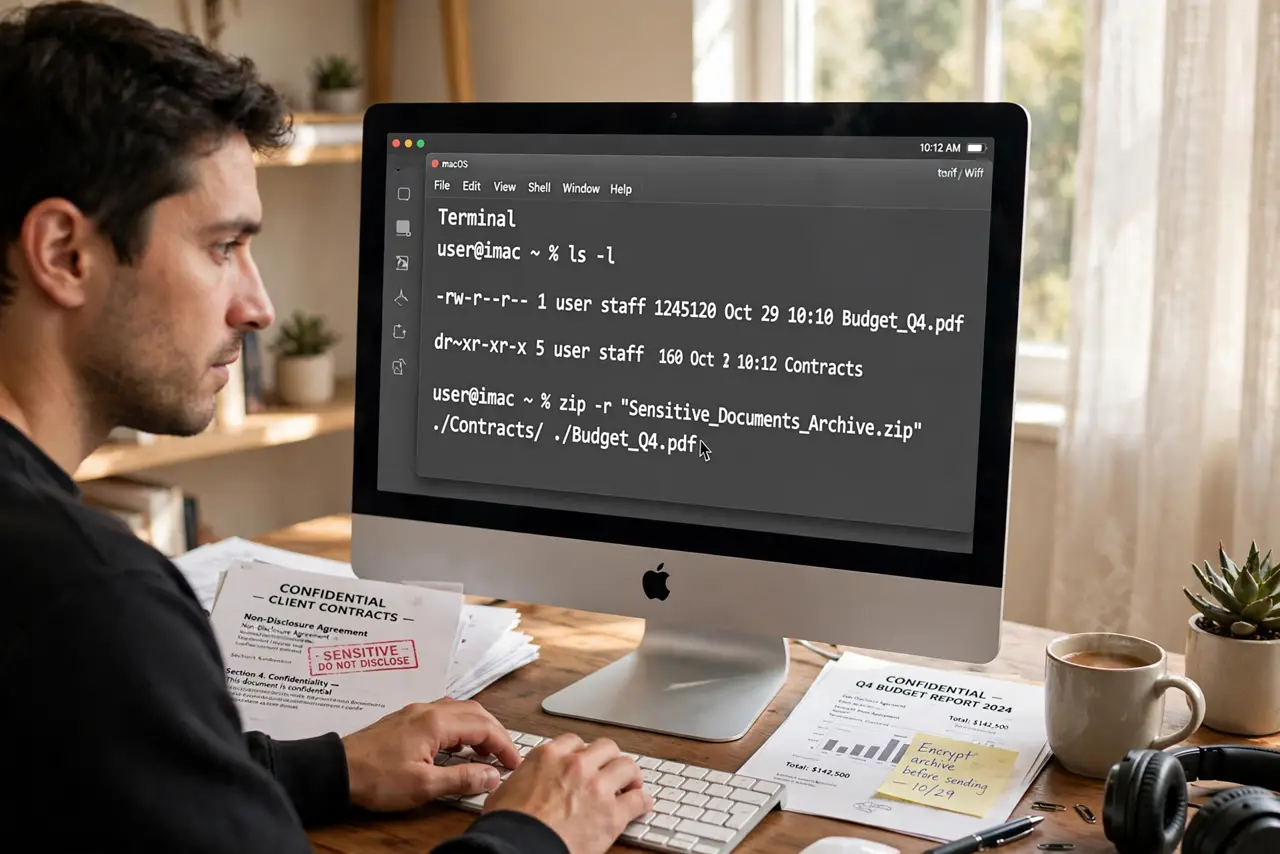
Quick fix: open Terminal, go to the folder, and run zip -e archive.zip files to create an encrypted zip — you'll be prompted for a password. Share the password through a different channel than the file itself, and use a strong, unique password.
Follow these steps
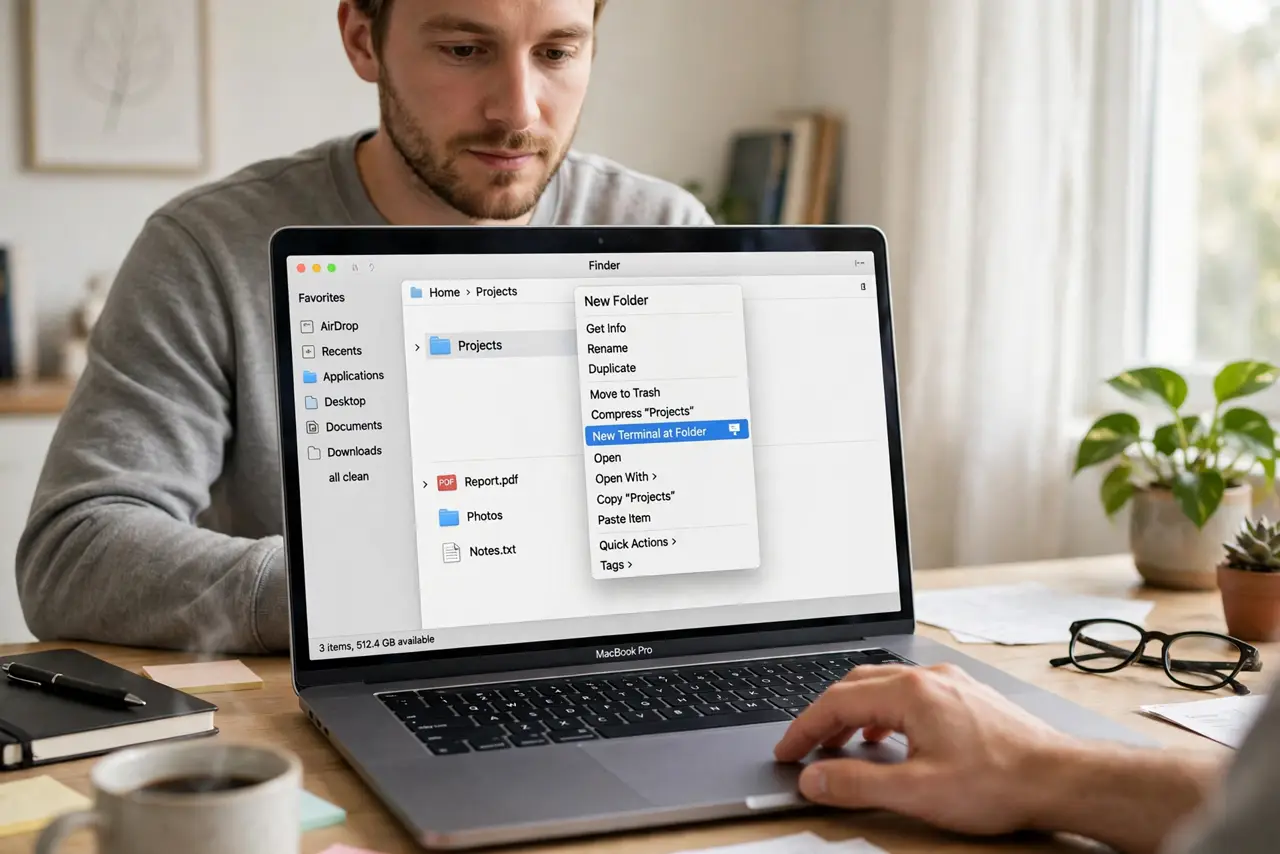
- Open Terminal in the right folder. In Finder, right-click the folder > 'New Terminal at Folder.' The zip command needs to run where the files live.
- Create the encrypted zip. Type zip -e archive.zip file1 file2 (or folder names) and press Enter. The -e flag means encrypt.
- Enter a strong password twice. Terminal prompts for the password — typing shows nothing, which is normal. Use a long, unique password, not the one you use for email.
- Verify the zip asks for a password. Double-click the zip: macOS should prompt for the password instead of extracting. If it extracts freely, you missed the -e flag.
- Send the password separately. Email the zip, text the password — or better, call. Anyone who intercepts both channels gets everything, so split them.
- Know the encryption's limits. macOS zip encryption is decent but not military-grade, and corrupt zips happen. For truly sensitive data, consider an encrypted disk image instead.
What NOT to do
- Do not use a weak password on an encrypted zip. 'password123' on an encrypted file is theater — automated tools guess it in seconds.
- Do not send the password in the same email as the zip. One intercepted message then hands over everything.
- Do not assume the recipient's Windows PC opens it the same way. Standard zip encryption is cross-platform, but tell them the password method in advance.
- Do not forget the password yourself. There is no recovery — a forgotten zip password means the files are gone for good.
Frequently asked questions
Why isn't there a password option in Finder's Compress?
Apple never added one to the GUI — encryption stayed a Terminal feature. The zip -e command is the official path, not a hack.
Can I password-protect an existing zip?
Not directly — create a new encrypted zip from the original files. Re-zipping an already-zipped file also compresses poorly, so go back to the source files.
Is this safe enough for tax documents?
For emailing to your accountant, yes with a strong password sent separately. For archival of life-critical documents, an encrypted disk image or a password manager's file storage is stronger.