Monitor Flickers at One Refresh Rate? Fix It Now
Your monitor is steady at one refresh rate and flickers at another. That pattern points at the cable, the port, or the rate itself, not at a dying screen. Change one thing at a time and watch what happens.
TL;DR / Quick Fix
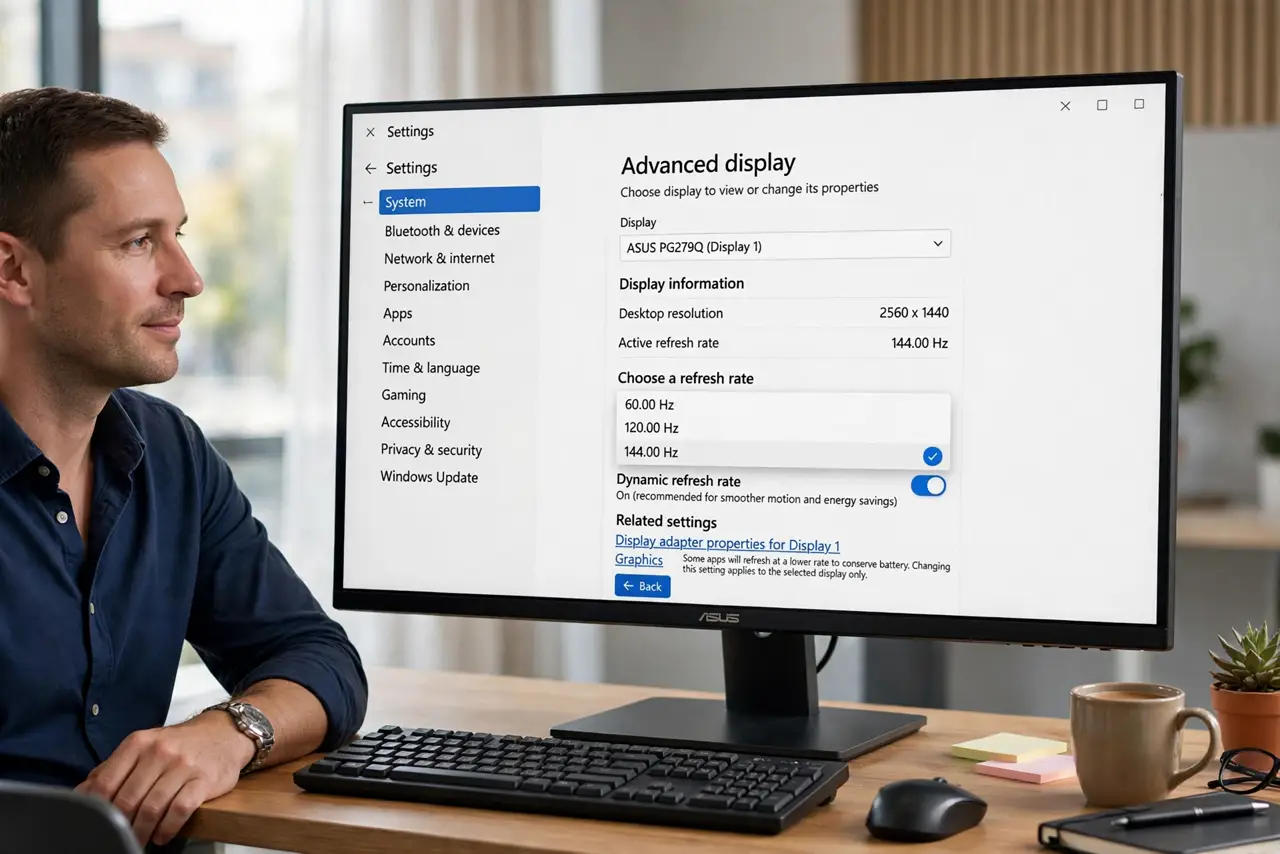
Quick fix: open Display settings, then Advanced display, and drop to a lower refresh rate that stays steady. Then reseat the cable firmly at both ends, try another port, and only return to the higher rate once the picture stays stable for a full session.
Follow these steps
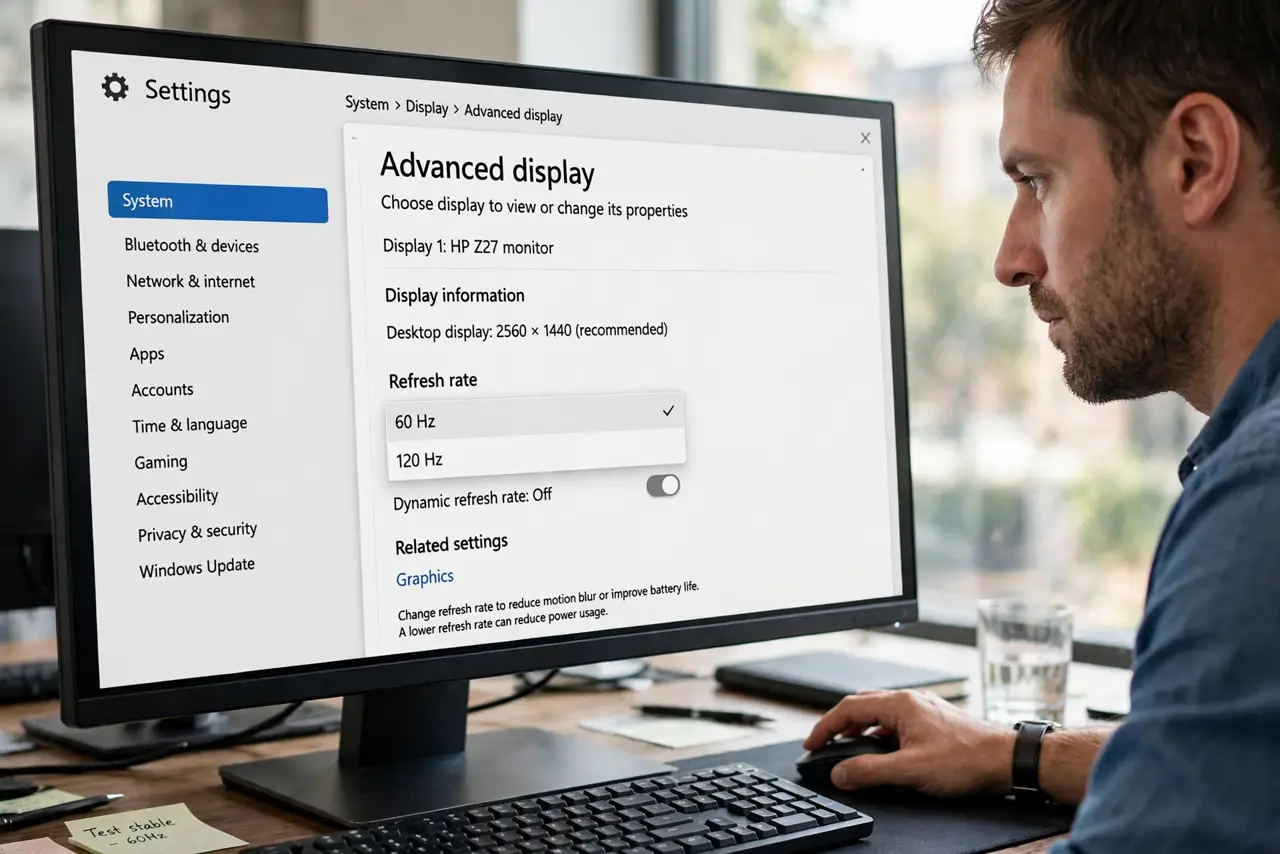
- Drop to a steady refresh rate. Open Settings, then System, then Display, then Advanced display, and choose a lower refresh rate. If the flicker stops, you have confirmed the rate, cable, or port is the weak link.
- Reseat the cable at both ends. Turn the monitor off, unplug the video cable from the monitor and the computer, plug it back in firmly, and turn the monitor on again. A half-seated cable flickers most at higher rates.
- Try another port. Move the cable to a different port on the computer or monitor if one is available. A tired port can pass a low rate cleanly while failing at a higher one.
- Try another cable. Swap in a different cable of the same type, and keep it as short as practical. Long or damaged cables are a frequent cause of flicker that only shows at higher refresh rates.
- Check the monitor menu. Open the monitor on-screen menu and confirm its input and refresh settings match the computer. A monitor set to the wrong input mode can flicker even when Windows looks correct.
- Return to the higher rate slowly. Once the picture is steady, step the refresh rate back up one notch at a time and use the computer normally for a while. Stay at the highest rate that remains completely steady.
What NOT to do
- Do not keep the flickering rate and hope it settles. A flickering picture strains your eyes and can hide the cable or port problem that is actually causing it.
- Do not change three things at once. If you swap cable, port, and rate together, you will never know which change fixed it, or which one to undo.
- Do not open the monitor or the computer to fix flicker. Reseating cables and changing settings covers the safe fixes, and internal work belongs to a repair shop.
- Do not ignore flicker that appears after a fall or a spill. Physical damage needs inspection, and settings alone will not make a damaged panel steady.
Frequently asked questions
Why does only the highest refresh rate flicker?
Higher rates push more data through the cable and port. A cable or port that is just good enough at a lower rate can fail at the higher one.
Is flicker dangerous for the monitor?
Occasional flicker during a test is not an emergency, but do not run a flickering setting all day. Drop to a steady rate while you find the cause.
What if every rate flickers?
Then the cable, port, or monitor itself is the suspect. Try another cable and another monitor input before concluding the panel is faulty.