Network Printer Prints Blank Pages? Fix It Fast
The printer hums, the paper comes out, and the page is blank. A blank page from a network printer is usually ink, a clogged nozzle, or a color setting, not a network failure, since the job clearly arrived.

TL;DR / Quick Fix
Quick fix: check ink or toner levels on the printer panel, then print a test page from the printer itself. If the test page is also blank, clean the print heads from the printer menu, clear the Windows print queue, and retry one simple page.
Follow these steps
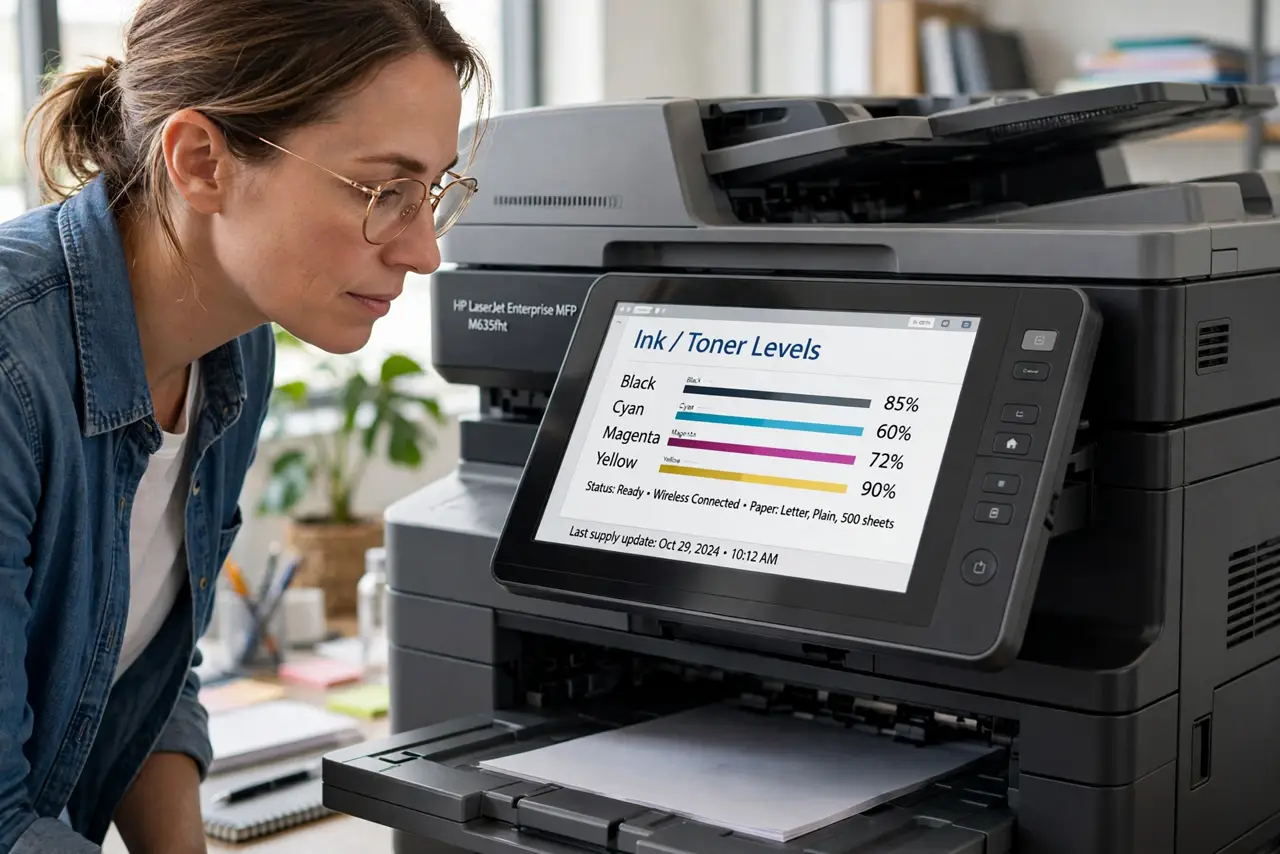
- Check ink or toner levels. Look at the printer panel or its status page for ink or toner levels. An empty cartridge is the simplest explanation for a blank page, and the printer may not warn you loudly.
- Print a test page from the printer. Use the printer panel to print a test or nozzle-check page. If that page is blank too, the fault is in the printer, not in Windows or the network.
- Clean the print heads. From the printer maintenance menu, run a head cleaning cycle, then print the test page again. Dried nozzles after a long idle period are a common cause of blank output.
- Clear the Windows print queue. Open Settings, then Bluetooth and devices, then Printers and scanners, open the print queue, and cancel stuck jobs. A stuck job can keep sending blank or broken pages.
- Check color and paper settings. Open the print dialog and confirm you did not select a blank template, a white-on-white setting, or the wrong paper size. Print one simple page of plain text as a test.
- Restart printer and computer. Turn the printer off, wait thirty seconds, turn it back on, restart the computer, and print the test page once more. If it is still blank, the cartridge or print head needs attention.
What NOT to do
- Do not keep printing the same document hoping it fills in. Repeated blank pages waste ink and paper without testing whether the printer itself can print.
- Do not replace the printer before printing a test page from its own panel. The test page separates a printer fault from a Windows or document fault.
- Do not shake an ink cartridge violently to revive it. Gentle handling and a cleaning cycle are safer, and shaking can spill ink or damage the cartridge.
- Do not ignore a blank test page. If the printer cannot print its own test page, no Windows setting will fix the output.
Frequently asked questions
Why does the printer accept jobs but print blank?
The job arrives over the network, so the network works. Blank output points at ink, nozzles, or print settings instead.
How often should I clean print heads?
Only when output is blank or streaked. Cleaning uses ink, so run it when needed, not as a daily routine.
What if only color is blank?
One color cartridge or nozzle set may be empty or clogged. Check levels per color and run the cleaning cycle, then retest.