Add a Battery Widget
You keep opening Settings just to check the battery — or worse, your earbuds die mid-call because you never saw their level. A battery widget puts phone and accessory charge on the home screen, glanceable in a second. Setup takes under a minute on both platforms.
TL;DR / Quick Fix
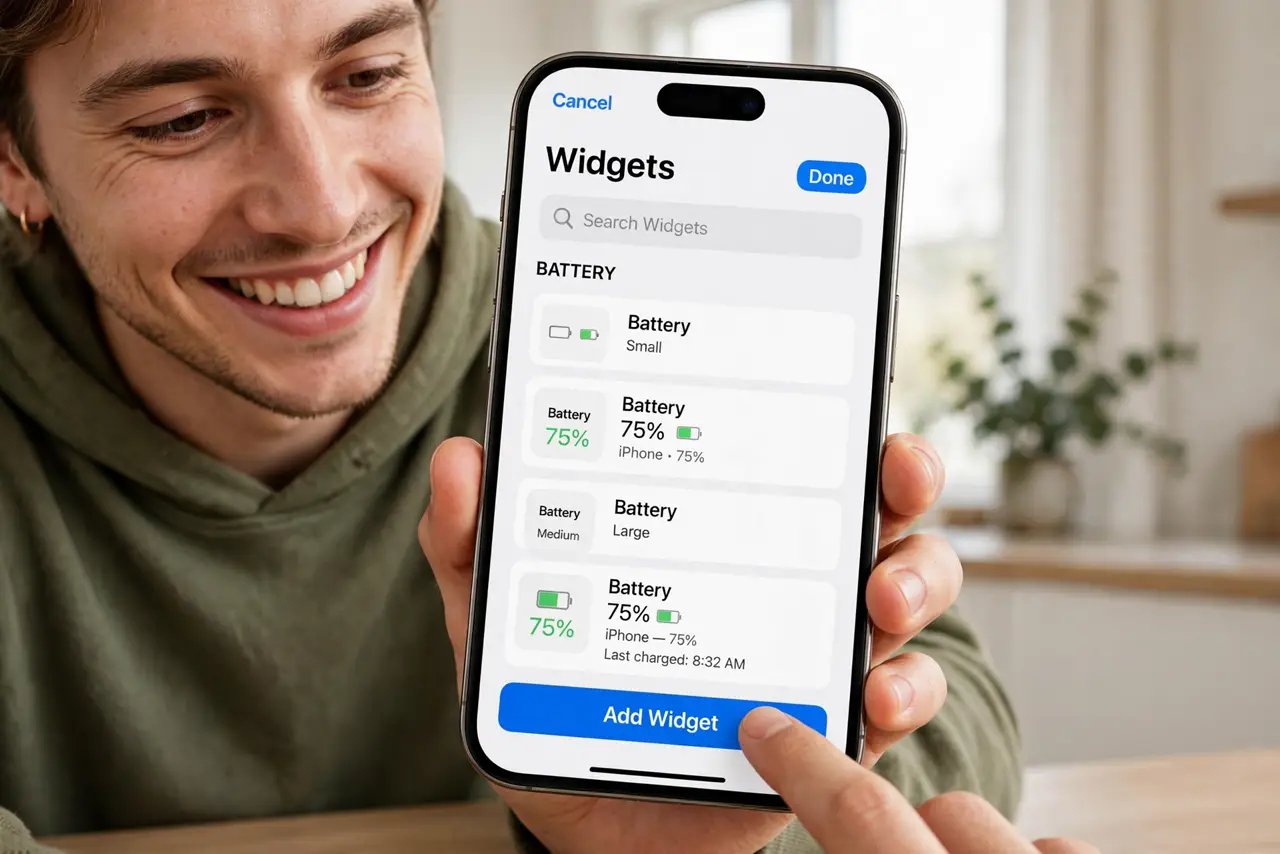
Quick fix: on iPhone, long-press the home screen, tap the plus button, and add the Batteries widget to see phone and accessory charge at a glance. On Android, long-press and choose Widgets, then pick your battery widget. It saves opening Settings every time you wonder.
Follow these steps
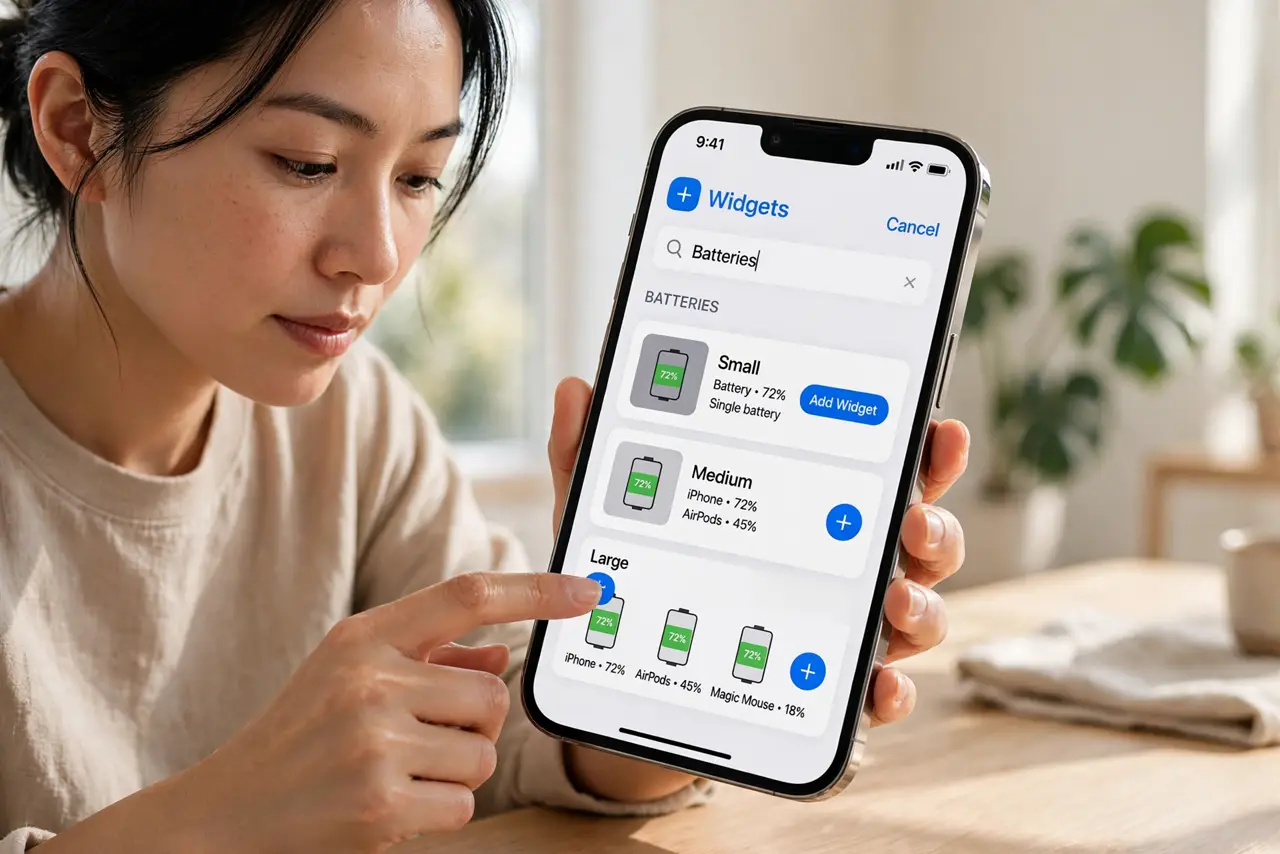
- Add it on iPhone. Long-press the home screen, tap the plus, search Batteries, and choose a size. Place it where you will actually see it.
- Add it on Android. Long-press the home screen, tap Widgets, and find the battery widget — location varies by brand, but it is always under Widgets.
- Understand what it shows. Phone battery always; connected earbuds, watches, and cases appear when connected. One glance replaces three Settings dives.
- Pick the right size. Small shows the phone only; larger sizes show every connected accessory. Match the size to how many devices you own.
- Pair with desktop widgets habits on Mac. Glanceable battery info on every screen means you stop guessing charge levels everywhere.
- Remove it if you stop looking. An ignored widget is clutter. If you never glance at it after a week, delete it — home screens should earn their space.
What NOT to do
- Do not install a third-party battery widget app. The built-in widgets are accurate and free — third-party ones add ads and drain.
- Do not panic when accessory levels vanish. Earbuds show only while connected — a missing reading usually means a disconnected device, not a dead one.
- Do not expect exact percentages everywhere. Some accessories report in coarse steps — close enough for glanceable purposes.
- Do not clutter the home screen with three battery widgets. One well-placed widget beats a dashboard of redundancy.
Frequently asked questions
Why don't my earbuds show up?
They appear only while connected and with enough charge to report. Reconnect them and check again.
Does the widget drain battery?
Negligibly — it updates on the system's existing battery readings. The widget itself costs essentially nothing.
Can I see other people's device batteries?
No — only your own connected accessories. Family devices stay private.