Copy Text From a Photo? How To
The Wi-Fi password on the cafe wall, the phone number on a flyer, the serial number on the back of the router — retyping them is slow and error-prone. Your phone can lift text straight out of photos and the live camera view: point, tap the text, copy. Here is how to use it on iPhone and Android.
TL;DR / Quick Fix
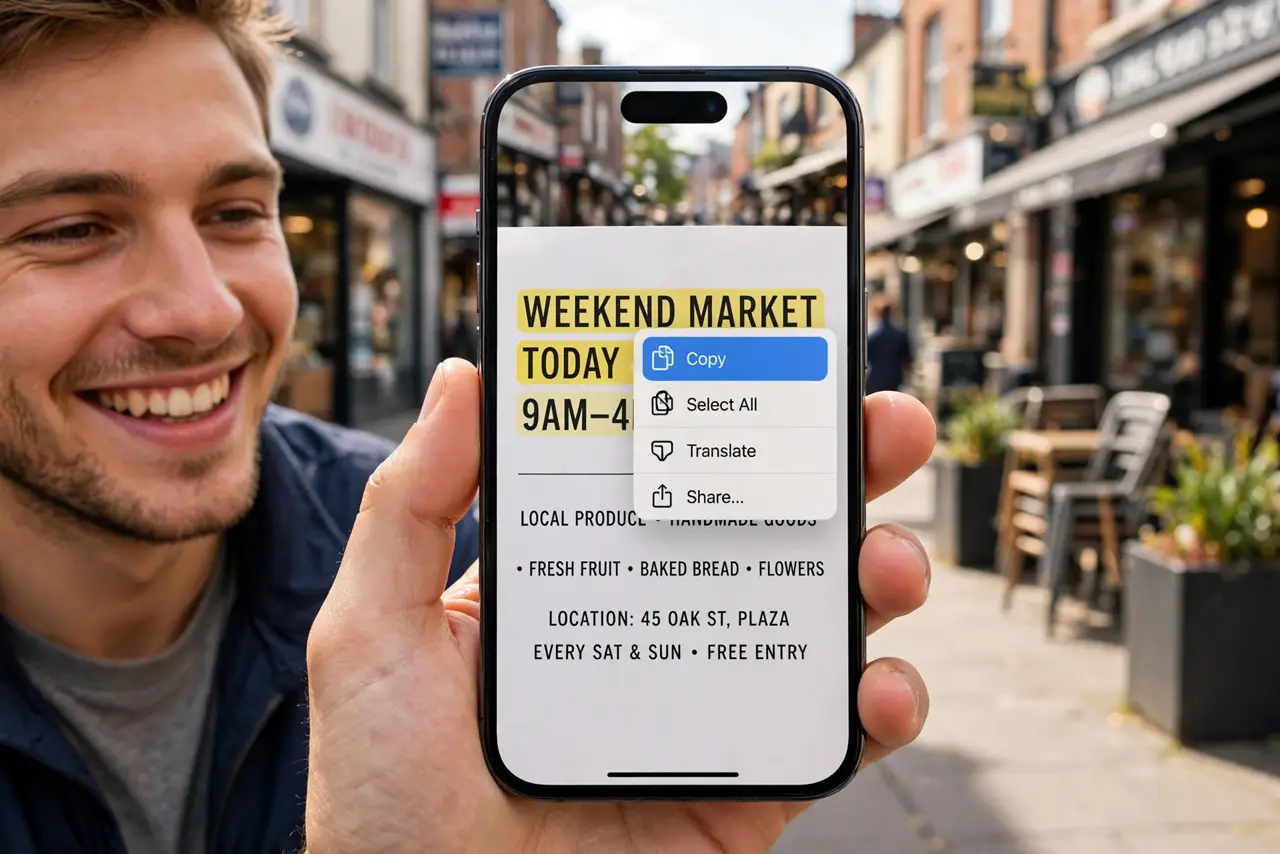
Quick fix: point your camera at printed text and copy it like digital text. On iPhone, aim the Camera at the text and tap the Live Text icon, then select and copy. On Android, tap the Lens button, select Text, and copy. No retyping, no typos.
Follow these steps
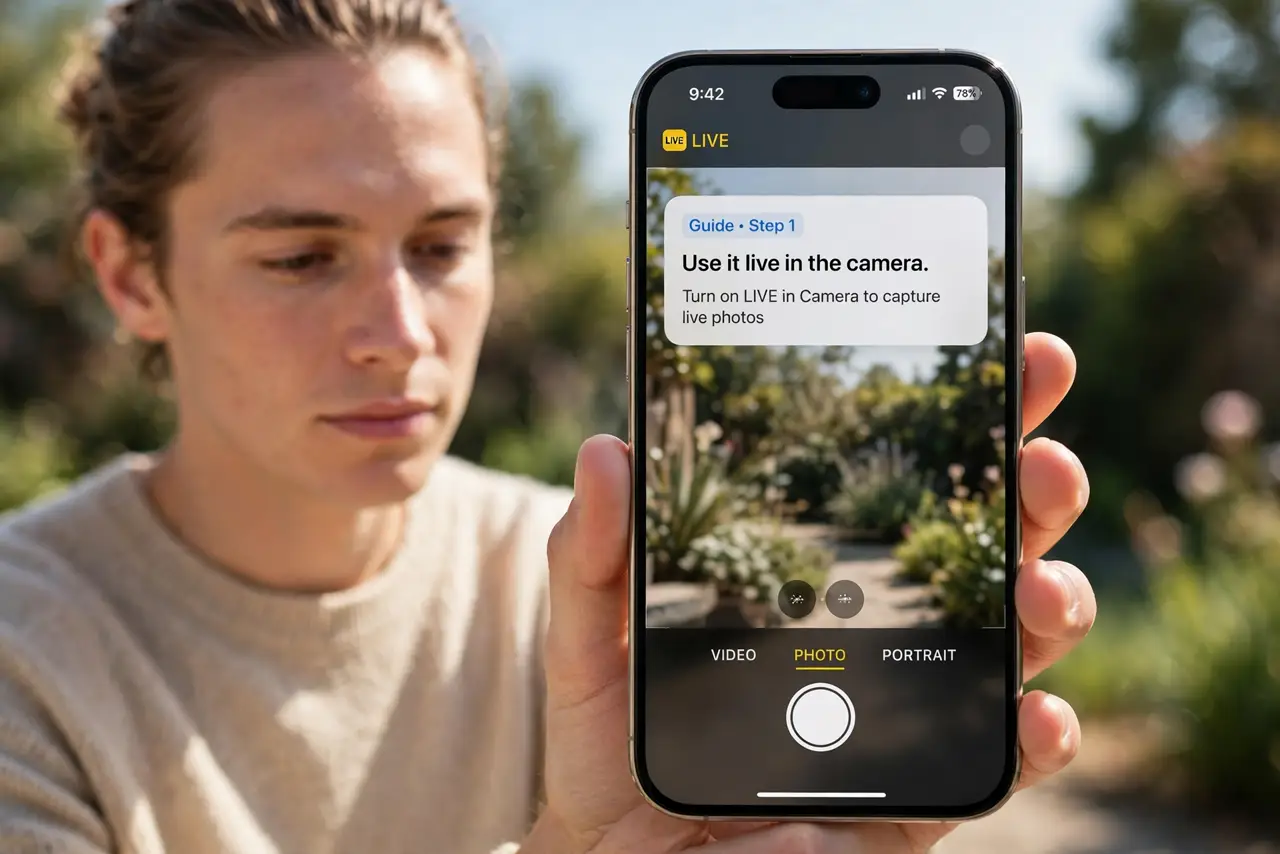
- Use it live in the camera. On iPhone, aim the Camera at the text and tap the Live Text icon (brackets with lines) when it appears — the text becomes selectable right in the viewfinder. Copy, call, or look up instantly.
- Use it on existing photos. Open any photo in the Photos app and tap the Live Text icon. Old screenshots, photographed documents, saved flyers — all become copyable.
- Use Lens on Android. Tap the Lens button in the camera or Photos app, switch to the Text tab, and drag to select. Copy to clipboard, translate, or search — Lens handles all three.
- Copy the fiddly stuff. Wi-Fi passwords, serial numbers, tracking codes, URLs — the strings humans mistype. Copy-paste eliminates the 'is that a zero or an O' gamble.
- Act on detected text directly. Phone numbers offer Call, addresses offer Maps, dates offer Calendar. The phone recognizes what the text is — use the shortcut instead of copying into another app manually.
- Check the copy before pasting. OCR is excellent but not perfect — similar characters (1/l, 0/O) still confuse it. Glance at critical strings like passwords before hitting enter.
What NOT to do
- Do not copy sensitive text on someone else's phone. Copied passwords linger in clipboards — use your own device.
- Do not trust it blindly for critical data. Verify serial numbers and codes character by character before submitting.
- Do not photograph documents you should not have. The feature is for convenience, not for lifting text off restricted material.
- Do not forget it works on your screen too. Screenshots of text are copyable — handy, and a reason to think before screenshotting secrets.
Frequently asked questions
Does it work without internet?
On iPhone, Live Text works on-device for many languages. Lens features vary — basic text detection is on-device, translation may need a connection.
Which languages are supported?
Major world languages on both platforms, with more added regularly. Handwriting recognition is improving but still lags printed text.
Can it copy text from videos?
On iPhone, pause the video and Live Text works on the paused frame. On Android, screenshot the frame and run Lens on it.