How to Set Up Do Not Disturb for Sleep on Your Phone
A good night's sleep should not be interrupted by a notification at 2 a.m., but you still want a genuine emergency to reach you. This guide sets up a sleep schedule that silences the noise and keeps the important exceptions.
TL;DR / Quick Fix
Quick fix: Set a sleep schedule, not just a manual switch. Choose who can still reach you. Decide which apps, if any, may interrupt you. Dim the screen and silence vibrations too. Test it before your first night. Follow these steps in order, then check the result below.
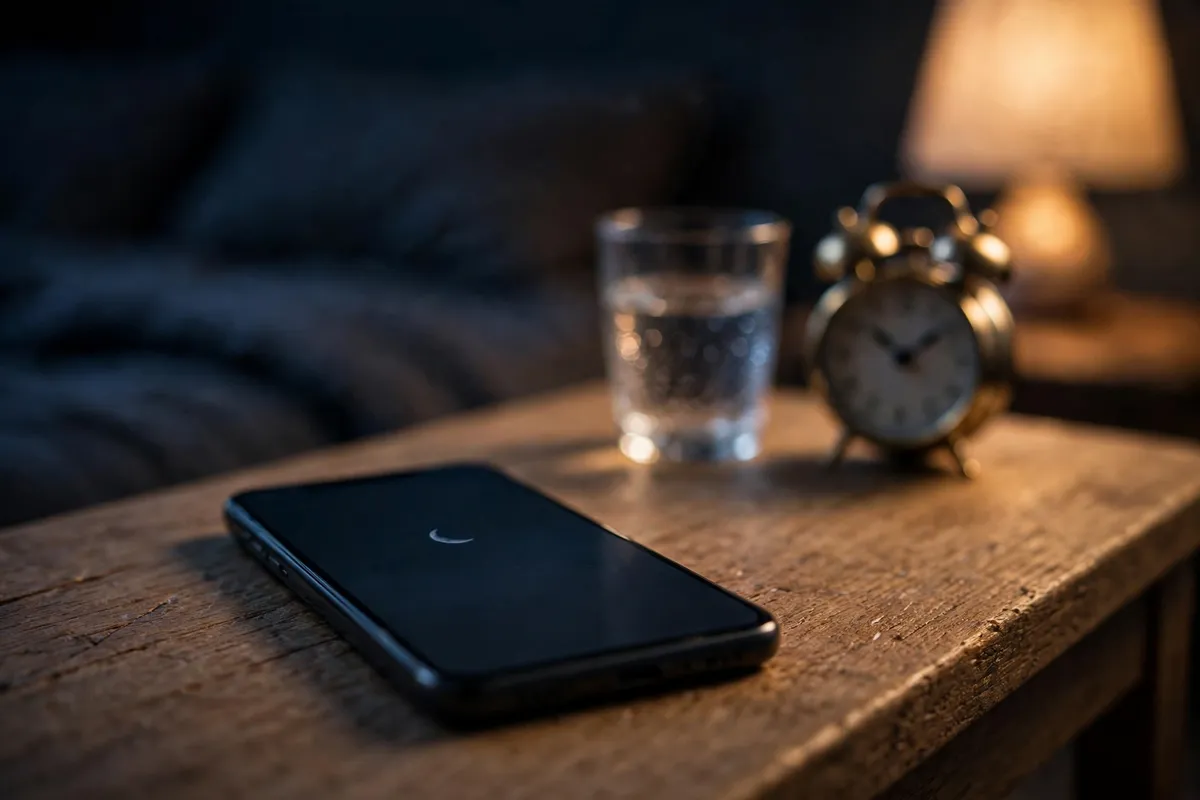
Follow these steps
- Set a sleep schedule, not just a manual switch. On iPhone, go to Settings, then Focus, then Sleep, and set a schedule with bedtime and wake time. On Android, go to Settings, then Digital Wellbeing or Sound, then Do Not Disturb, and set a schedule for your sleep hours. A schedule turns itself on and off, so you cannot forget.
- Choose who can still reach you. In the same Focus or Do Not Disturb settings, add allowed contacts, such as family members, whose calls and messages can come through. On iPhone you can also allow repeated calls, so a second call from the same number within a few minutes gets through: a useful emergency signal.
- Decide which apps, if any, may interrupt you. By default, Do Not Disturb silences app notifications. If you need one exception, such as a security camera or a medical app, add it to the allowed apps list. Keep this list short, or the schedule loses its point.
- Dim the screen and silence vibrations too. On iPhone, the Sleep Focus can dim the lock screen and hide notifications until morning. On Android, Do Not Disturb settings let you hide visual notifications and silence vibrations. A buzzing phone on a bedside table wakes you even if it makes no sound.
- Test it before your first night. Ask a friend or family member to call and message you during a test period, once from an allowed contact and once from another number. Confirm the allowed one comes through and the other waits quietly. Adjust the exceptions until the test behaves the way you want.
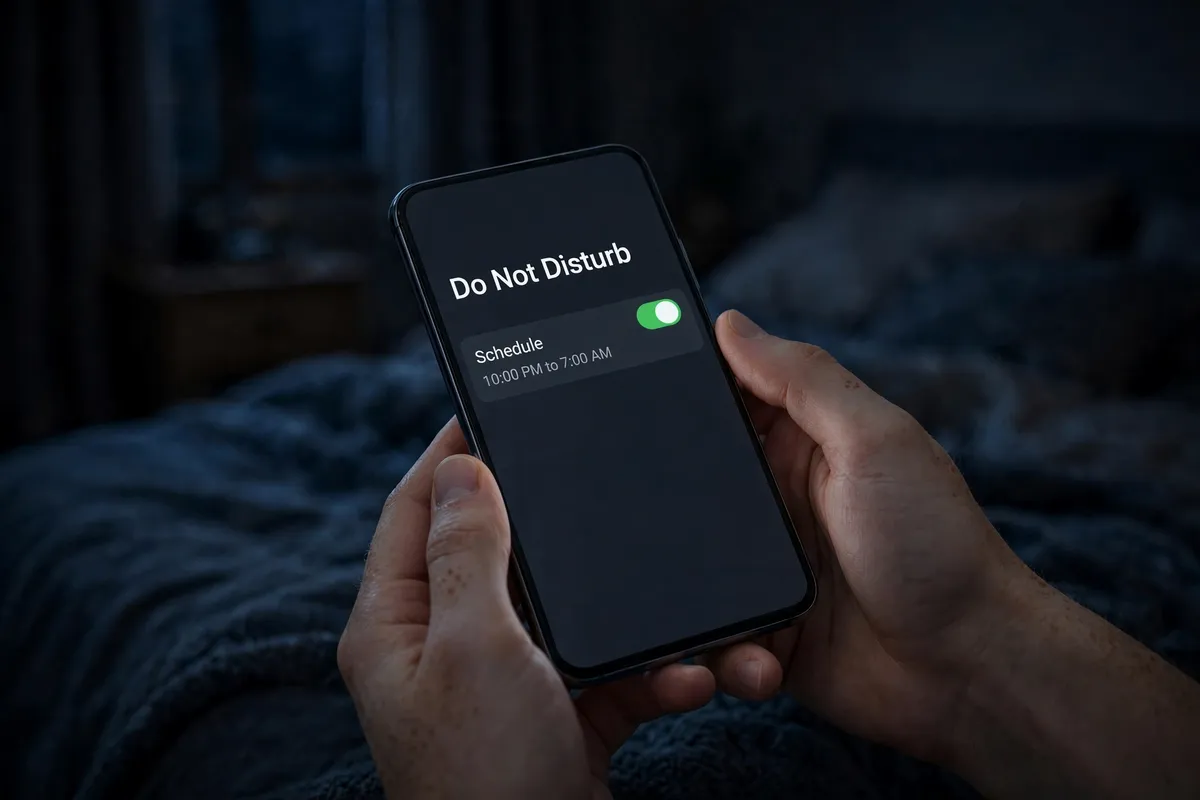
What NOT to do
- Do not rely on remembering to switch Do Not Disturb on manually every night. A schedule is what makes it stick.
- Do not allow every contact and app through. An exception list that includes everyone is no exception at all.
- Do not silence everything without an emergency route. Keep at least one way for a genuine urgent call to reach you.
Once the schedule is running, you should notice the difference within a few nights: notifications wait until morning, and you are not woken by anything that could have waited. If something important still gets through, it is an exception to remove, not a reason to abandon the schedule.
Frequently asked questions
What is the quickest fix in this guide?
Set a sleep schedule, not just a manual switch.
What should I avoid doing?
Do not rely on remembering to switch Do Not Disturb on manually every night.
What do I check after I finish?
Test it before your first night.