Hide Home Screen Pages
Five home screen pages, and you only ever use two — the rest are app graveyards you swipe past daily. Hiding pages tucks them out of sight without deleting a single app: everything stays installed and searchable, but your daily swiping shrinks to what you actually use. Here is how.
TL;DR / Quick Fix
Quick fix: hide the home screen pages you never use — apps stay installed and searchable. On iPhone, long-press the home screen, tap the page dots, and uncheck pages to hide. On Android, remove or hide pages from the home screen editor. Your daily swiping shrinks to what matters.
Follow these steps
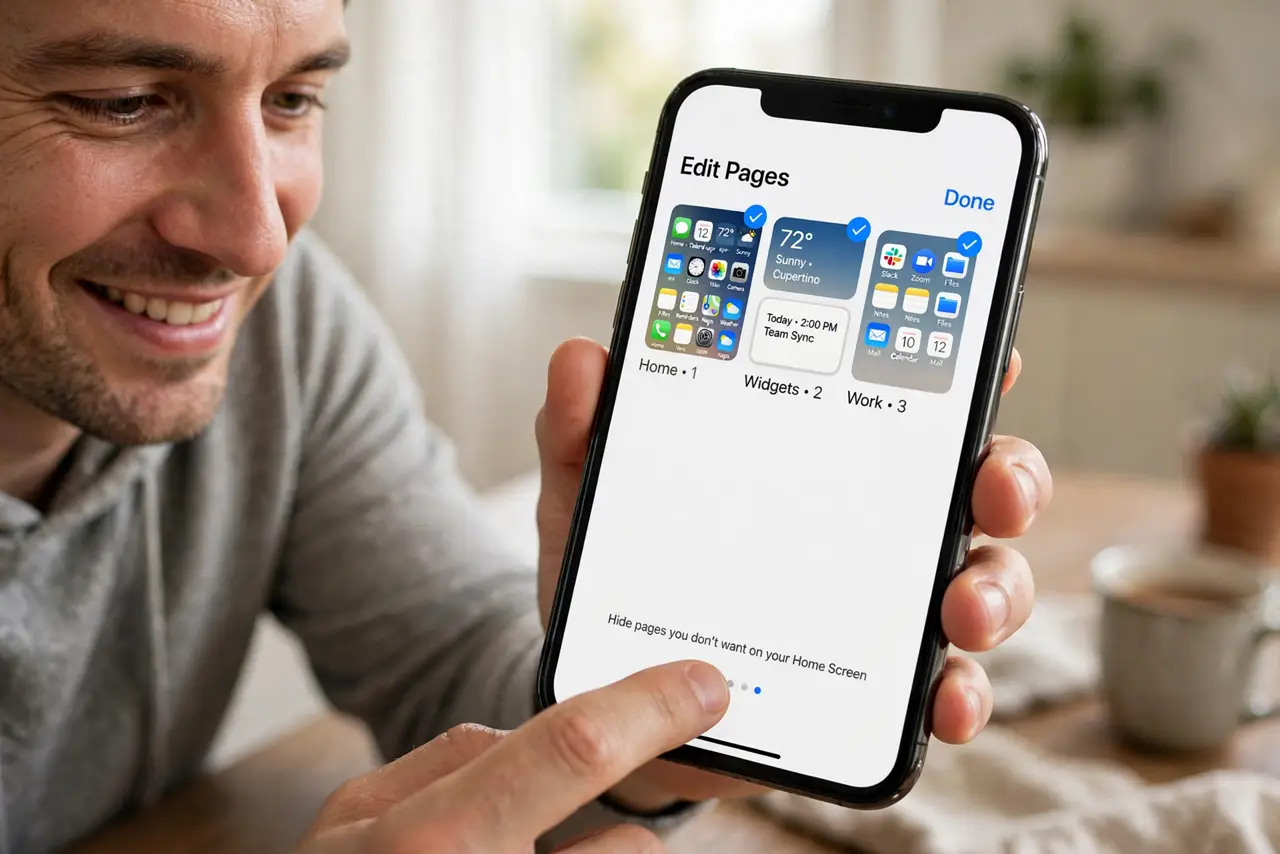
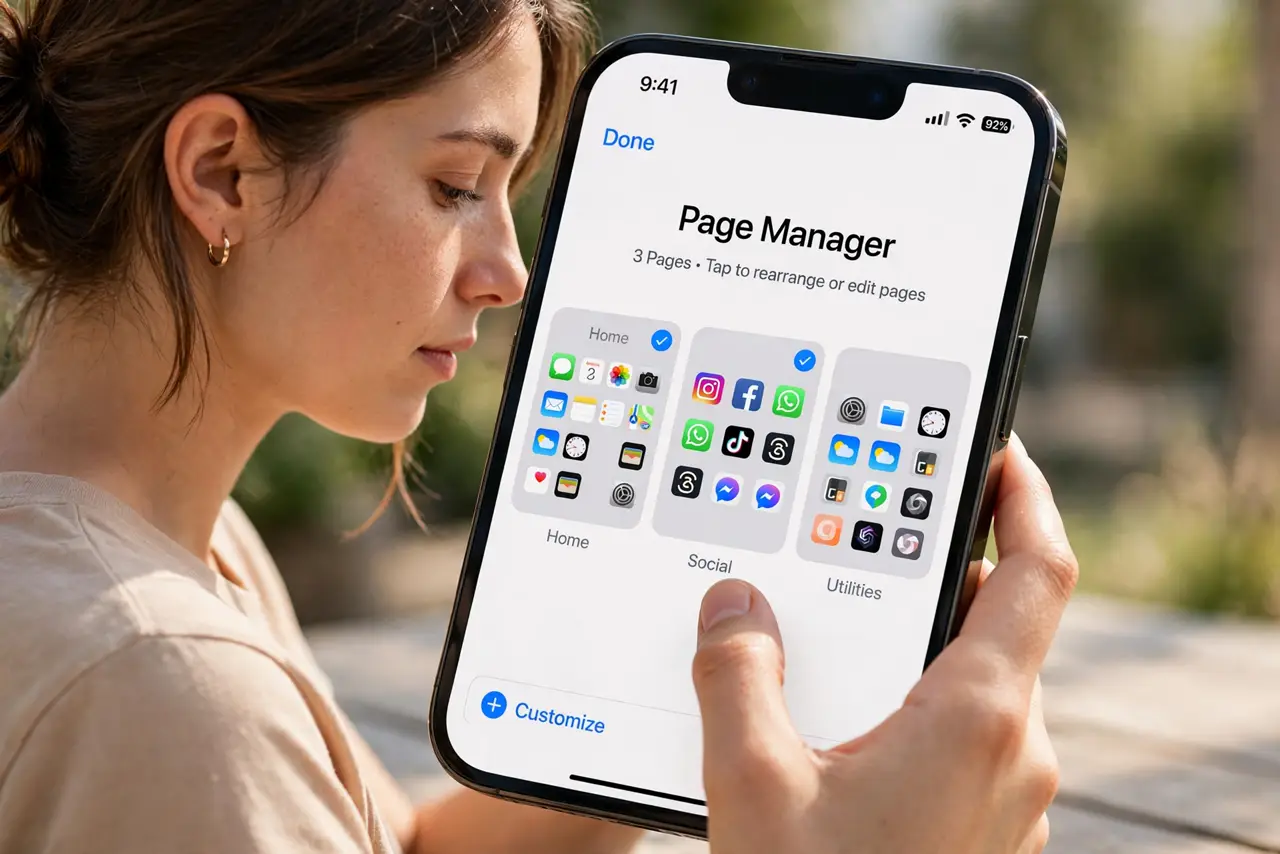
- Open the page manager on iPhone. Long-press any empty home screen area until icons jiggle, then tap the page dots above the dock. Thumbnails of every page appear with checkmarks.
- Uncheck the graveyard pages. Tap the checkmark under each page you want to hide. Unchecked pages vanish from swiping immediately — apps, folders, and widgets on them stay installed.
- Find hidden apps via search. Hidden pages' apps remain in the App Library and Spotlight search. Hiding is about the swipe path, not availability — nothing becomes harder to open deliberately.
- Hide pages on Android. Long-press the home screen, open the home screen editor or settings, and remove empty pages or disable extras. Most launchers also let you set a single default page.
- Keep one clean daily driver. Aim for one or two visible pages: essentials on page one, widgets and folders on page two. Everything else hides until search summons it.
- Re-show pages when life changes. Travel page, holiday apps, the project folder — recheck a page in the manager to bring it back. Hiding is reversible in seconds, so be aggressive.
What NOT to do
- Do not delete apps to 'clean pages.' Hiding the page achieves the clean look with zero deletions — delete separately and deliberately.
- Do not hide the page with your authenticator or wallet. Frequently needed apps should stay one swipe away, not buried.
- Do not forget hidden widgets. A hidden page's widgets stop updating visibly — move widgets you actually check to a visible page.
- Do not confuse hiding with deleting. Hidden pages are invisible, not gone — the apps still take storage and can still notify.
Frequently asked questions
Will hidden pages' apps still notify me?
Yes. Hiding affects only the swipe path — notifications, badges, and background activity continue normally.
How do I get a hidden page back?
Long-press the home screen, tap the page dots, and recheck the page. It returns exactly as you left it.
Can I hide pages on Android?
Most launchers let you remove or hide home screen pages from the home settings editor. Stock and third-party launchers both support it.