Scan QR Codes With the Camera
Restaurant menus, Wi-Fi passwords, tickets, payments — QR codes are everywhere, and you do not need a special app to read them. Your regular camera app scans QR codes natively: point, hold steady, tap the popup. Here is how to make sure it works and what to do when it does not.
TL;DR / Quick Fix
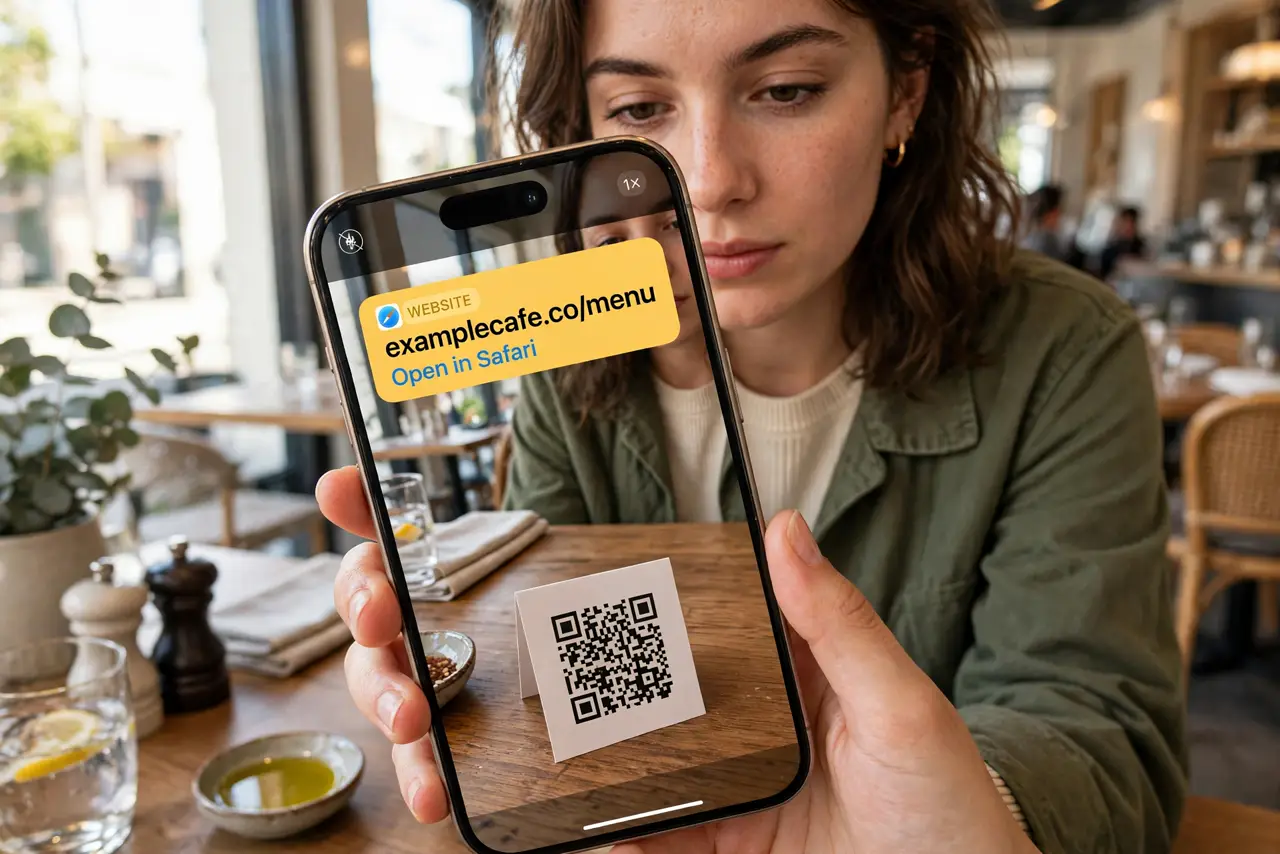
Quick fix: your built-in camera scans QR codes with no extra app. On iPhone, open Camera, point at the code, and tap the banner that appears. On Android, point the camera and tap the popup, or use the Lens button. Hold steady a foot away in good light.
Follow these steps
- Just point the camera. On iPhone, open the Camera app and aim at the code — no mode change needed. On Android, the default camera does the same, or use the Lens/Google Lens button. A banner or popup appears within a second or two.
- Tap the popup, not the code. The camera shows a preview of where the link goes. Tap that banner to open it. Preview first — the code could point anywhere.
- Hold the right distance. About a foot away, steady, in decent light. Too close and the camera cannot focus; too far and the code is too small. Glare on glossy prints is the classic failure — tilt the phone.
- Enable scanning if it is off. On iPhone: Settings > Camera > Scan QR Codes. On Android: camera settings > QR or Google Lens suggestions. It is on by default, but updates and tinkering sometimes disable it.
- Use the flashlight for dark codes. Menus in dim restaurants scan fine with the flashlight on — light the code, not the camera lens. Most camera apps let you toggle the light without leaving the viewfinder.
- Screenshot codes to scan later. If a code is on your own screen — a ticket in your email — screenshot it, then scan the screenshot from your photos with Lens or the photo app's detection. To grab written text from a screenshot instead of a code, use copy text from a photo.
What NOT to do
- Do not scan random QR codes blindly. Stickers over real codes are a known scam — preview the URL before opening.
- Do not enter passwords or payment details from a scanned code without verifying. QR phishing ('quishing') is real and growing.
- Do not install a 'QR scanner' app. Your camera does it natively — third-party scanners are ad farms with bonus tracking.
- Do not scan codes in emails from strangers. A QR code bypasses the link preview your email app would show — that is exactly why scammers love them.
Frequently asked questions
Why won't my camera scan the code?
Usually distance, focus, or glare. Hold a foot away, tap to focus on the code, and tilt away from reflections. Then check the scan toggle is on.
Is it safe to scan any QR code?
The scan itself is safe; the destination may not be. Always preview the URL in the popup before tapping through.
Can I scan a QR code from a photo?
Yes. Open the photo and use Lens (Android) or the photo app's detection (iPhone) — the code does not need to be 'live' in the viewfinder.