Remove vs Delete an App?
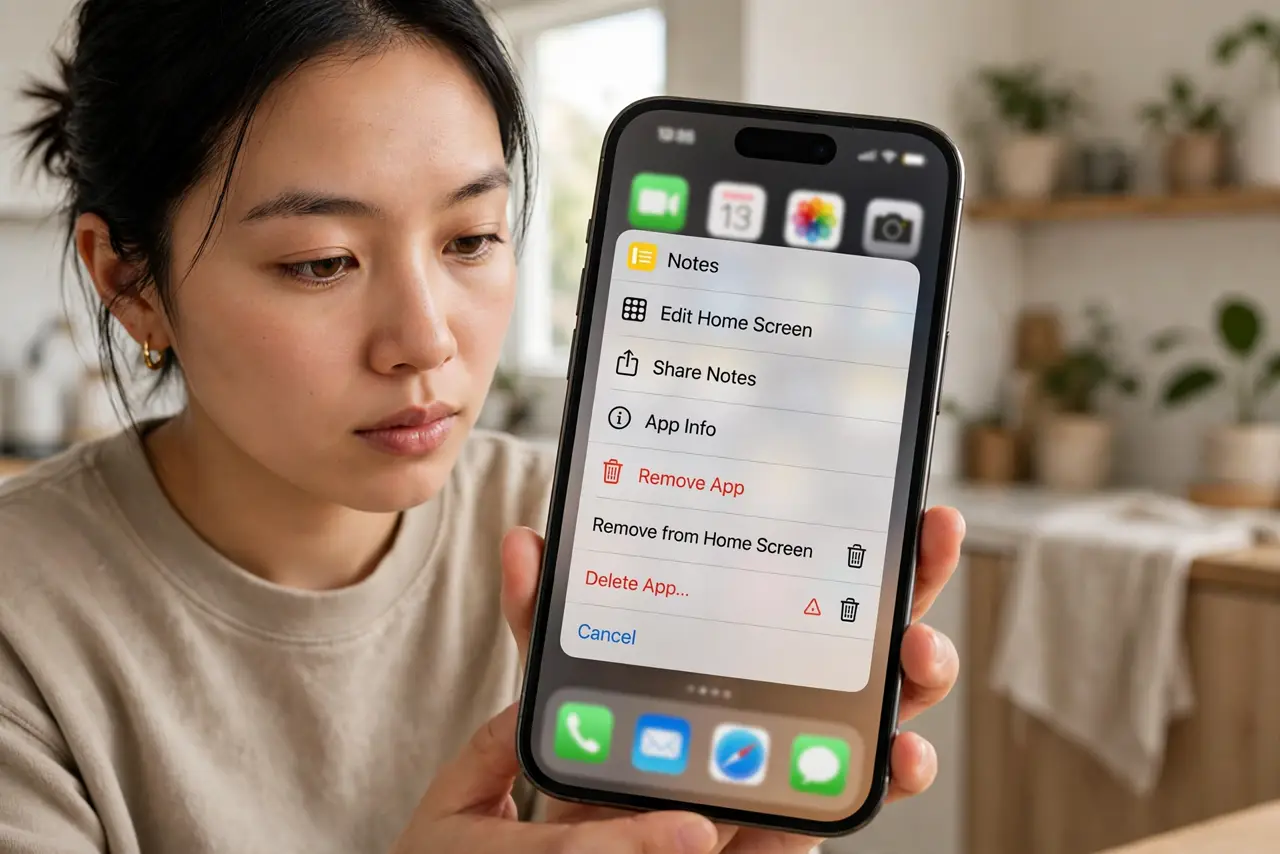
You long-press an app and face two similar buttons — Remove from Home Screen, Delete App — and the difference matters enormously. One tidies your view; the other uninstalls the app and possibly its data. Tapping the wrong one is a top-five phone mishap. Here is the distinction, permanently clarified.
TL;DR / Quick Fix
Quick fix: 'Remove from Home Screen' only hides the icon — the app stays installed with all its data. 'Delete App' uninstalls it entirely, removing the app and usually its local data. Tidying? Choose Remove. Done forever? Choose Delete. Your data's fate hangs on this tap.
Follow these steps
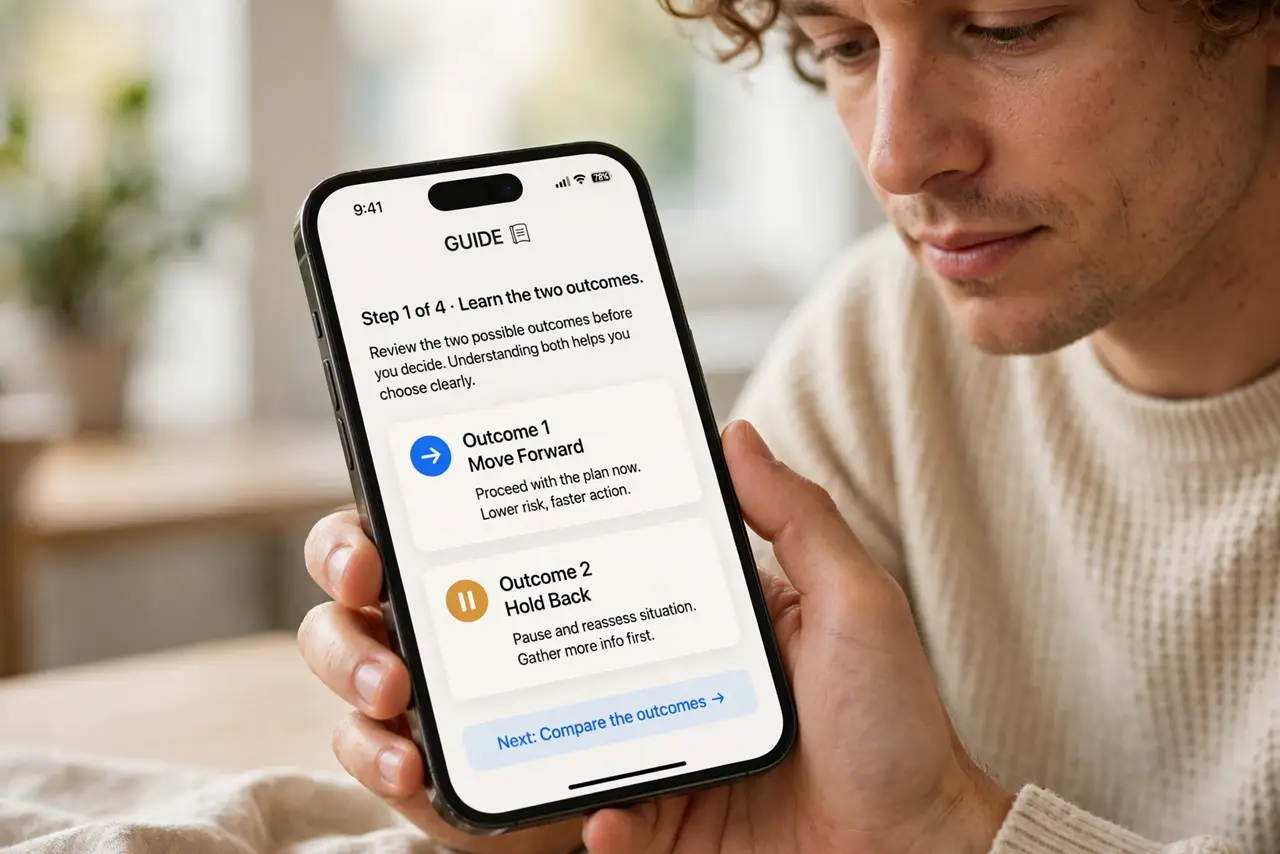
- Learn the two outcomes. Remove from Home Screen: icon disappears, app stays installed and fully working, findable in the App Library or search. Delete App: the app uninstalls — program gone, local data usually gone with it.
- Choose Remove for tidying. Decluttering the home screen? Always Remove from Home Screen. The app remains a search away with everything intact — zero risk, full cleanup.
- Choose Delete for farewells. Truly done with the app? Delete removes it and frees its storage. Cloud-synced data (accounts, online saves) survives on the company's servers — local-only data does not.
- Know the Android wording. Android typically says Uninstall for the full removal, and removing an icon from the home screen just deletes the shortcut. Same distinction, plainer labels — uninstall is the dangerous one.
- Check data before deleting. Photos, notes, or game progress stored only on the phone die with deletion. Back up or sync first — the delete confirmation will not list what you are about to lose.
- Recover from a wrong tap. Deleted by accident? Reinstall from the App Store or Play Store immediately — cloud data restores on sign-in. Local-only data is the casualty; this is why the distinction matters.
What NOT to do
- Do not tap Delete when you mean Remove. Read the button — the two options sit side by side precisely where thumbs rush.
- Do not delete apps with local-only data casually. Authenticator apps, offline notes, and unsynced photos need backup before deletion.
- Do not assume Delete removes your account. The account lives on the company's servers — deleting the app just removes your access point.
- Do not 'delete to save battery.' Unused apps barely sip power; background refresh control is the real lever.
Frequently asked questions
If I remove an app from the home screen, is it gone?
No. It stays installed in the App Library (iPhone) or app drawer (Android), fully functional. Only the icon left the home screen.
Will deleting an app delete my account?
No. Your account lives on the service's servers. Reinstall, sign in, and it is all there — only local-only data is at risk.
What's the difference on Android?
Removing an icon deletes just the home screen shortcut. Uninstall removes the app itself. Android's labels are clearer — uninstall is always the full removal.