Translate With the Camera? How To
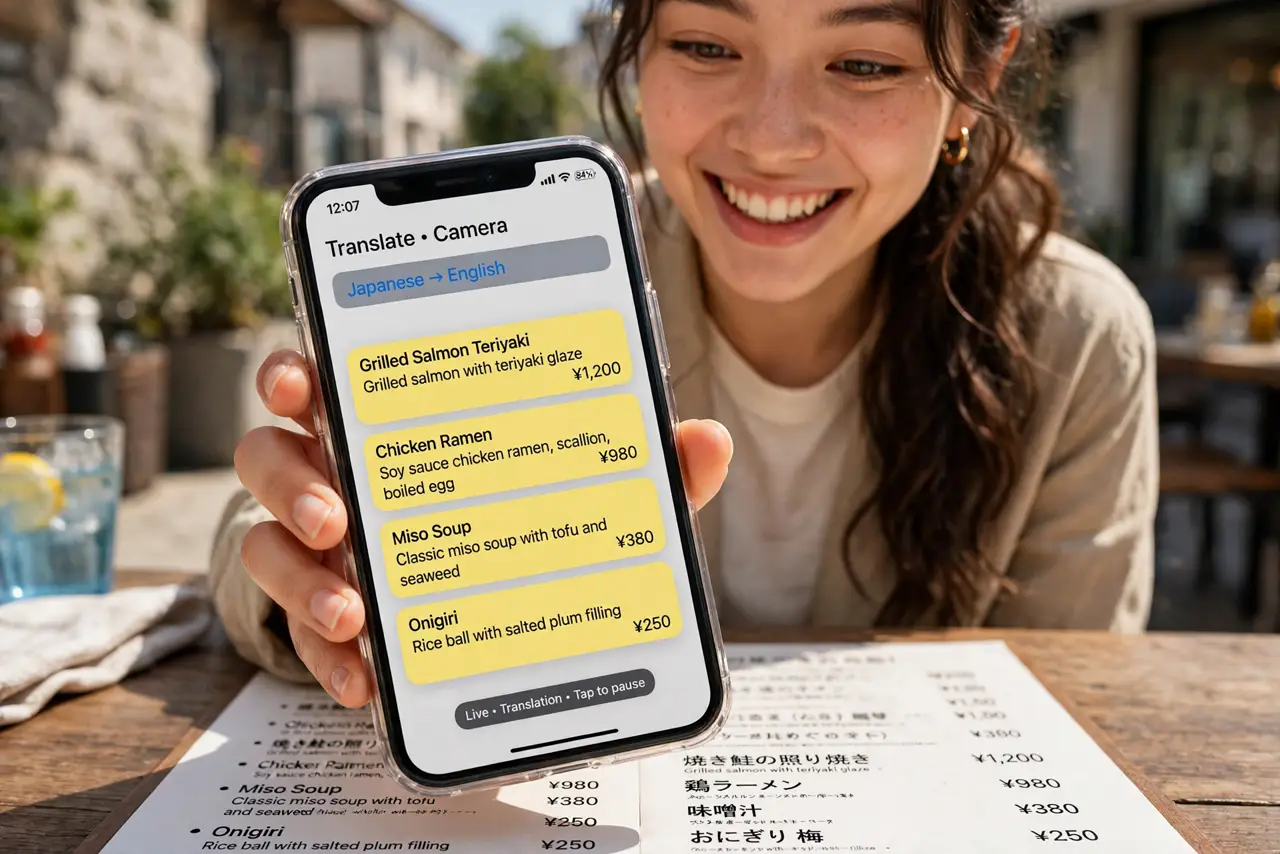
A menu in another language, a street sign you cannot read, instructions on a foreign gadget — the camera can translate printed text live, overlaying your language right on the image. No typing, no dictionary app shuffle. Here is how to translate with the camera on iPhone and Android.
TL;DR / Quick Fix
Quick fix: aim your camera at foreign text and get a live translation overlay. On iPhone, use the Translate app's Camera tab or Live Text then Translate. On Android, open the Translate app's camera mode or Google Lens. Download the language pack first for offline use abroad.
Follow these steps
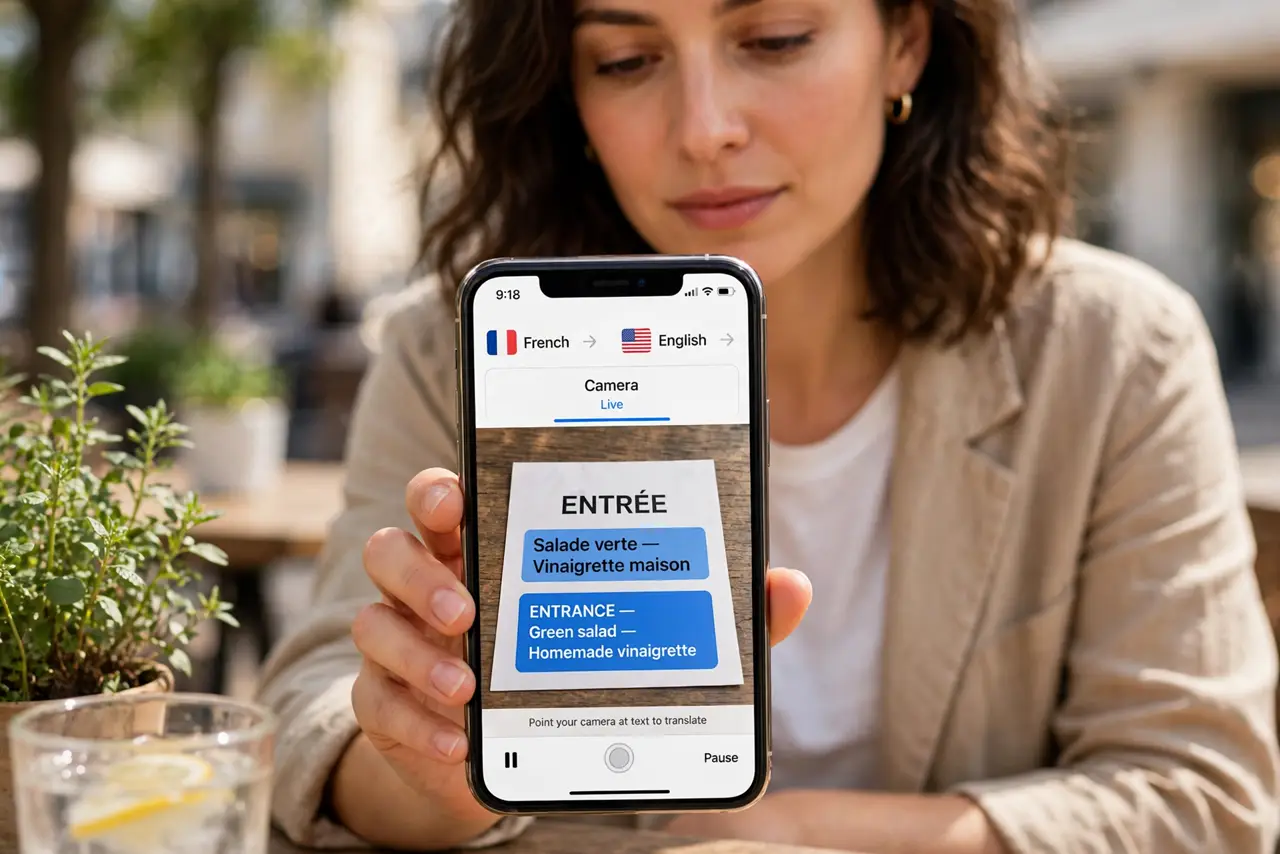
- Use the Translate app's camera mode. On iPhone, open Translate, tap Camera, point at the text, and tap the shutter — the translation overlays the image. On Android, the Translate app's camera mode does the same with an instant live overlay.
- Use Lens as the shortcut. In the camera or Photos app, Lens's Translate tab translates on the fly. It is the fastest path when you already have the camera open.
- Download languages before traveling. Both apps offer offline language packs. Download your destination's language on Wi-Fi before the trip — translation abroad without data depends on it.
- Hold steady and frame the text. Fill the frame with the text block and hold still a second. Crooked, partial, or glare-covered text translates badly — the camera can only translate what it can read.
- Tap individual words for detail. The overlay gives the gist; tapping a word often shows alternatives and definitions. Menus deserve the tap-through — 'the gist' is not enough for allergies. For text you want to keep rather than translate, copy it from the photo instead.
- Sanity-check critical translations. Machine translation mangles nuance. For medical instructions, legal text, or allergy information, confirm with a human or a second source — never dose medicine off a camera overlay.
What NOT to do
- Do not trust it for medical or legal text. Overlay translation is a gist tool — critical meaning needs human verification.
- Do not translate private documents on shared devices. Camera translations can sync to cloud histories — use your own phone.
- Do not expect handwriting miracles. Printed signs translate well; handwritten notes are still hit-or-miss.
- Do not forget the offline pack. Abroad without data and without the pack, the feature simply does not work.
Frequently asked questions
Does camera translation work offline?
Yes, if you downloaded the language pack in advance. Without the pack and without data, it cannot translate.
How accurate is it?
Very good for signs, menus, and simple sentences. It struggles with slang, poetry, and complex grammar — treat it as a strong gist.
Can it translate conversations too?
Yes — both Translate apps have a conversation mode for spoken back-and-forth. The camera handles printed text; conversation mode handles people.