Photos Open in the Wrong App? Fix It
When photos open in an editor instead of a viewer, browsing pictures becomes slow, because every photo loads editing tools you did not ask for. Setting the default viewer once fixes every photo you open.
TL;DR / Quick Fix
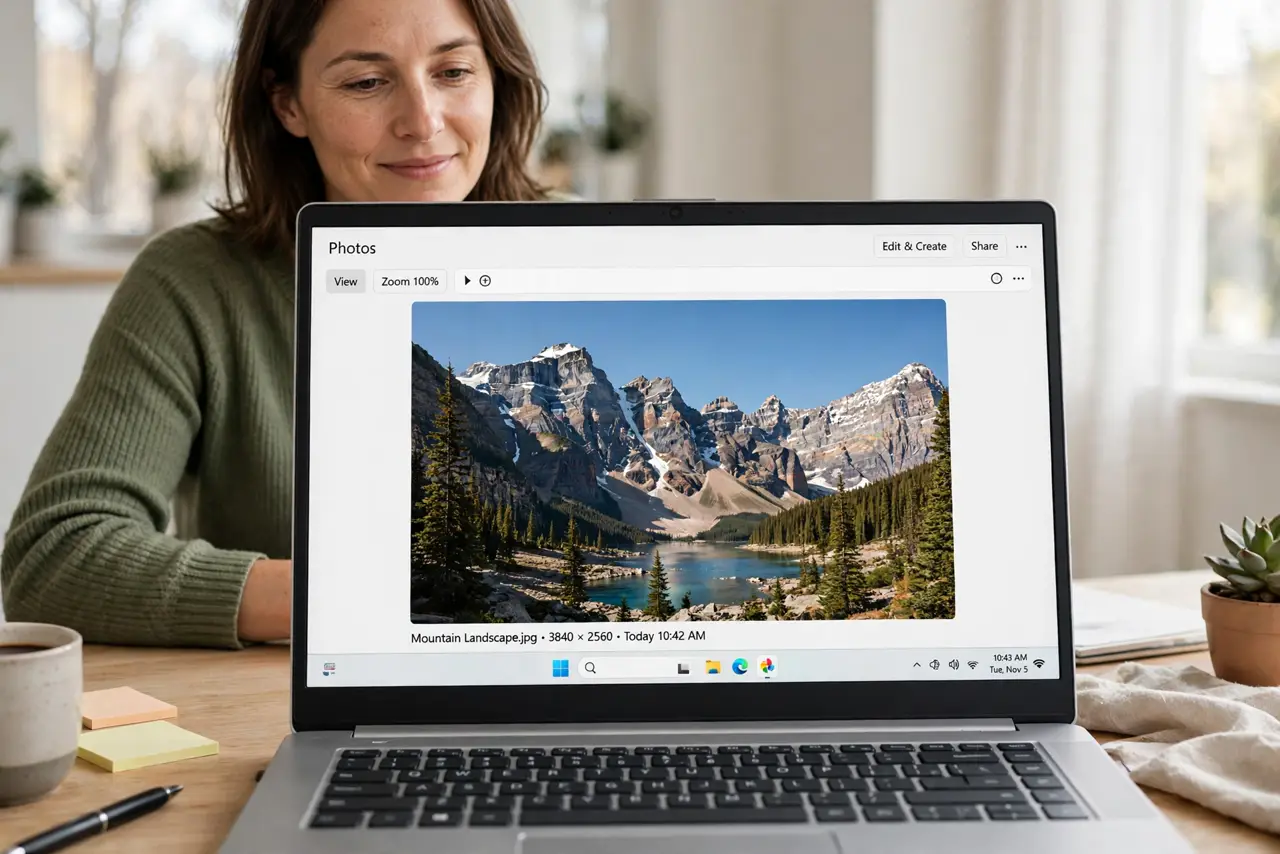
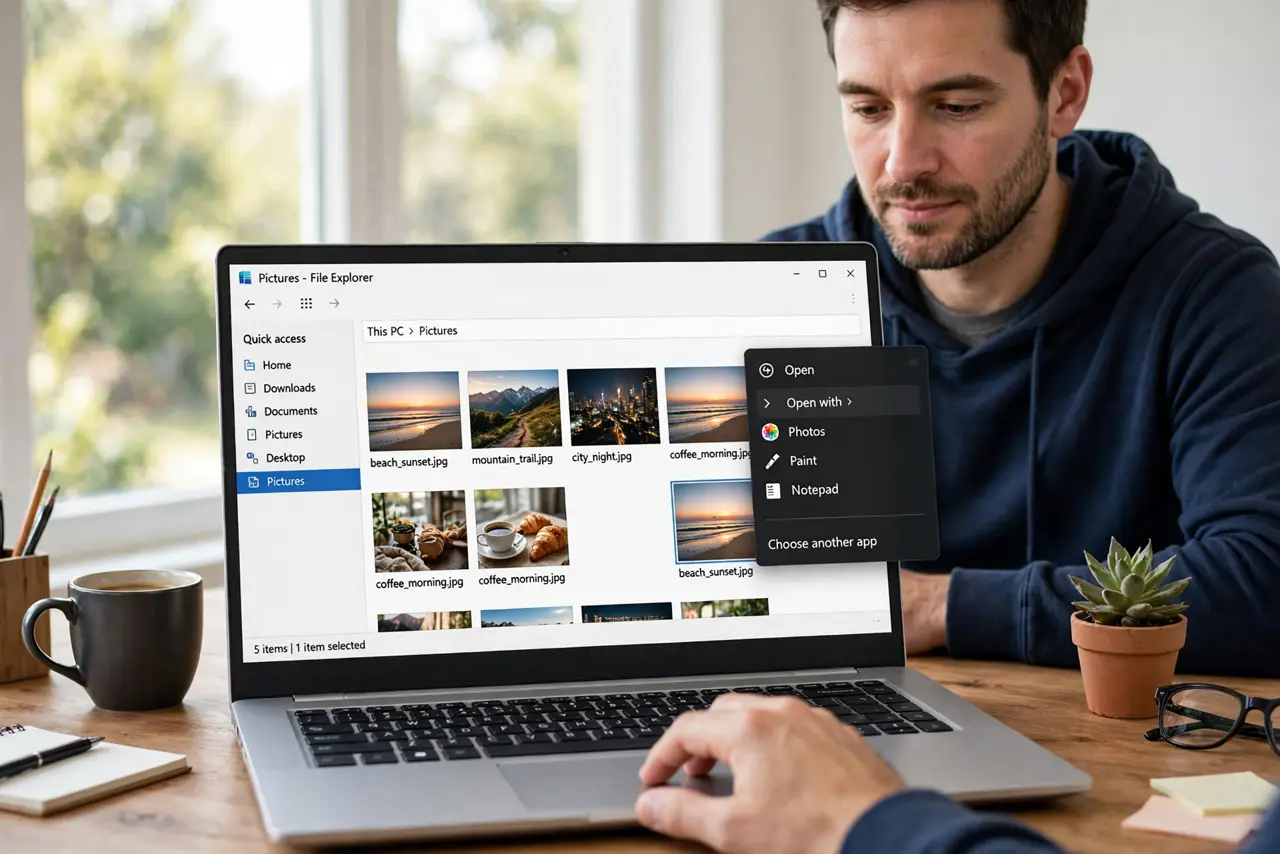
Quick fix: right-click a photo, choose Open with, then Choose another app, pick the Photos viewer, and tick Always use this app. Open a second photo to confirm it opens in the viewer, not the editor, every time. Test it once more after a restart to confirm the fix holds.
Follow these steps
- Set the default from a photo file. Right-click any photo, choose Open with, then Choose another app. Pick the Photos viewer and tick Always use this app for this file type.
- Confirm in Default apps settings. Open Settings, then Apps, then Default apps, and check the defaults for common photo types, such as JPG and PNG. Set the viewer for each type you use.
- Test with a second photo type. Open a JPG and then a PNG. If one type still opens in the editor, set its default separately, because Windows stores defaults per file type.
- Keep the editor for editing only. When you want to edit, right-click the photo and choose Open with, then the editor, without ticking Always. That edits one photo without changing the viewer default.
- Reset the photo default if it flips back. If the default keeps flipping, reset the photo associations in Default apps and set the viewer again. A reset clears a conflicting choice.
- Check new app installs after setting it. When you install a new photo app, it may ask to become the default. Say no unless you want it as your everyday viewer.
What NOT to do
- Do not install a new viewer to fix a default. The default setting is the problem, and a new app will not set itself as default on its own.
- Do not tick Always when opening one photo in an editor. That one tick changes the default for every photo of that type, which is how the problem starts.
- Do not change photo file extensions to force an app. Renaming a JPG to another extension breaks the photo for every app, not just the wrong one.
- Do not delete the editor to fix the viewer. You may want the editor later, and deleting it does not set the viewer as default anyway.
Frequently asked questions
Why does one photo type still open in the editor?
Windows stores defaults per file type. Setting JPG does not set PNG, so set each photo type you actually use.
Will the viewer let me edit at all?
Yes, for basic edits like crop and rotate. For deeper edits, use Open with and pick the editor for that one photo.
What if Photos is missing from Open with?
Choose Choose another app, then look for Photos in the full list, or set it in Default apps settings instead.