Pinned App Unpins Itself? Keep It on the Taskbar
You pin an app, and a day later it is gone from the taskbar again. An update, a different shortcut, or a second user profile can each explain it. Repin the right shortcut and watch what changes next.
TL;DR / Quick Fix
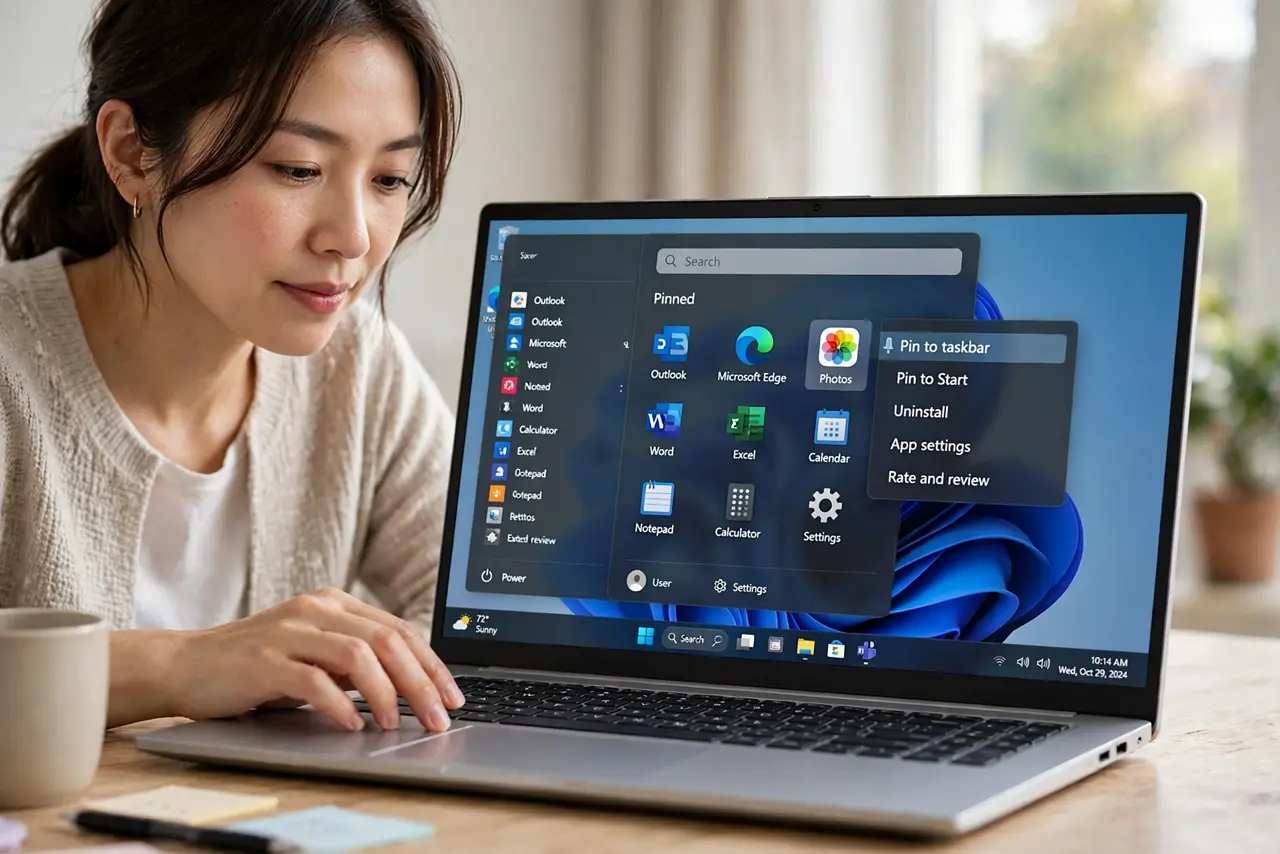
Quick fix: open the app from Start, right-click its icon, and choose Pin to taskbar again, then restart and check it is still there. If it vanishes after an update, repin after the update finishes, since updates can replace the shortcut you pinned.
Follow these steps
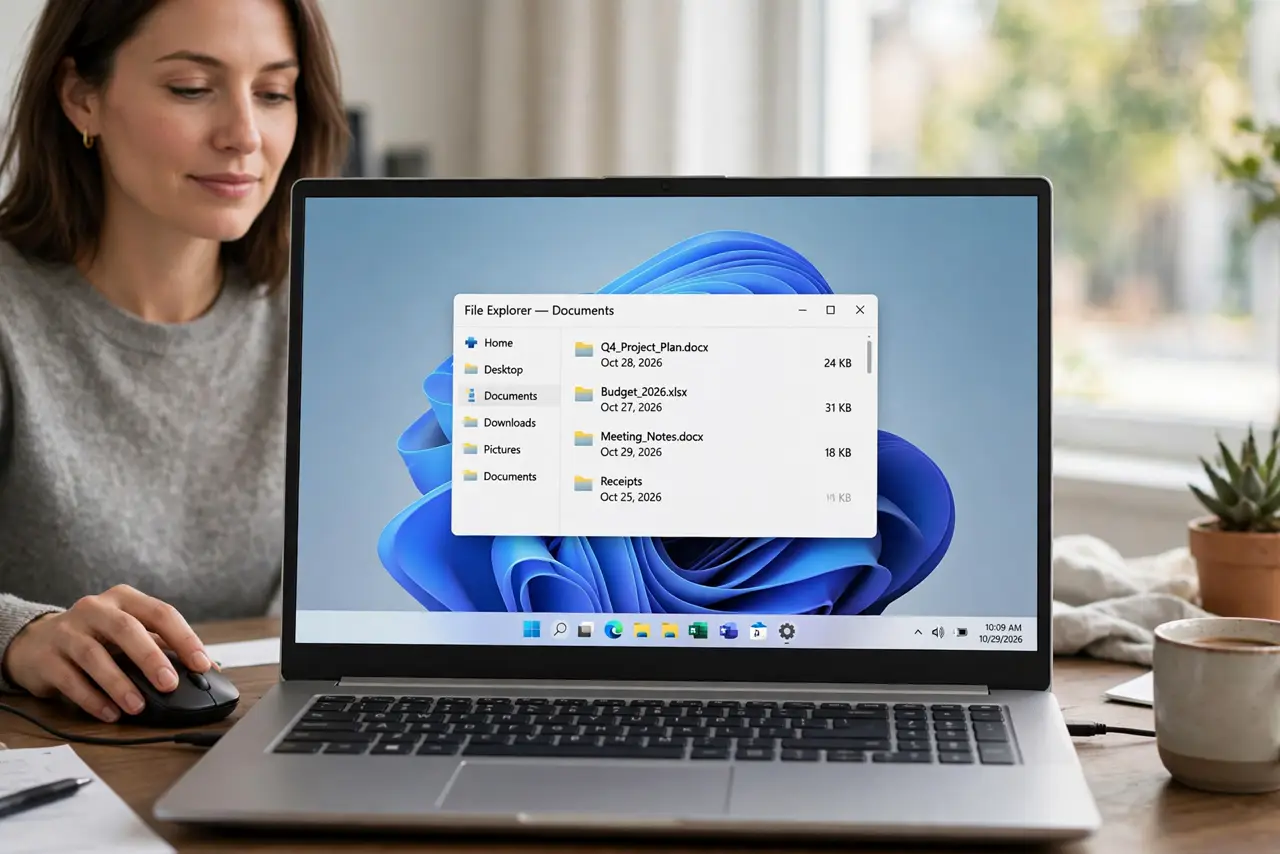
- Repin from Start. Open Start, find the app, right-click it, and choose Pin to taskbar. Pinning from Start uses the current app shortcut, which is more reliable than pinning a leftover desktop icon.
- Restart and check. Restart the computer and look at the taskbar before opening anything else. If the pin survives a restart, the earlier loss was a one-time event, not a setting.
- Check for a recent update. If the pin vanished after an update, note the update date. Updates can replace app shortcuts, and repinning after the update usually ends the problem.
- Confirm the right shortcut. Check whether you pinned a launcher, a web shortcut, or the app itself. A launcher that updates can drop its pin, while the main app shortcut holds steadier.
- Check the user profile. Confirm you are signed into the same user account as before. Taskbar pins belong to a user profile, so a different account will show a different taskbar.
- Repin once more after any change. After an update or profile check, repin the app once more and restart. A pin set after the last change is the one most likely to stick.
What NOT to do
- Do not pin the same app from three places at once. Multiple pins for one app create duplicates and confusion about which pin vanished.
- Do not assume a missing pin means the app uninstalled. Check Start first: if the app is still there, only the pin is gone, not the app.
- Do not repin during an update. Wait for the update to finish, or the new shortcut may replace your fresh pin again.
- Do not ignore a profile switch. A guest or second account will never show your pins, no matter how often you repin while signed into it.
Frequently asked questions
Why do pins vanish after updates?
Updates can replace the shortcut behind the pin. Repinning after the update points the taskbar at the new shortcut.
Is the app gone if its pin is gone?
No. Check Start. A missing pin only means the taskbar shortcut is gone; the app itself usually remains installed.
Can two accounts share pins?
No. Pins belong to each user profile, so each account keeps its own taskbar layout.