Stop a Program Running After You Close It
Some programs keep running after you close their window because they are designed to stay in the system tray, or because a background setting keeps them alive. That is not always a fault, but it can slow your computer and drain a laptop battery. Find where it is hiding first.
TL;DR / Quick Fix
Quick fix: check the system tray for the program icon and quit it there. Then open the app settings and turn off Run in background or Minimize to tray if you do not need it. Finally, check Startup apps and background permissions in Windows Settings.
Follow these steps
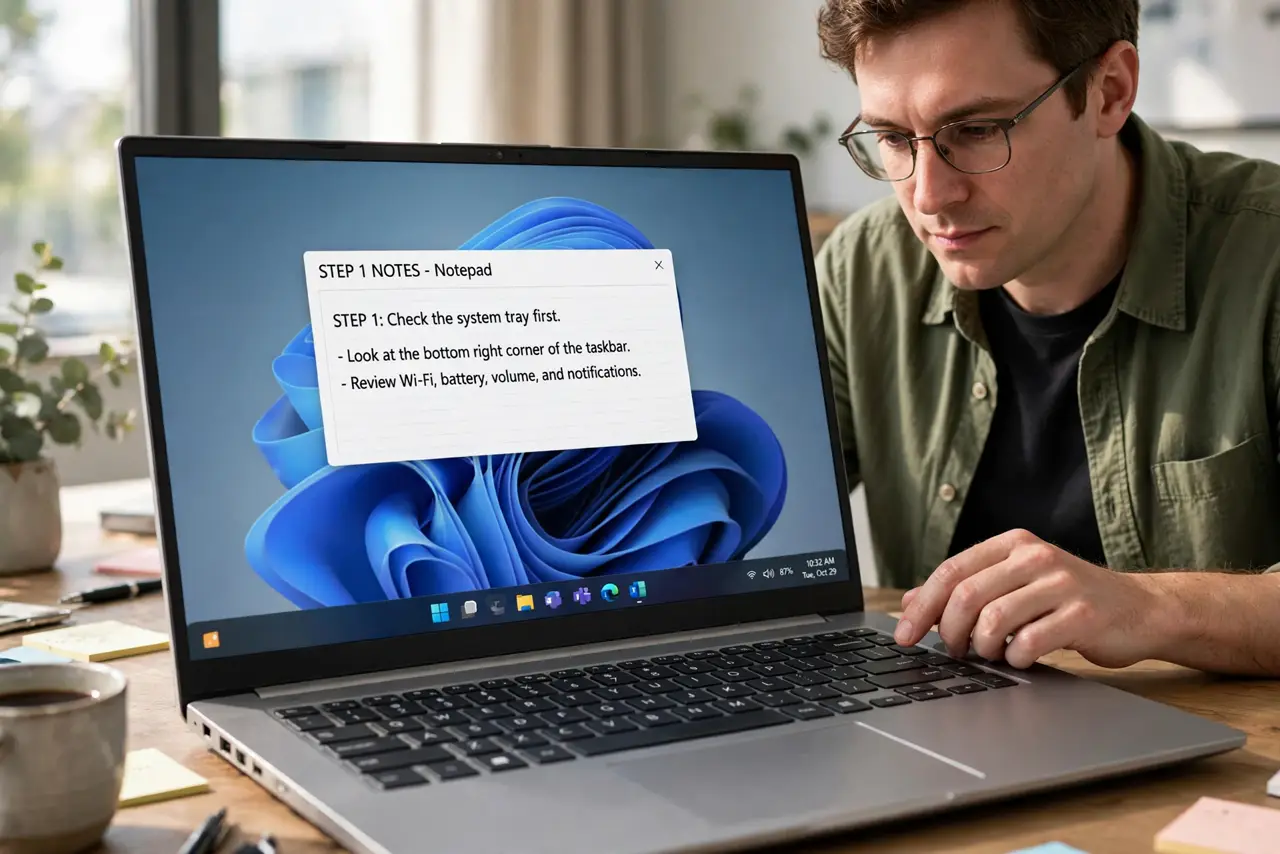
- Check the system tray first. Click the small up arrow near the clock to show hidden icons. If the program icon is there, right-click it and choose Quit or Exit to close it fully.
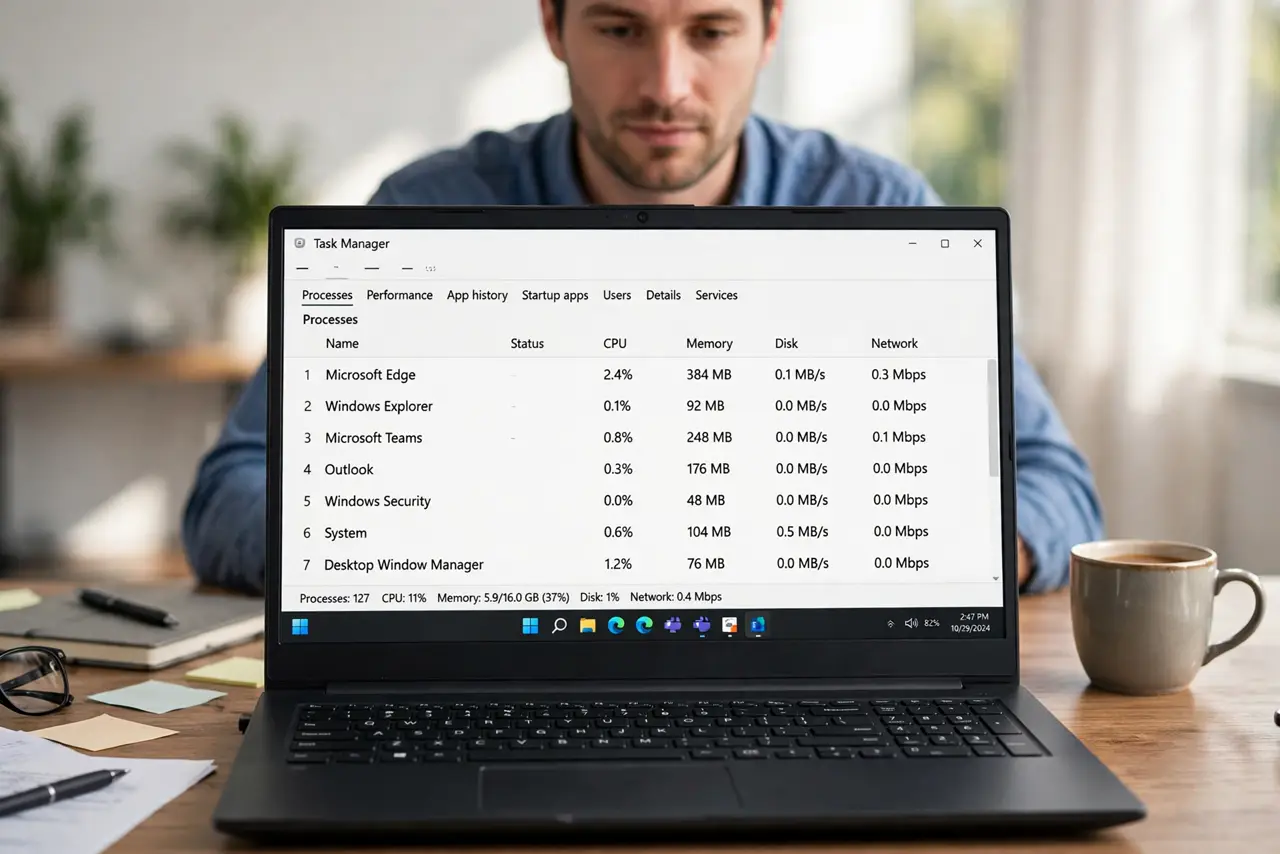
- Use Task Manager to confirm it closed. Open Task Manager, find the program under Apps or Background processes, and check whether it is still listed after you quit it from the tray.
- Change the app's close behavior. Open the app's settings and look for options like Minimize to tray, Close to tray, or Run in background. Turn them off if you want closing the window to really close the app.
- Turn off background permission in Windows. Open Settings, then Apps, then Installed apps, find the app, open Advanced options, and set Background apps permissions to Never if you do not need it running.
- Check Startup apps. Open Task Manager, then Startup apps, and disable the program if it starts with Windows and you do not need it immediately at login. You can still open it by hand later.
- End the task only as a last step. If the program is stuck and will not quit, select it in Task Manager and choose End task. Save your work in other apps first, since ending a stuck program can lose its unsaved work.
What NOT to do
- Do not end tasks at random in Task Manager. Ending a system process can crash Windows, so end only the program you recognize.
- Do not assume closing the window closed the app. Check the system tray, since many chat, music, and backup apps keep running there by design.
- Do not disable every background app at once. Some apps need background permission for notifications or syncing that you actually want.
- Do not reinstall the app to fix this. A program that minimizes to the tray will do the same after reinstalling unless you change its setting.
Frequently asked questions
Why does the program stay in the system tray?
Many chat, music, cloud, and security apps are designed to keep running so they can show notifications or sync without an open window.
Is a background program slowing my computer?
It can, especially on an older computer. Check Task Manager for its memory and processor use before deciding to disable it.
Will turning off background permission break the app?
The app will still open normally by hand. It just will not run, sync, or notify you while its window is closed.