How to Remove a Virus Warning Pop-Up Safely
A page suddenly claims your device is infected, shows a scary countdown, and urges you to call a number or download a fix. That is not a real security warning — it is a scam page trying to frighten you into paying or installing something harmful. Stay calm and close it, do not follow its instructions.
TL;DR / Quick Fix
Quick fix: Do not click anything inside the pop-up. Close the tab or the browser. If the browser will not close, restart your device. Clear the browser data for that site if it returns. Run a security scan with your built-in tools. Check for anything you did not agree to.
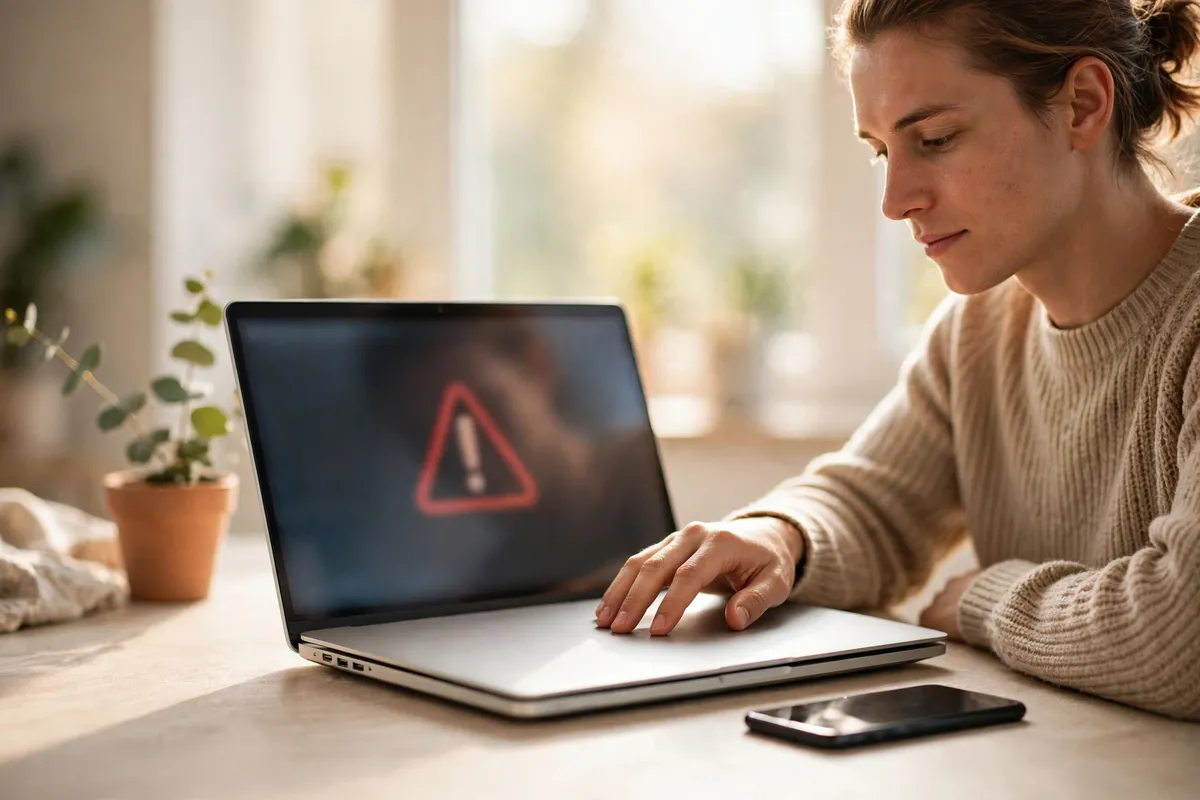
Follow these steps
- Do not click anything inside the pop-up. Do not click its buttons, its close cross, or any download or call option. Those buttons are part of the scam and may open more pages or start an unwanted download.
- Close the tab or the browser. Close the tab the warning appeared in. If the page keeps reappearing, close the whole browser. On a phone, swipe the browser away from your recent apps, then reopen it fresh.
- If the browser will not close, restart your device. If a pop-up has trapped the screen, restart your phone or computer. That breaks the page's hold without you having to click anything inside it.
- Clear the browser data for that site if it returns. If the warning comes back when you reopen the browser, clear recent browsing data or set the browser to open a blank page instead of restoring the last session. Then reopen it and check that the warning is gone.
- Run a security scan with your built-in tools. Use the security or antivirus tools already on your device to run a scan. If the scan finds nothing and you never clicked, downloaded, or called anything, you are almost certainly fine.
- Check for anything you did not agree to. Look at your recent downloads and installed apps or programs. If you see something unfamiliar that appeared at the same time, remove it and run another scan.
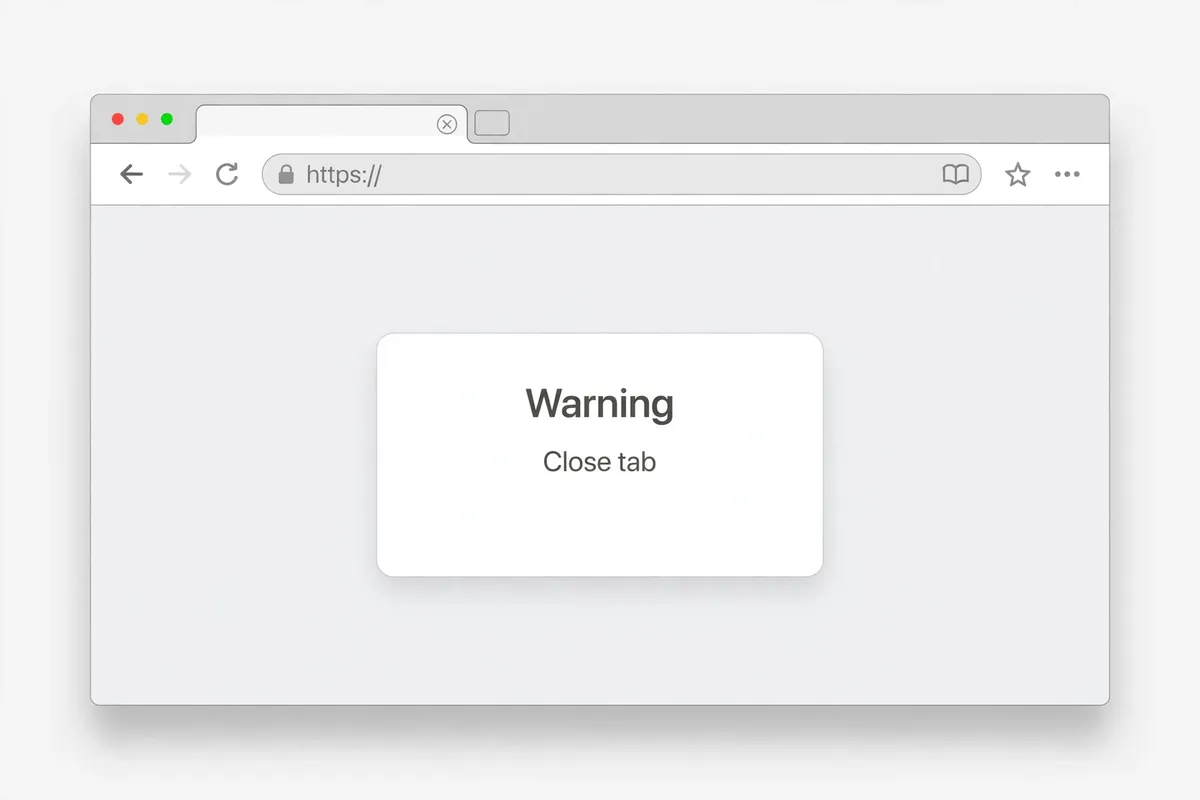
What NOT to do
- Do not call any phone number shown in a warning pop-up — real security software does not work that way.
- Do not download a cleaner, fixer, or security tool the pop-up recommends.
- Do not enter payment details or allow remote access to someone who contacted you through a pop-up.
- Do not keep clicking close buttons inside the page hoping one of them will work.
If the warning is gone and your scan is clean, you can carry on as normal. If you did call a number, pay, or install something, change your passwords, check your bank statements, and consider asking a trusted technician for help.
Frequently asked questions
What is the quickest fix in this guide?
Do not click anything inside the pop-up.
What should I avoid doing?
Do not call any phone number shown in a warning pop-up — real security software does not work that way.
What do I check after I finish?
Check for anything you did not agree to.