How to Spot Fake Download Buttons and Malicious Ads
Search for a program and the results page is full of big Download buttons — but most of them are ads, and the real download is a small link further down. Clicking the wrong button can install something you never wanted. Learning the difference takes less than a minute once you know what to look for.
TL;DR / Quick Fix
Quick fix: Look for the small Ad label first. Read the button text carefully. Check the domain before you click. Go to the official site yourself. Read the installer steps, not just the big button. If something unexpected downloads, do not open it.
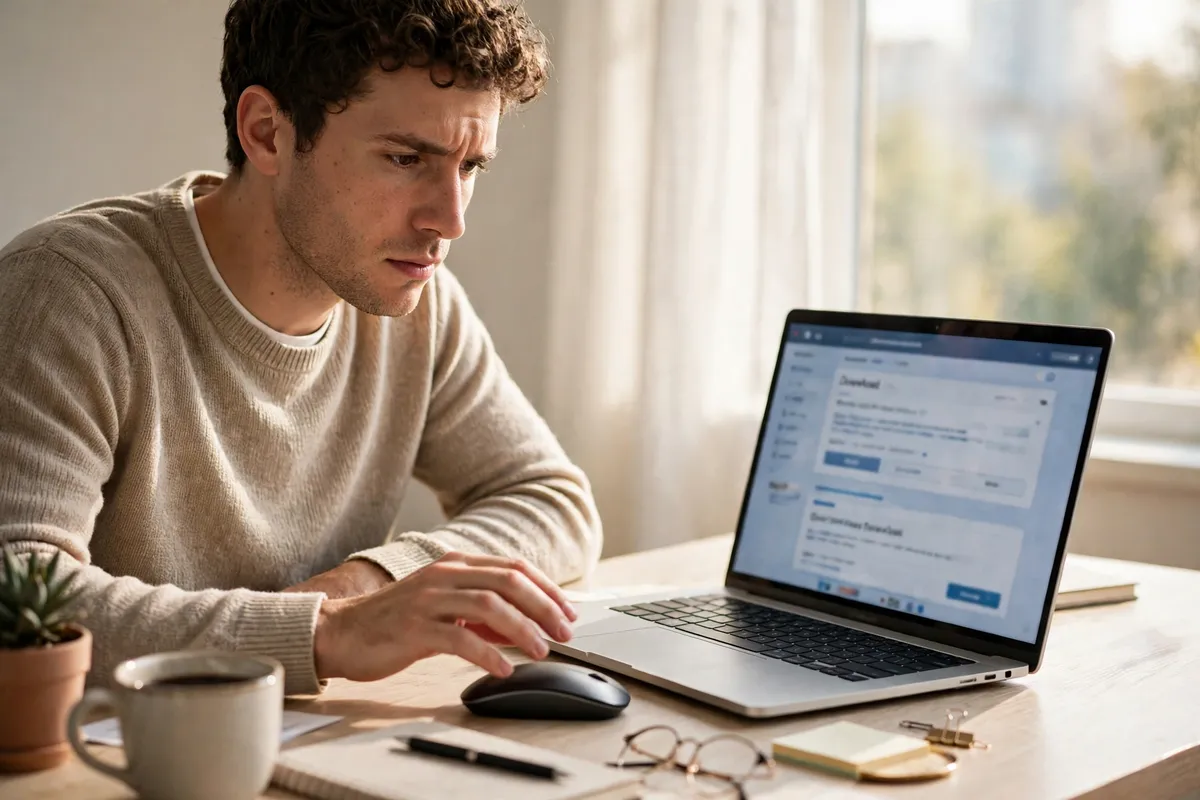
Follow these steps
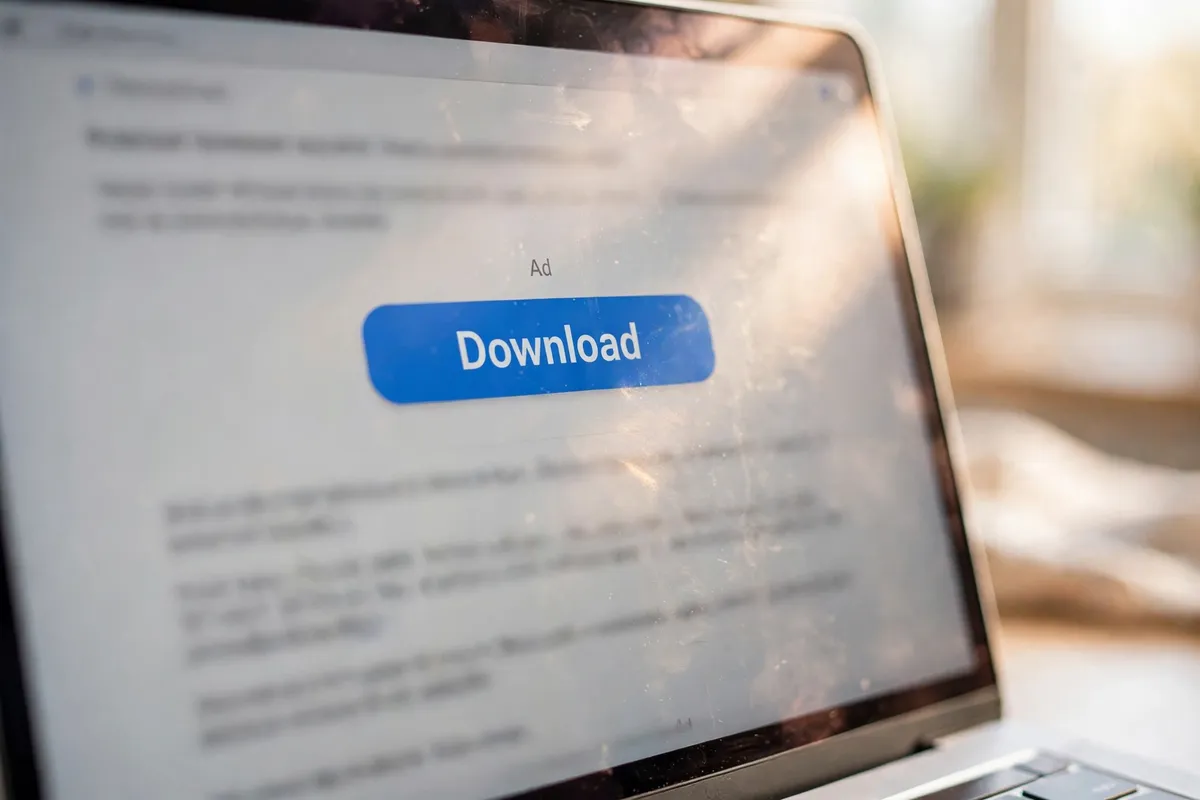
- Look for the small Ad label first. Before you click anything, scan the page for a small Ad or Sponsored label near a button. Advertisers pay to place big, bright download buttons above the real one. The label is your first and easiest clue.
- Read the button text carefully. A real download button usually names the program and, often, the version or system it is for. Vague buttons that just say Download Now, Free Download, or Start Download — especially several of them — are usually ads.
- Check the domain before you click. Hover over the button or link and read the address shown. It should match the official site of the program you want. A slightly different spelling, an extra word, or an unfamiliar domain means stop.
- Go to the official site yourself. The safest route is to skip the search results page entirely: type the program maker's official address yourself, or use a download page you already trust, and download from there.
- Read the installer steps, not just the big button. Even on a genuine site, installers sometimes offer extra software. Read each step, decline anything extra you did not ask for, and choose a custom install if it is offered.
- If something unexpected downloads, do not open it. If a file appears that you did not expect, or the file name does not match the program, do not open it. Delete the file and start again from the official site.
What NOT to do
- Do not click the biggest download button on a search results page without checking the Ad label and the domain.
- Do not download software from a mirror, a download portal, or a site you have never heard of when the official site exists.
- Do not accept extra programs bundled into an installer without reading what they are.
- Do not trust a button just because it looks professional — ads are designed to look convincing.
Once you know the pattern — label, button text, domain — you will spot fake buttons almost automatically. It is a small check that saves you from the most common way unwanted software gets onto a computer.
Frequently asked questions
What is the quickest fix in this guide?
Look for the small Ad label first.
What should I avoid doing?
Do not click the biggest download button on a search results page without checking the Ad label and the domain.
What do I check after I finish?
If something unexpected downloads, do not open it.