Safe Mode Exit Loop? Get Back to Normal Fast
Every restart lands you back in Safe Mode, with a plain desktop and limited features. A boot setting is telling Windows to stay in Safe Mode, and turning that setting off is the way out.
TL;DR / Quick Fix
Quick fix: open System Configuration, go to the Boot tab, and uncheck Safe boot, then restart. If you cannot reach that setting normally, use the sign-in screen restart options to reach recovery, then change the boot setting and restart again.
Follow these steps
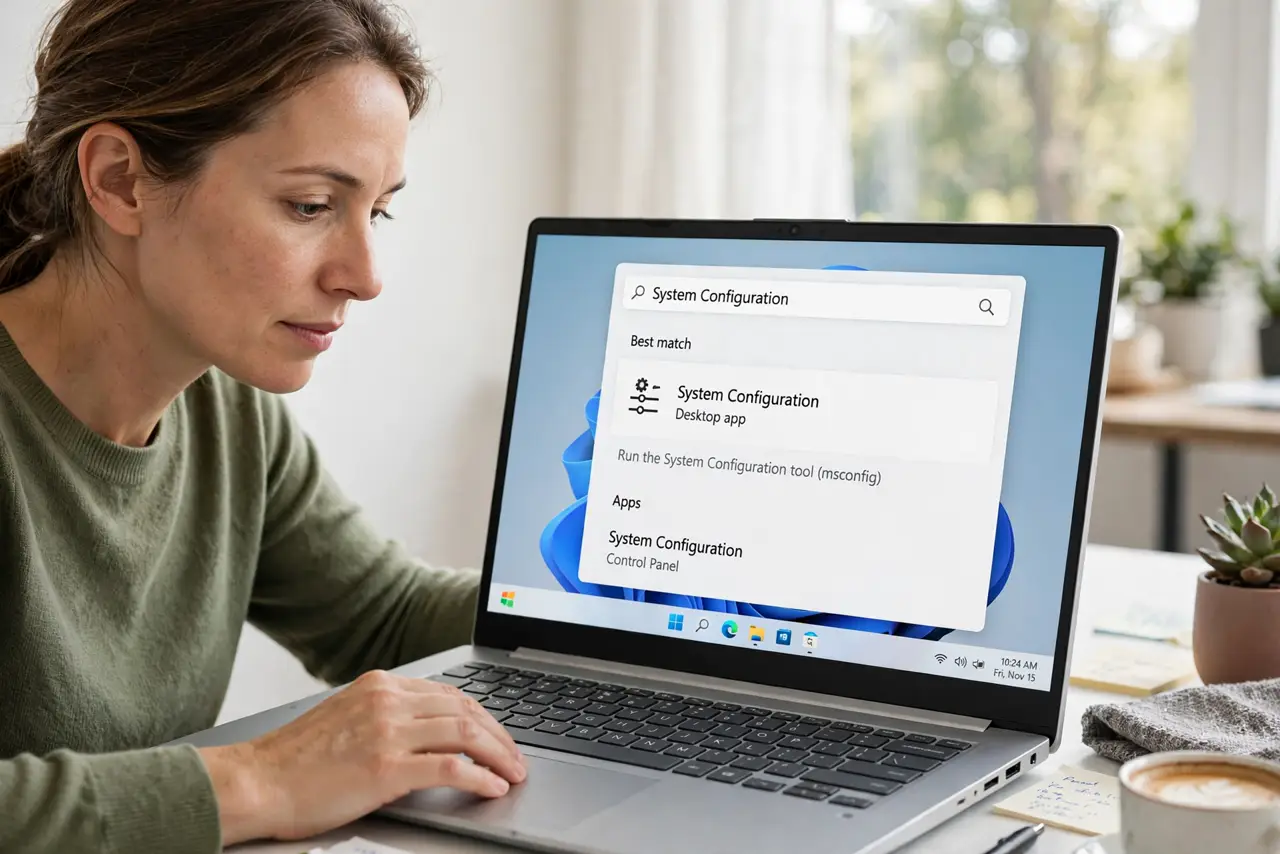
- Open System Configuration. In Safe Mode, search for System Configuration and open it. This tool holds the boot option that can lock Windows into Safe Mode.
- Uncheck Safe boot. Go to the Boot tab and uncheck Safe boot if it is checked. This single checkbox is the most common cause of a Safe Mode loop.
- Confirm a normal startup. On the General tab, confirm Normal startup is selected. A selective or diagnostic startup can also keep Windows in a limited mode.
- Apply and restart. Click Apply, then OK, then restart when asked. Do not open other settings first; a clean restart is the test that matters.
- Use recovery options if you cannot reach settings. If settings will not open, hold Shift while choosing Restart from the sign-in screen, then use recovery options to reach a command or settings route and clear the Safe boot flag.
- Test two normal restarts. After the first normal boot, restart once more and confirm Windows boots normally again. Two clean boots prove the loop is broken, not just skipped once.
What NOT to do
- Do not keep restarting hoping Safe Mode will end on its own. A checked Safe boot setting persists across restarts until you uncheck it.
- Do not reinstall Windows to escape Safe Mode. The boot setting is a checkbox, and a reinstall is a far bigger step than the problem requires.
- Do not change other boot options while fixing the loop. Change Safe boot only, so you know exactly what broke the loop.
- Do not ignore a loop that returns after you unchecked Safe boot. A returning loop points at a startup item or driver that needs a separate look.
Frequently asked questions
What is Safe Mode?
It is a limited Windows mode that loads only basic drivers and services, useful for troubleshooting. It is not meant as a daily mode.
Why does Windows keep booting into Safe Mode?
Usually the Safe boot checkbox in System Configuration is checked, which tells Windows to use Safe Mode on every boot.
Is my data safe in Safe Mode?
Yes. Safe Mode limits features, but your files remain in their folders and are accessible once Windows boots normally again.