Screen Goes Black for a Second? Fix It
A screen that blinks black for a second is annoying, but it rarely means the monitor is dying. The cause is often a loose cable, a refresh rate the monitor dislikes, or a driver hiccup, and each has a simple test.
TL;DR / Quick Fix
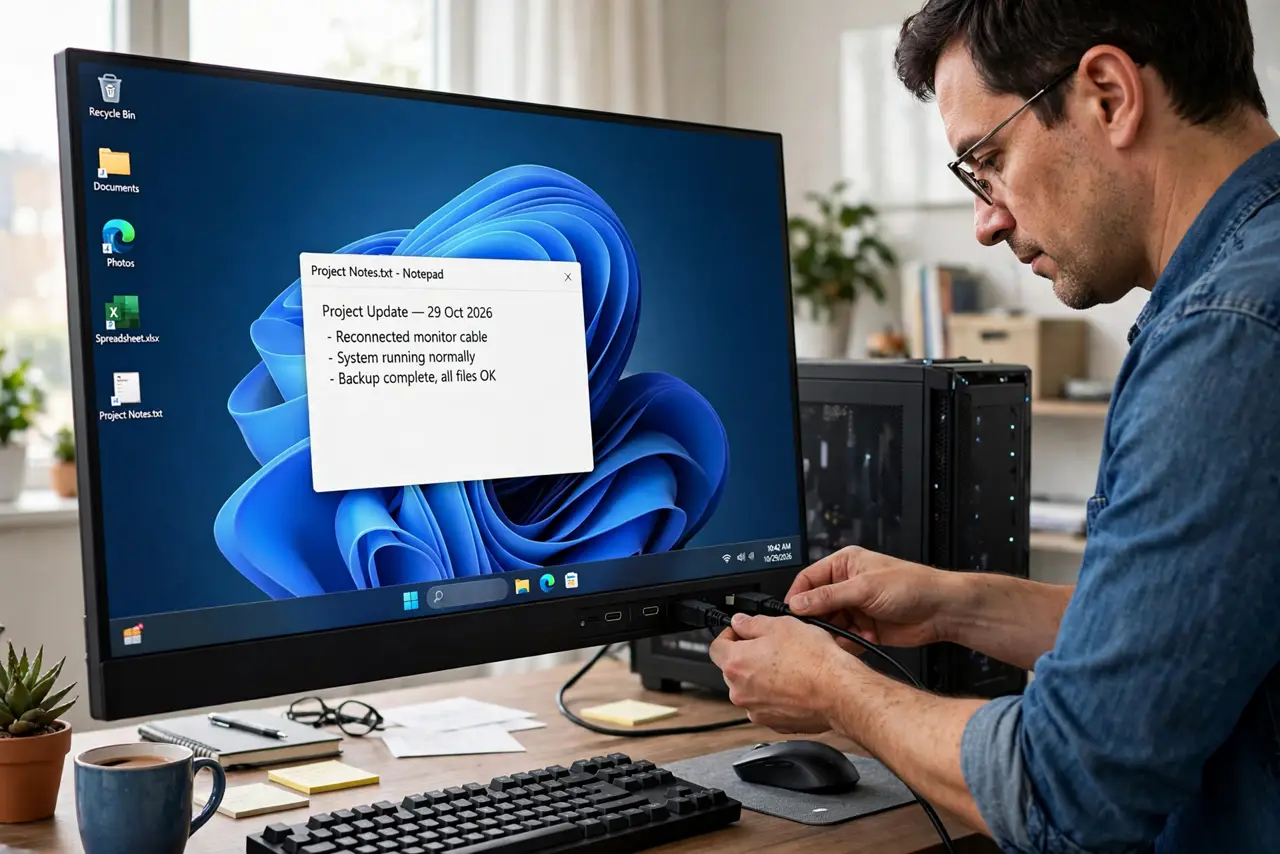
Quick fix: unplug the monitor cable at both ends and plug it back in firmly, then check that the monitor power cable is snug. If the blinking continues, open Display settings and try a lower refresh rate. If it stops, the rate or the cable was the cause.
Follow these steps
- Reseat the video and power cables. Unplug the monitor cable at both ends and plug it back in firmly. Do the same for the power cable, because a loose power connection can also cause brief blackouts.
- Try a different cable if you have one. Swap in another cable of the same type. If the blinking stops, the old cable was the cause, even if it looked fine.
- Try a lower refresh rate. Open Settings, then System, then Display, then Advanced display, and try a lower refresh rate. If the blinking stops, the higher rate was too much for the cable or monitor.
- Check whether it happens in one app only. Note whether the blink happens everywhere or only in one app or game. If it is one app, check that app display settings before blaming the monitor.
- Update the graphics driver from the maker. If the cable and rate do not fix it, update the graphics driver through Windows Update or the graphics maker official site. Restart after the update and watch for blinks.
- Try the monitor on another computer. Connect the monitor to a second computer. If it blinks there too, the monitor or its cable is the cause. If not, the first computer is.
What NOT to do
- Do not open the monitor to fix a blink. Monitors hold charge inside and need a repair shop, not a home repair, if the fault is internal.
- Do not set the highest refresh rate and resolution at once while testing. Change one setting at a time, or you will not know which one caused the blink.
- Do not keep using a damaged cable with exposed wires. Replace it, because a damaged cable can cause worse problems than a blink.
- Do not reinstall Windows for a blinking screen. A cable, rate, or driver check fixes most blinks, and a reinstall will not fix a loose cable.
Frequently asked questions
Why does the screen blink only when I open a game?
Games can switch resolution or refresh rate. Check the game display settings and match them to what your monitor supports.
Is a one-second blackout a failing monitor?
Not usually. Cables and refresh rates cause most brief blinks. Test another cable and another computer before judging the monitor.
Should I worry if it blinks once after waking?
A single blink on wake is often the display renegotiating its signal. Worry only if blinking repeats during normal use.