'Ask App Not to Track'? Use It
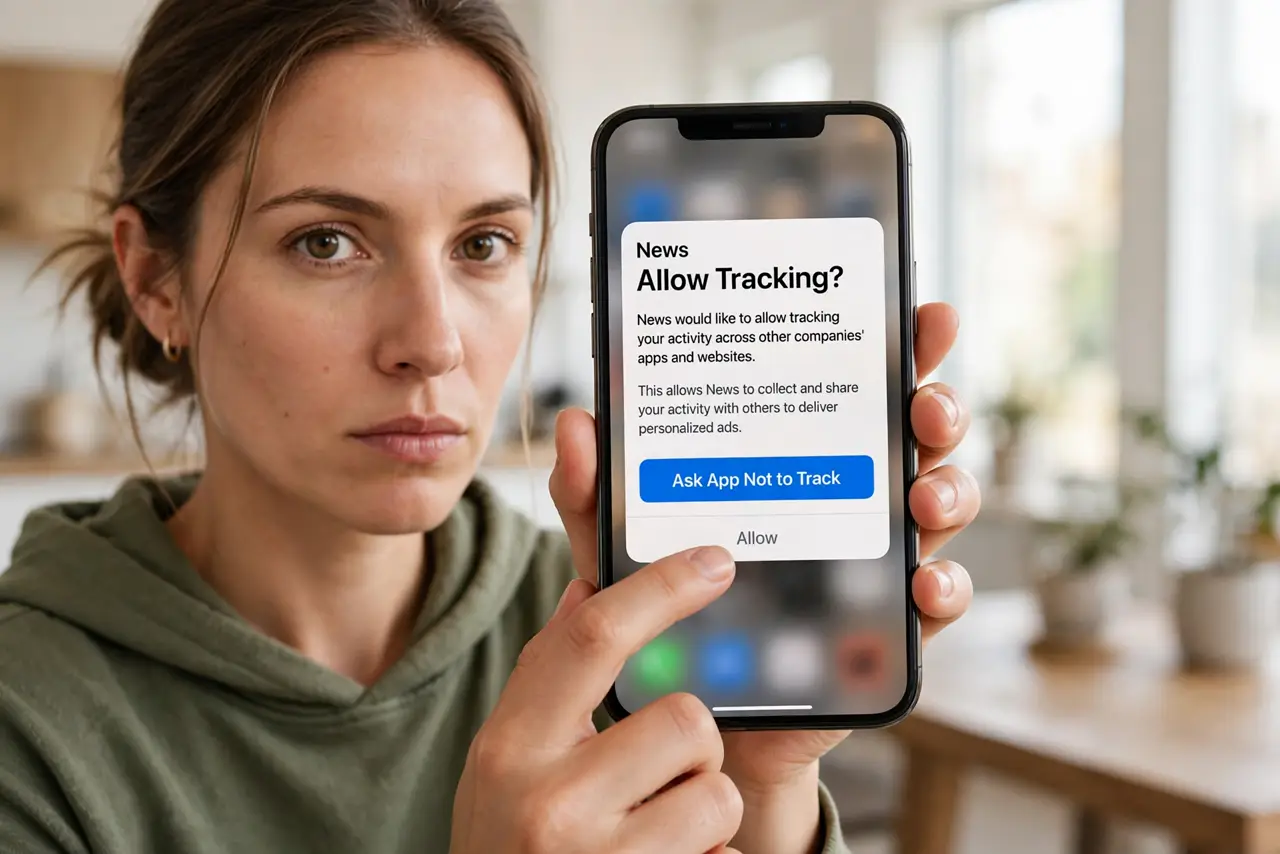
That little popup — Ask App Not to Track — is the most powerful privacy button on your iPhone, and most people tap Allow out of habit. When you allow tracking, the app can follow what you do across other companies' apps and websites to build an ad profile of you. Tapping Ask App Not to Track cuts that off at the source.
TL;DR / Quick Fix
Quick fix: tap 'Ask App Not to Track' whenever an app asks — it stops the app from following your activity across other apps and websites for ads. You can also set it for all apps at once in Settings > Privacy & Security > Tracking.
Follow these steps
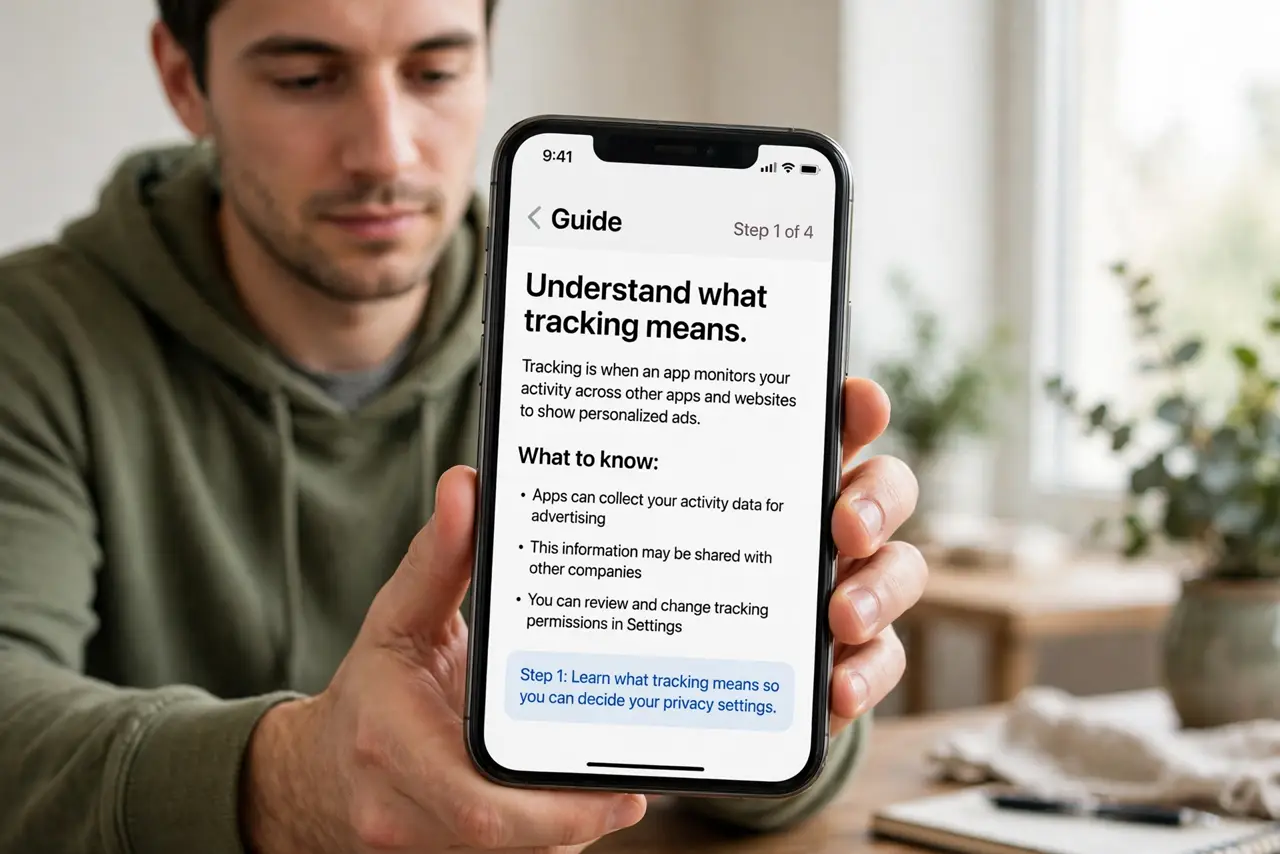
- Understand what tracking means. Tracking lets an app connect your activity across other apps and websites — what you shop for, read, and tap — into one advertising profile. It is not needed for the app to function.
- Tap Ask App Not to Track by default. When the popup appears on first launch, choose the not-to-track option. The app works exactly the same; only the cross-app data pipeline is cut.
- Audit the ones you already allowed. Go to Settings, then Privacy & Security, then Tracking, to see every app you ever allowed. Switch off the ones you do not recognize or do not trust — the change applies immediately.
- Turn off Allow Apps to Request to Track. On the same screen, disabling the master switch stops the popups entirely and denies all future requests automatically. Set it once, never decide again.
- Know what this does not stop. The app still collects what you do inside itself, and you will still see ads — just less creepily targeted ones. For the rest of your footprint, manage location history and web activity separately.
- Check Android's equivalent. Android has its own ad-privacy controls that limit cross-app tracking. The names differ, but the principle is identical: deny by default, audit the exceptions.
What NOT to do
- Do not tap Allow just to dismiss the popup faster. That one tap is the whole business model of data brokers.
- Do not assume paid apps respect you more. Plenty of paid apps still request tracking — the popup, not the price tag, is what matters.
- Do not confuse this with location permission. Tracking is about cross-app ad profiling; location is separate and controlled in its own settings.
- Do not expect zero ads afterward. You will see ads — they just will not follow you around the internet based on other apps' data.
Frequently asked questions
Does Ask App Not to Track break apps?
No. Apps must function identically whether you allow or deny — the setting only governs cross-app data sharing for advertising. If an app claims otherwise, that is a dark pattern.
Why do free apps ask so aggressively?
Because your behavioral data is how free apps get paid. The more complete the profile, the more advertisers pay — your tap is literally worth money to them.
Is this enough for real privacy?
It is the biggest single lever on iPhone, but not the whole job. Pair it with limited photo access, location controls, and auto-deleting web activity.