Shared Folder Not Visible on the Network? Fix It
You shared a folder, but the other computer cannot see it at all. Both computers have to be on the same kind of network, with discovery on, and the folder actually shared. Check those three things in order.
TL;DR / Quick Fix
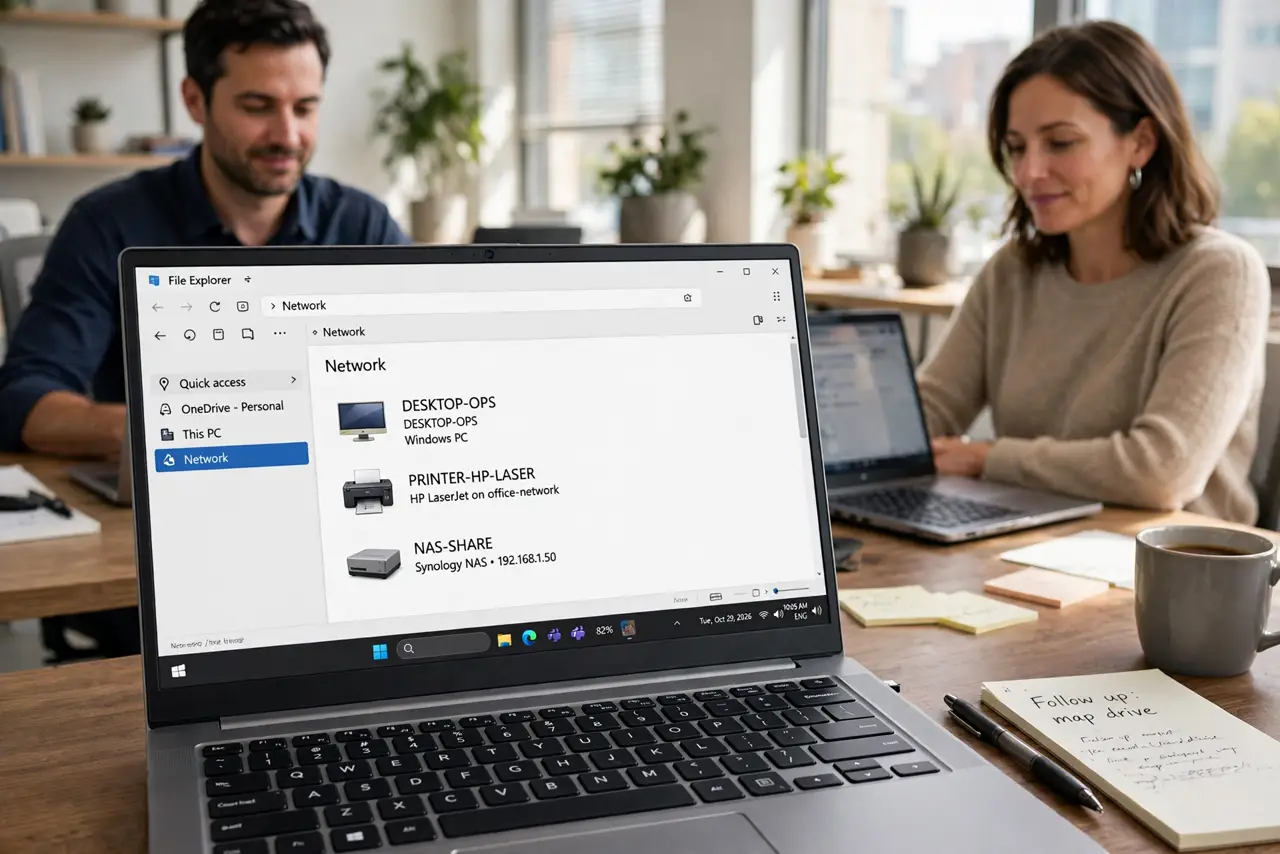
Quick fix: on the sharing computer, confirm the network is Private, turn on network discovery and file sharing, and confirm the folder is shared. Then on the other computer, open File Explorer, then Network, refresh, and look for the sharing computer by name.
Follow these steps
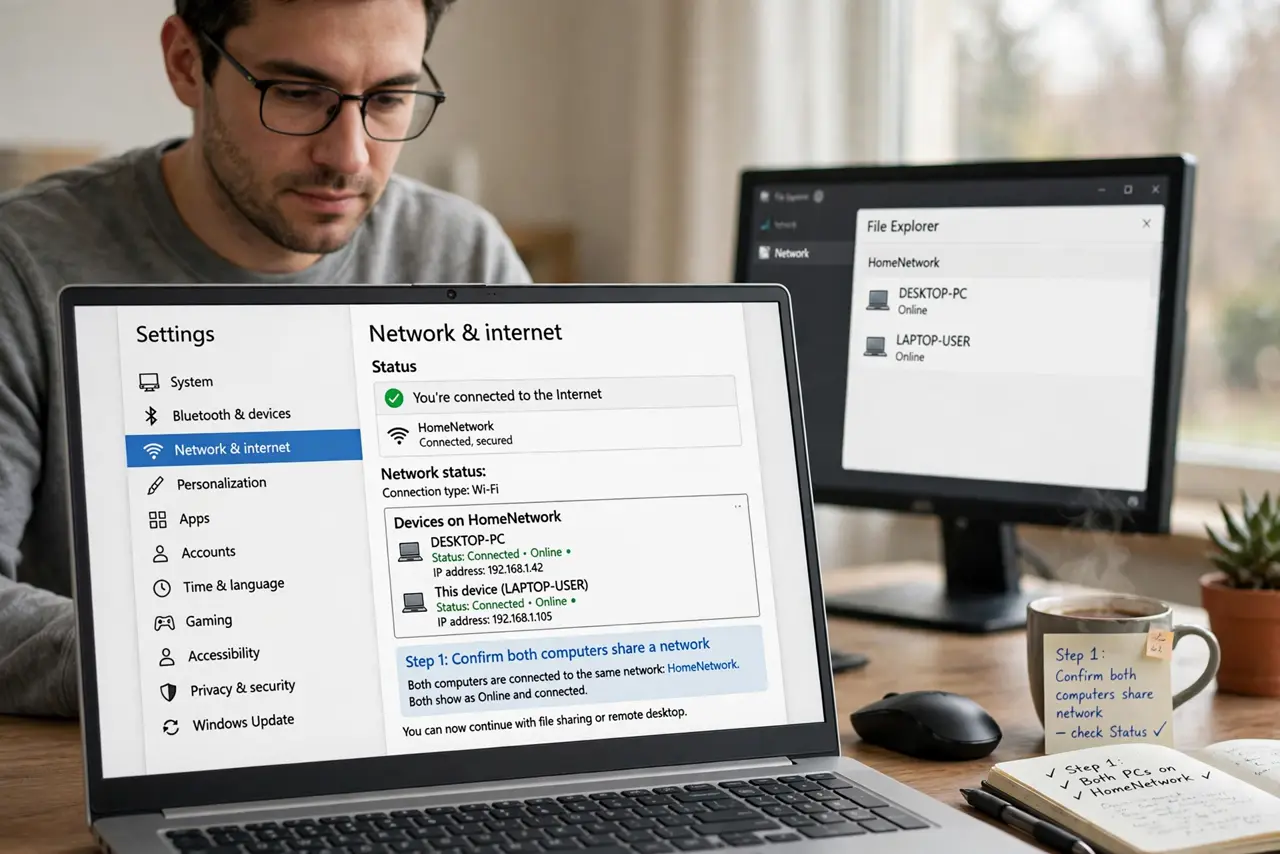
- Confirm both computers share a network. Check that both computers connect to the same Wi-Fi network or the same router. Computers on different networks, or one on a guest network, cannot see each other.
- Set the network profile to Private. On the sharing computer, open Settings, then Network and internet, then Wi-Fi or Ethernet, and set the network profile to Private. A Public profile blocks discovery by design.
- Turn on network discovery and sharing. Open Settings, then Network and internet, then Advanced network settings, then Advanced sharing settings, and turn on network discovery and file and printer sharing for Private networks.
- Confirm the folder is actually shared. Right-click the folder, choose Properties, then Sharing, and confirm it shows as Shared. A folder you meant to share but never confirmed can look shared in your head while Windows disagrees.
- Refresh the Network view. On the other computer, open File Explorer, then Network, and refresh the view. Network lists update slowly, so wait a few seconds before concluding the folder is missing.
- Restart both computers if needed. Save work on both computers, restart them, and check the Network view again. A restart clears stale network listings on both sides at once.
What NOT to do
- Do not turn off the firewall completely to force visibility. A Private profile with discovery on is the intended path, and a disabled firewall removes protection you need.
- Do not share the whole drive to make a folder appear. Share only the folder you need, so a visibility fix does not become a privacy problem.
- Do not test from a guest network. Guest networks isolate devices on purpose, so a shared folder will never appear from one, no matter what you change.
- Do not assume the folder is shared because you can see it locally. Sharing is a separate state, and only the Sharing tab in Properties confirms it.
Frequently asked questions
Why can I see the computer but not the folder?
The computer is discoverable, but the folder itself may not be shared, or its sharing permissions may exclude the other computer. Check the folder Sharing tab.
Does the network have to be Private?
Yes, for home sharing. A Public profile blocks discovery, which is correct for cafes and airports but wrong for a trusted home network.
How long should Network discovery take?
Usually seconds, but it can take longer after a restart. Refresh the Network view and wait before changing more settings.